
Quick Reference Card#
The Quick Reference Card (CITApp-Quick-Reference.pdf) is a condensed 6-page desk reference designed for printing. It covers the most essential information from across the platform in a compact format.
Table of Contents#
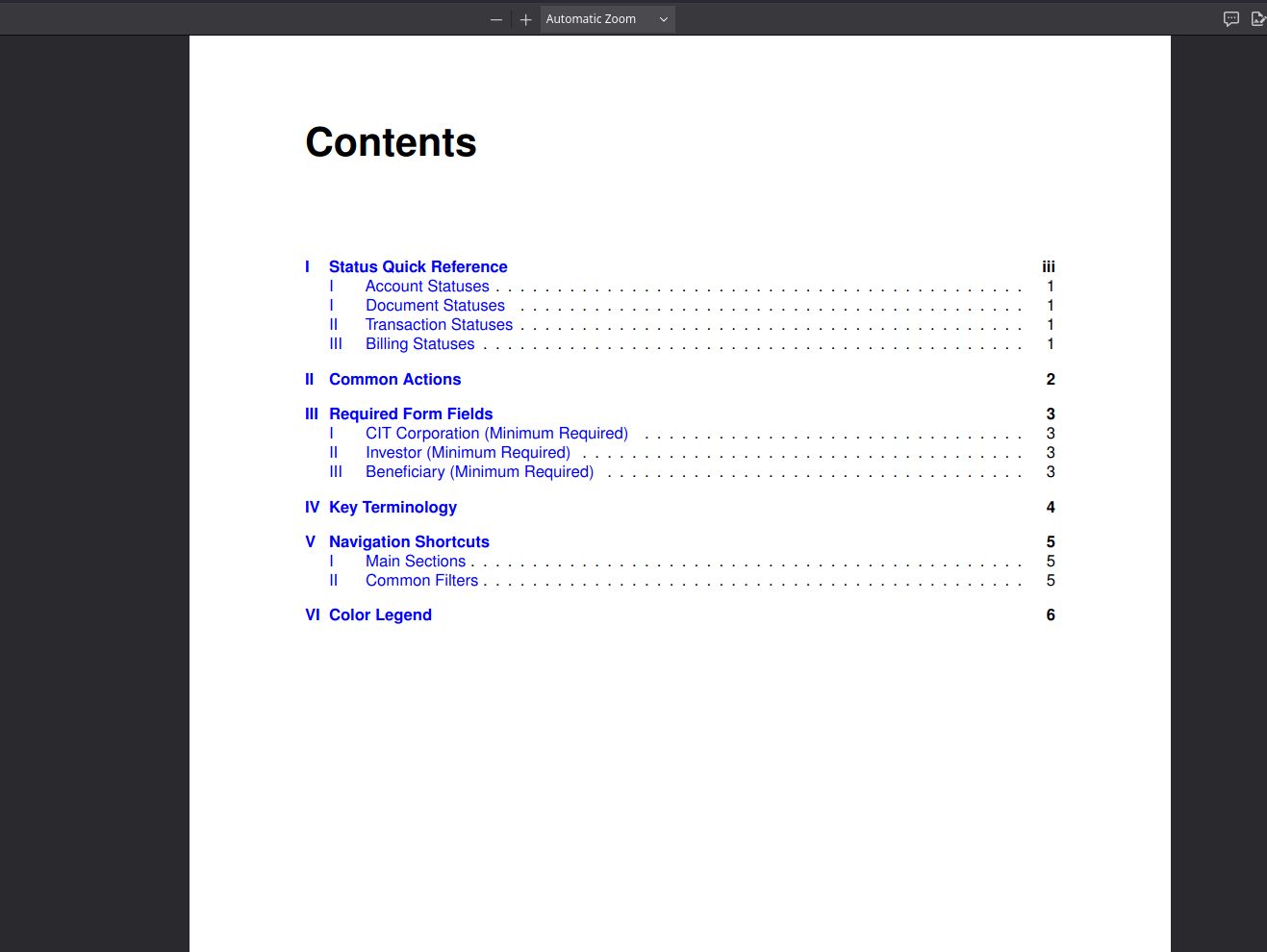
The Quick Reference Card table of contents showing all 6 sections. The card is designed to be printed and kept at a desk for quick lookups.#
Sections#
The Quick Reference Card contains 6 focused sections:
I. Status Quick Reference#
For the complete status listing, see the Status Reference.
A condensed listing of the most common statuses organized by domain:
Account Statuses — Enrollment, staff, and investor statuses (Account Section)
Document Statuses — Document approval and processing states (Documents Section)
Transaction Statuses — Cashout, dividend, and payment states (Transactions Section)
Billing Statuses — Invoice and payment processing states (Billing Section)
II. Common Actions#
A table of the most frequently used actions across the platform (View, Edit, Download, Delete, Approve, Reject, Cancel) with brief descriptions of what each action does. See All Available Actions in the Enterprise Manual.
III. Required Form Fields#
Minimum required fields for the most common entity types. See the Form Fields Guide for the full specification.
CIT Corporation (Minimum Required) — Account Section
Investor / Beneficiary (Minimum Required) — Investment Section
IV. Key Terminology#
Definitions for commonly used terms across the platform, useful for new employee onboarding. See the Data Dictionary for the complete glossary.
VI. Color Legend#
Explanation of the color-coding system used throughout the platform for statuses, badges, and indicators. See Status Reference - Color Coding for the full color reference.
Intended Use#
The Quick Reference Card is designed for:
Use Case |
Description |
|---|---|
Desk reference |
Print and keep near your workstation for quick lookups |
New employee onboarding |
Provides a compact overview of the platform’s key concepts |
Training materials |
Useful as a handout during training sessions |
Quick lookups |
Find a status meaning or required field without opening the Enterprise Manual |