
Investments#
Features#
The Section: Investments section allows you to:
View all investments in the Investments List table
View investor details by clicking investor names
Location: Investments Section#
You can find the Section: Investments section underneath the Navigation Category: Investment category:
Locate the primary sidenav to the left of the page.
Don’t see the sidenav?
See How to Toggle Primary Sidebar for more information.
Action: Select the dropdown for the Navigation Category: Investment category.
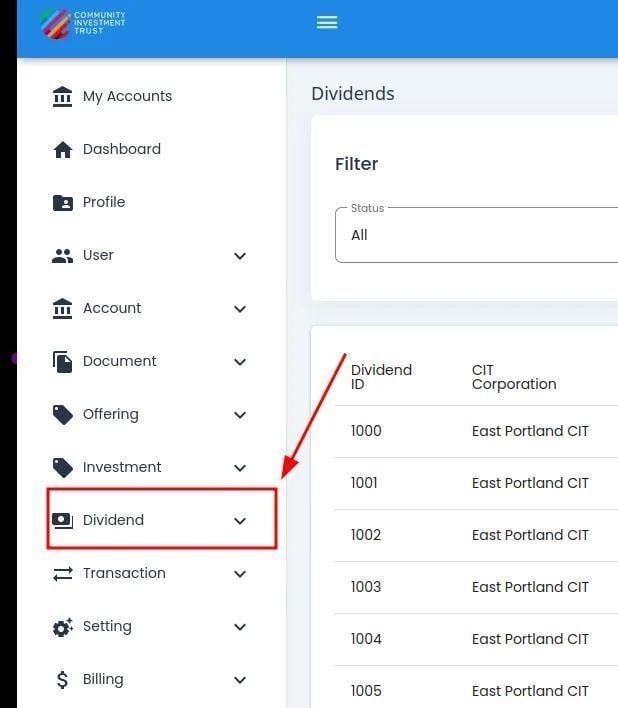
Investment Category, Primary Sidenav Location#
Action: Select Section: Investments from the dropdown.
Investments List Table#
The Section: Investments section opens to the Table: Investments List table:
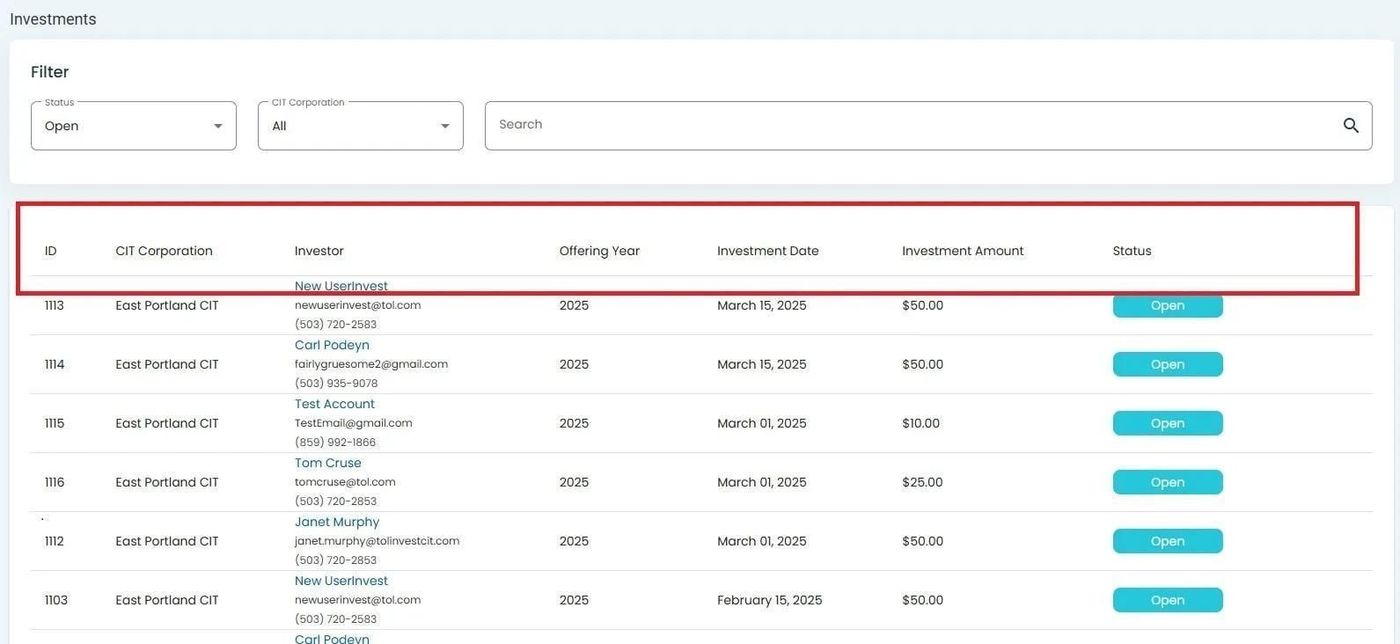
Investments Section, Homepage, Investments List Table#
Columns: Investments List Table#
The Table: Investments List table contains the following columns:
Column: Investor Name - Name of the investor.
Column: CIT Corporation - Associated CIT Corporation.
Column: Status - Current investment status.
Column: Action - Available actions for the investment record.
Using Investments Filters#
The filter section at the top of the table allows you to search and filter investments by various criteria.
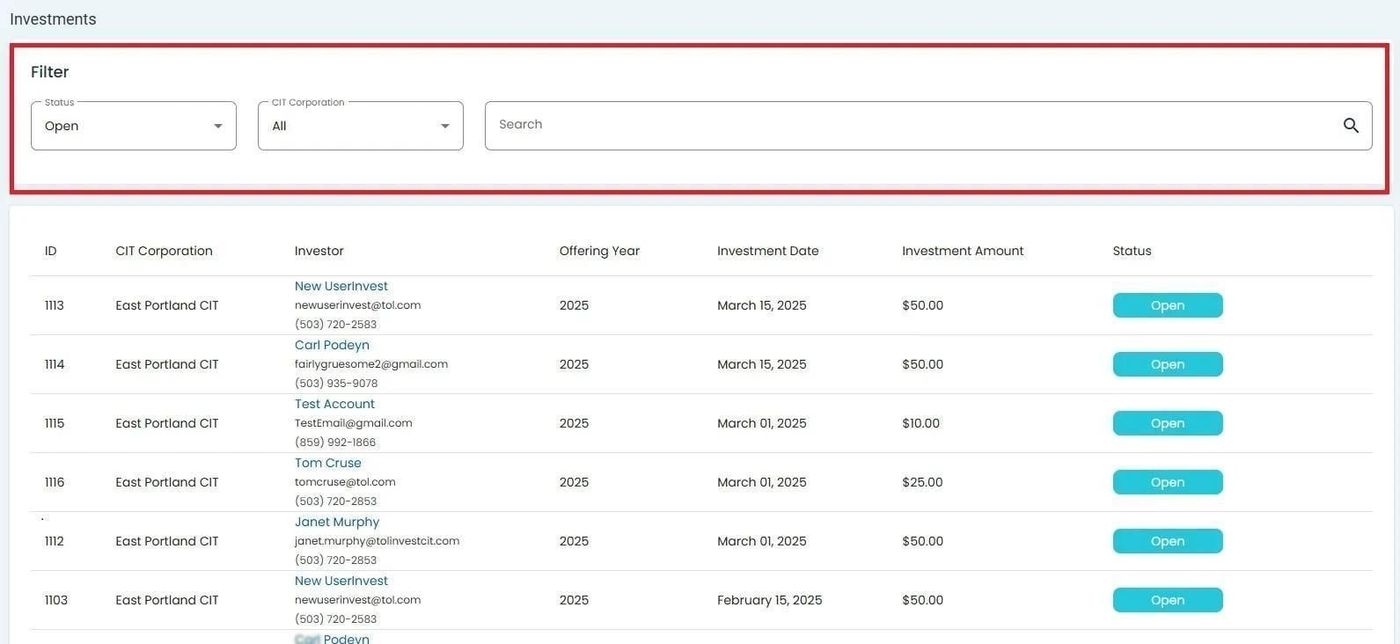
Investments Table, Filter Section Location#
Filter by Status#
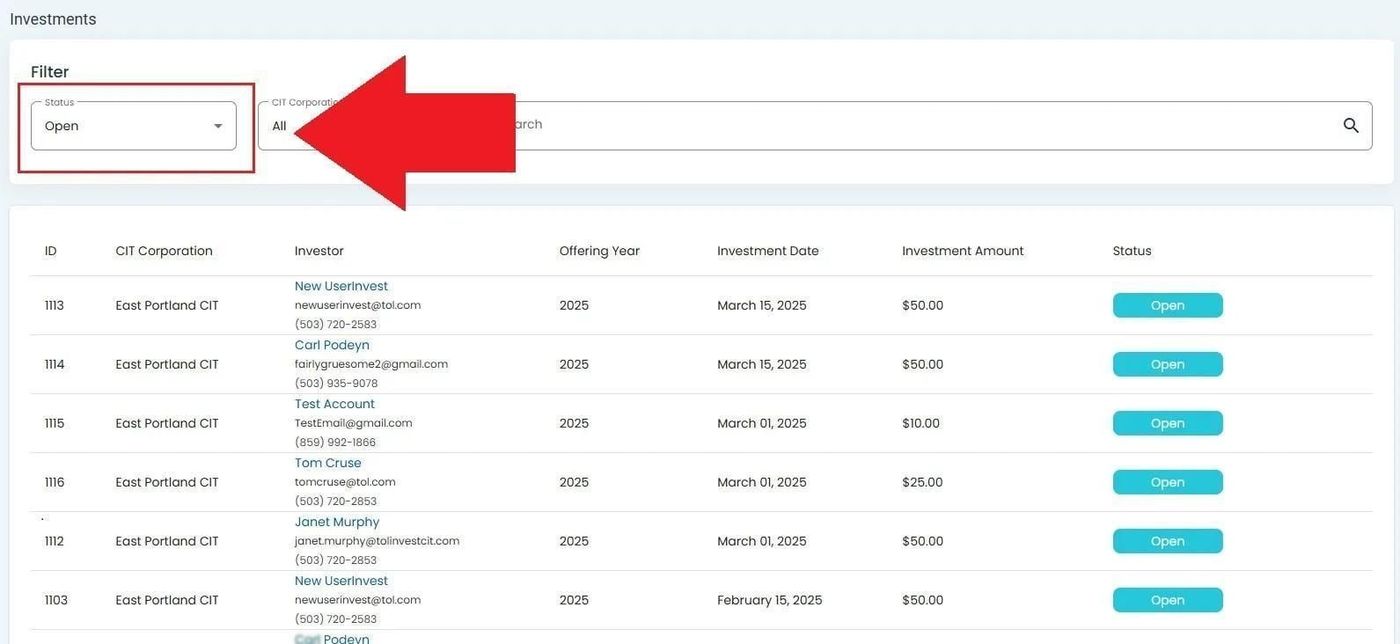
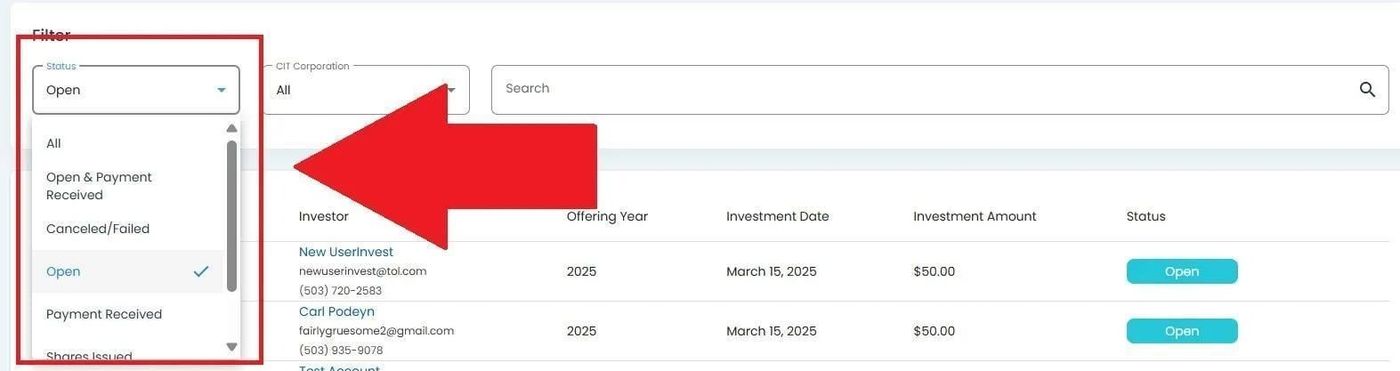
Filter by CIT Corporation#


Apply Filters#
After selecting your filter criteria, Action: click the search icon to apply filters.
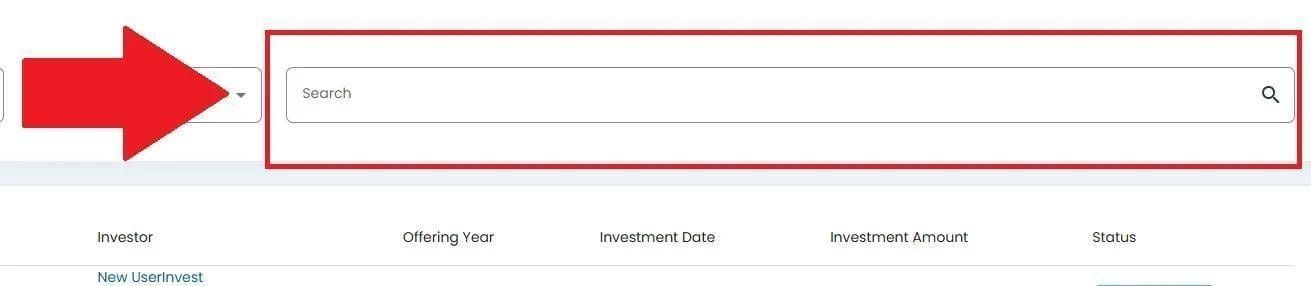
Investments, Search Icon Location#
Action Complete
Your filtered results will appear in the table.
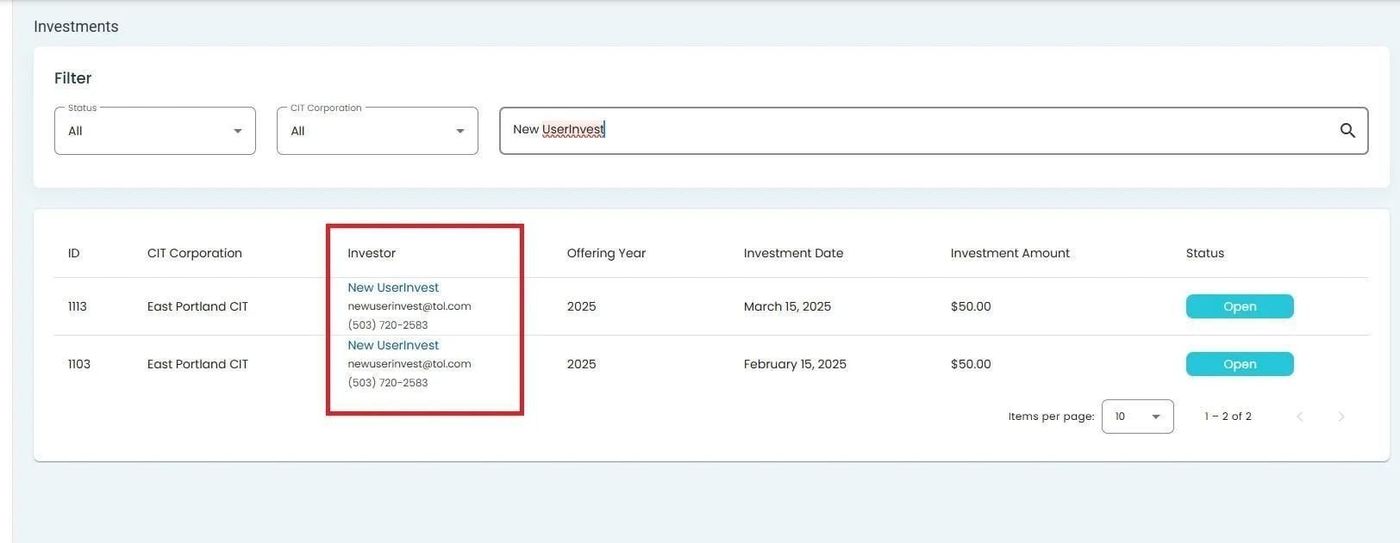
Investments, Filter Results#
Viewing Investor Details#
Action: Click on an Column: Investor Name in the table to view their detailed profile.

Investments, Investor Name Click Location#
Action Complete
This will navigate you to the investor’s detailed profile page.
Export to Excel#
Export the Table: Investments List to an Excel file for offline analysis or reporting.
Action: Locate the Action: Export to Excel button near the table header.
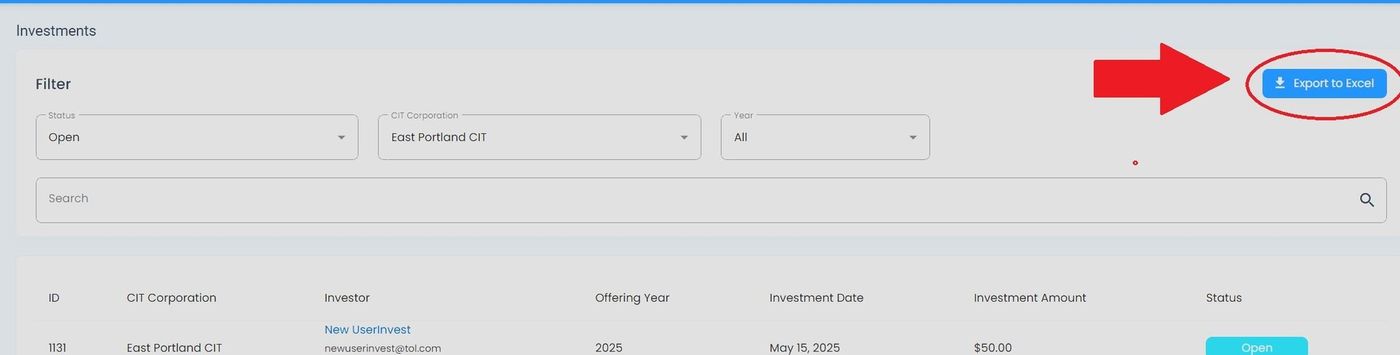
Investments, Export to Excel Button Location#
Action: Click the Action: Export to Excel button.
Action Complete
Your browser downloads an Excel (.xlsx) file containing the investments currently shown in the table (including any filters applied).

Investments, Excel File Downloaded#
File Naming#
Exported files include contextual details like the year in the filename.
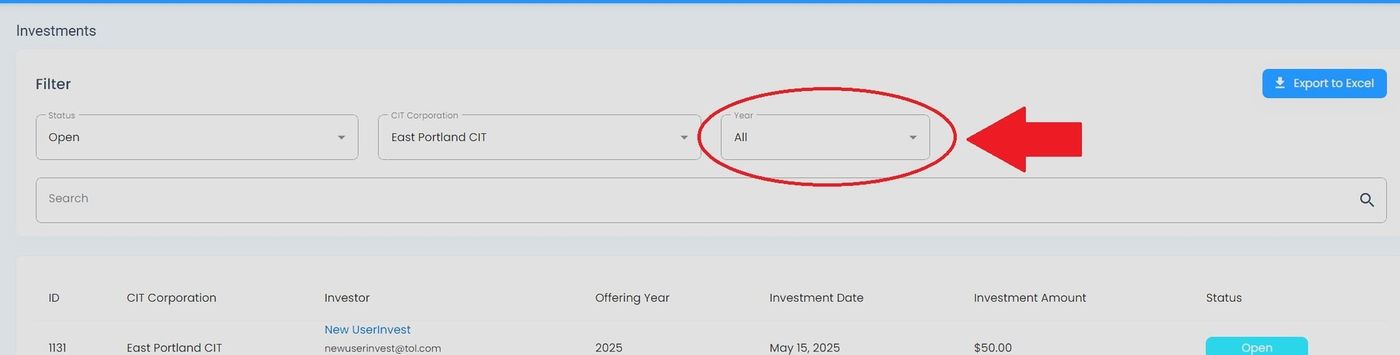
Investments, Export Filename Example#