
Add/Edit Assessment Question#
This page documents the dialog used for adding and editing assessment questions.
Add Assessment Question#
To add a new assessment question, Action: click the button.
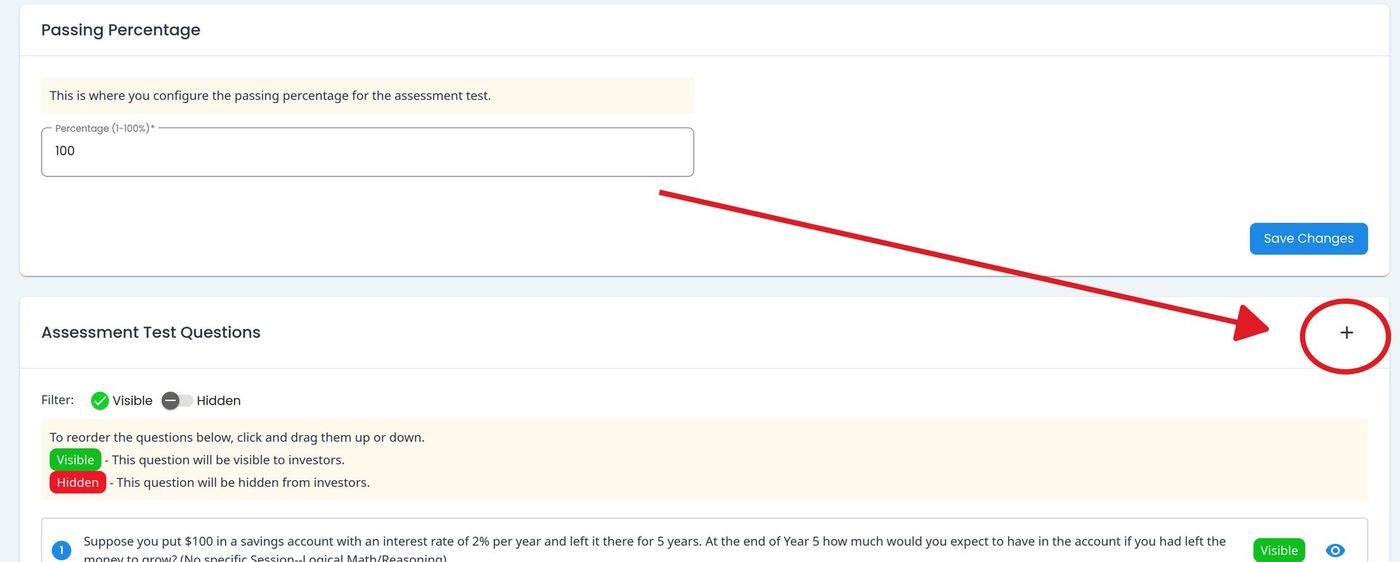
Add Assessment Question Button Location#
This opens the Add Assessment Question dialog.
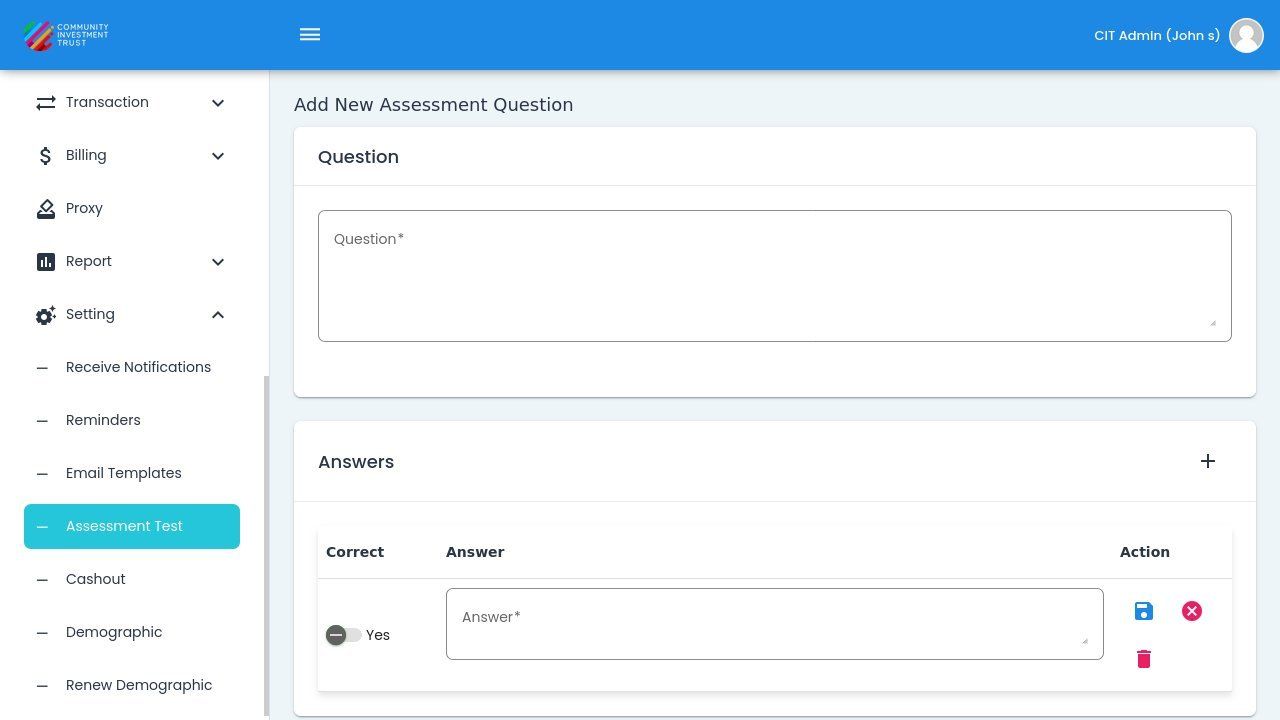
Add Assessment Question Dialog#
Question Section#
The Section: Question section contains the text input for the assessment question.
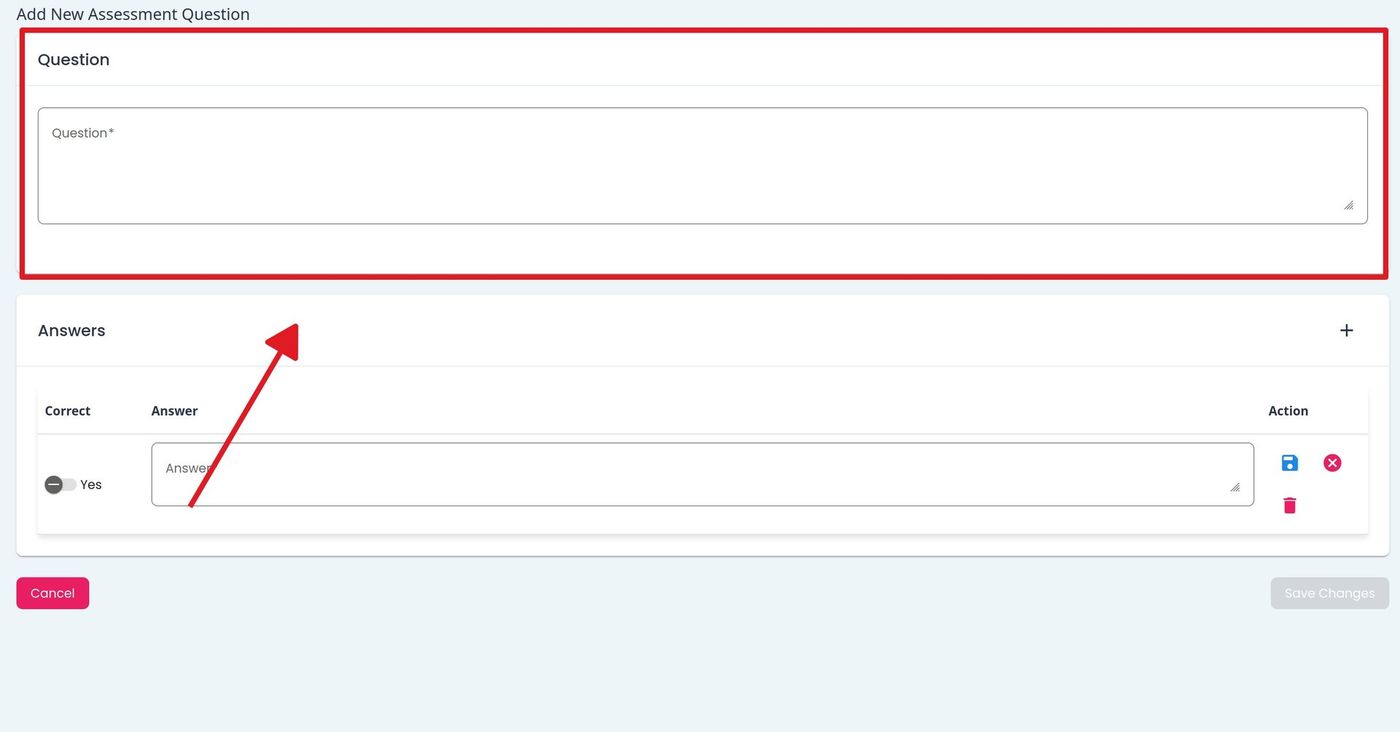
Question Section of the Dialog#
Enter your question text in the text area provided.
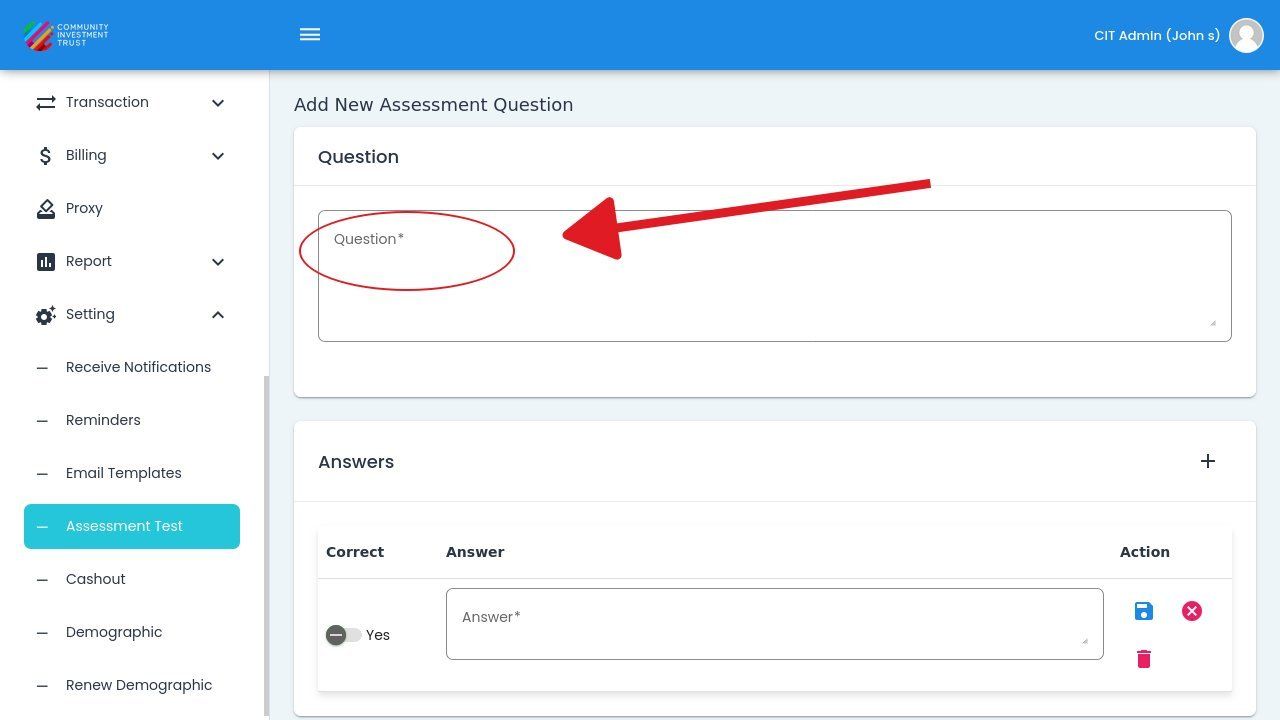
Question Text Input Area#
Answers Section#
The Section: Answers section allows you to define the answer options for the question.
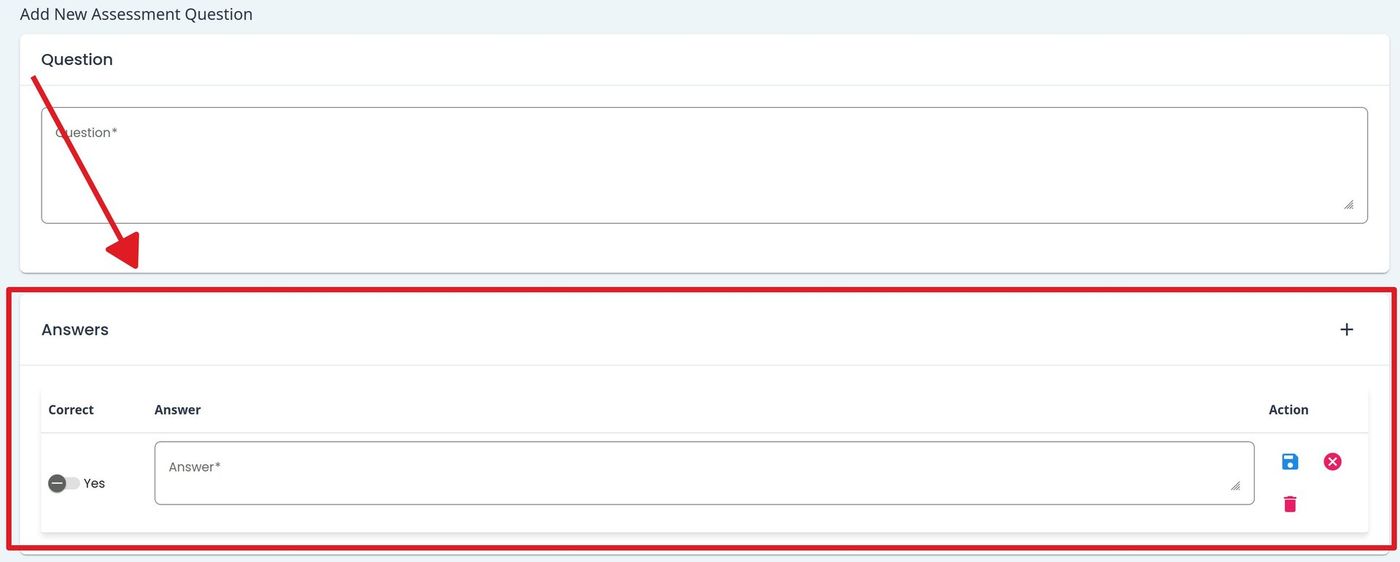
Answers Section Location#
Answer Table Columns#
The answer table contains the following columns:
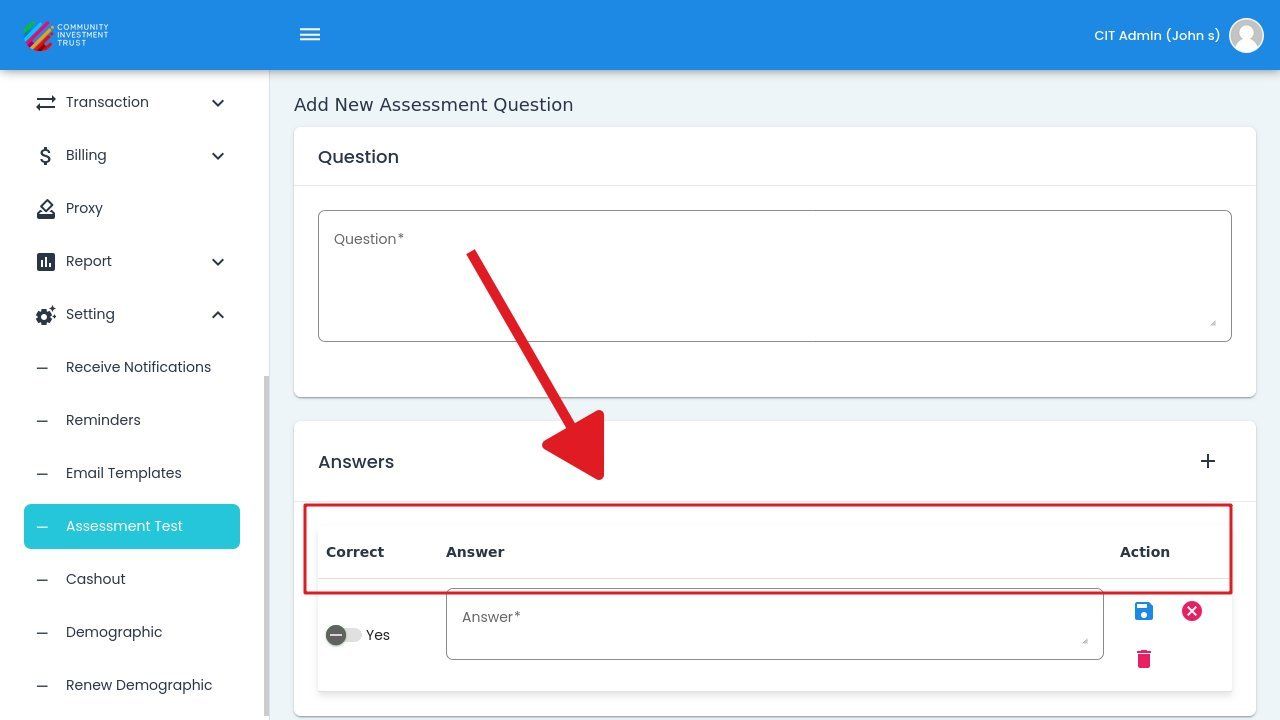
Answer Table Column Headers#
Correct: Indicates whether this answer is the correct response
Answer: The text of the answer option
Action: Contains action buttons for managing the answer row
Correct Column#
The Column: Correct column contains a checkbox to mark an answer as the correct response.
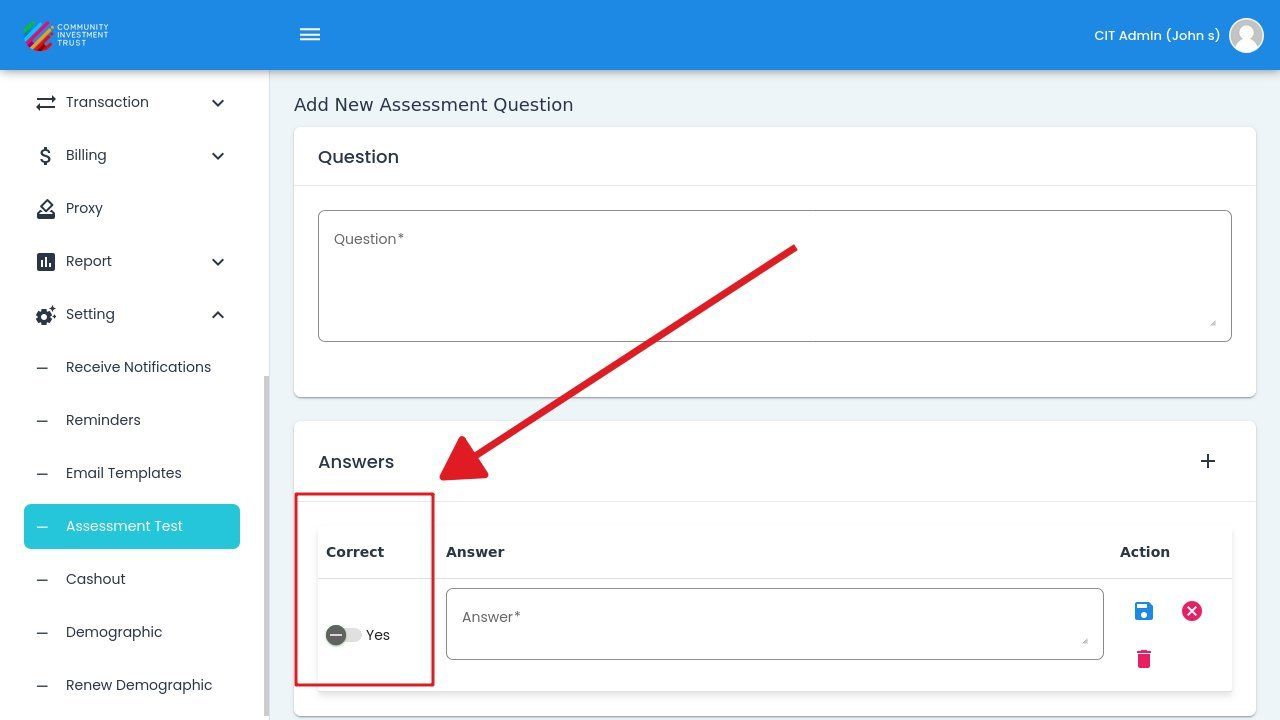
Correct Column Checkbox#
For details on adding and managing answer rows, see Managing Answer Rows.
Saving and Canceling the Dialog#
To save the assessment question, Action: click the button at the bottom of the dialog. To cancel without saving, Action: click the button or close the dialog.
Note
Closing the dialog without clicking Save will discard all changes made to the question and answer rows.
View/Edit Existing Questions#
To view or edit an existing question, Action: click on the question row in the question list. This opens the same dialog used for adding questions, populated with the existing question data. You can modify the question text, answer options, and correct answer designation.
Tip
Changes to questions will affect future assessments. Existing completed assessments will not be modified.