
Staff#
The Section: Staff section provides comprehensive staff account management as listed in the Table of Contents below:
Features#
The Section: Staff section allows you to:
Location: Staff Section#
To Find the Staff List Homepage:
Locate the primary sidenav to the left of the page.
Don’t see the sidenav?
See How to Toggle Primary Sidebar for more information.
Action: Select the dropdown for the Navigation Category: User category.
Action: Select Section: Staff from the dropdown.
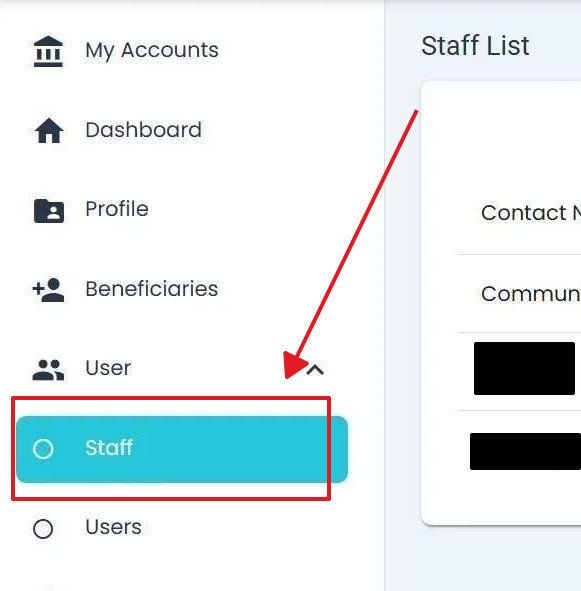
User, Staff Primary Sidenav Location#
Staff List Homepage#
The Section: Staff section opens up to the Table: Staff List table:

User, Staff Section, Homepage, Staff List Table#
Hover for Page Preview
Hover over the links below for a page preview tooltip.
Features: Staff List Table#
The Table: Staff List table includes important information about each Item: Staff member in the current Item: CIT Corporation (see: How to Identify the Current Account).
This table provides the following information:
Item: Contact Information,
Item: Status, and
Item: Three Actions (i.e., View User Details, Edit Permissions, and Remove User Access (Delete User))
Columns: Staff List Table#
The Column: Columns for the Table: Staff List table can be found at the top of the table:

Users, Staff Homepage, Columns#
These Column: Columns are (six total, with Column: Status and Column: Action at the end):
Column: Columns - Column names displayed on the Users, Staff Homepage data table.
Column: Contact Name - Full name of the listed contact person.
Column: Contact Email - Email address used to contact the associated individual or entity.
Column: Number of Visits - Total times the user has accessed the system.
Column: Last Logged In - Most recent date and time the user accessed the system.
Column: Status - Current state of the user’s account or access.
Column: Action - Available tasks user can perform for this record.
Status Column Options#
The Column: Status column indicates the current status of the account.
Possible Option: Status options include:
Status: Active - Staff account is currently active and has full access to assigned permissions.
Status: Pending Activation - Staff account has been created but is awaiting activation or verification.
Status: Inactive - Staff account has been deactivated and cannot access the system.
Status: Locked Out - Staff account has been temporarily locked due to security reasons or multiple failed login attempts.
Note
The Item: All option in the status filter displays staff accounts with any status.
View Staff Details and Other Remaining Sections#
The Table: Staff List table allows you to perform the following three actions:
Action Locations#
Each action in the Column: Action column provides access to different staff management functions. Below are the locations of each action button within the table.
View Details Action: The Action: View Details button opens a detailed view of the selected staff member’s information including contact details, permissions, and account status.
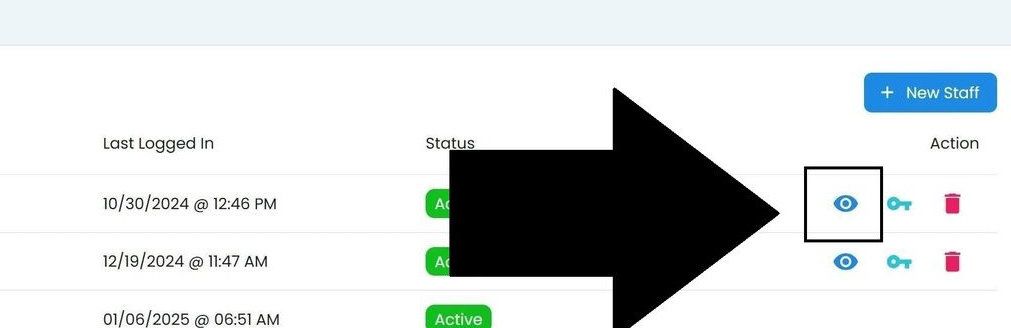
Staff List, View Details Action Location#
Edit Permissions Action: The Action: Edit Permissions button allows administrators to modify the access levels and capabilities assigned to each staff member.
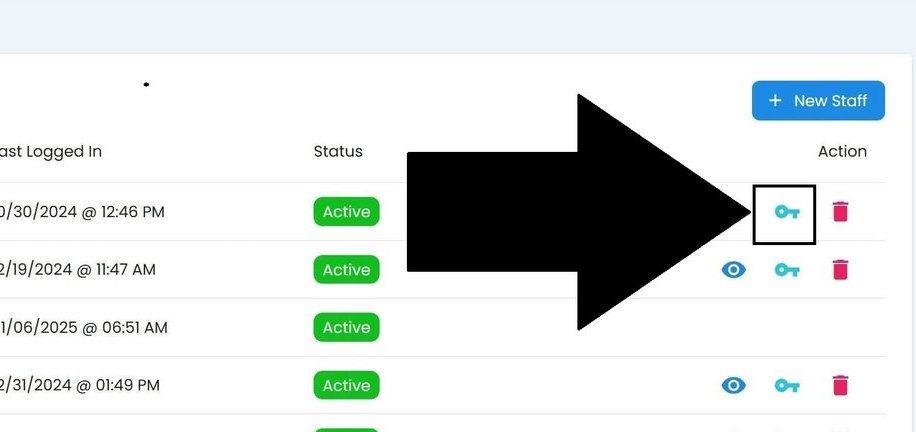
Staff List, Edit Permissions Action Location#
Add New Staff#
You can add a new Item: Staff member from the Table: Staff List.
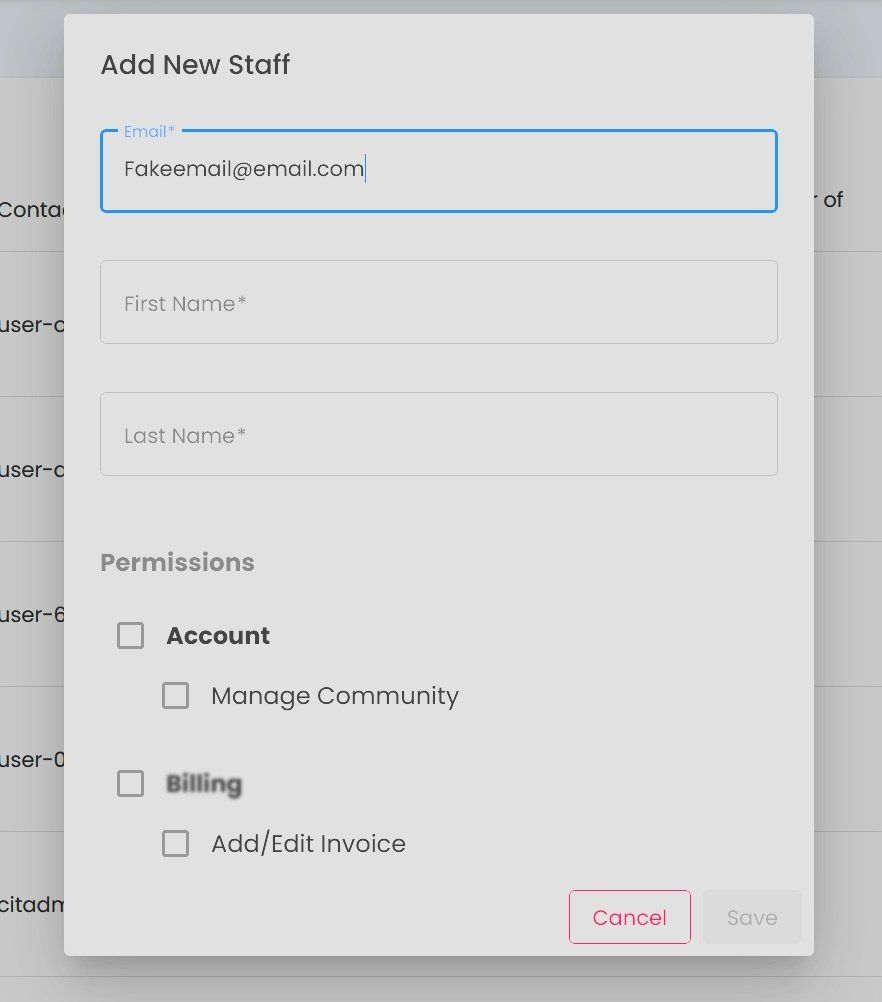
Add New Staff, Popup#
When adding a new staff member, ensure all required fields are completed. Required fields are indicated with an asterisk and must contain valid information before the form can be submitted.
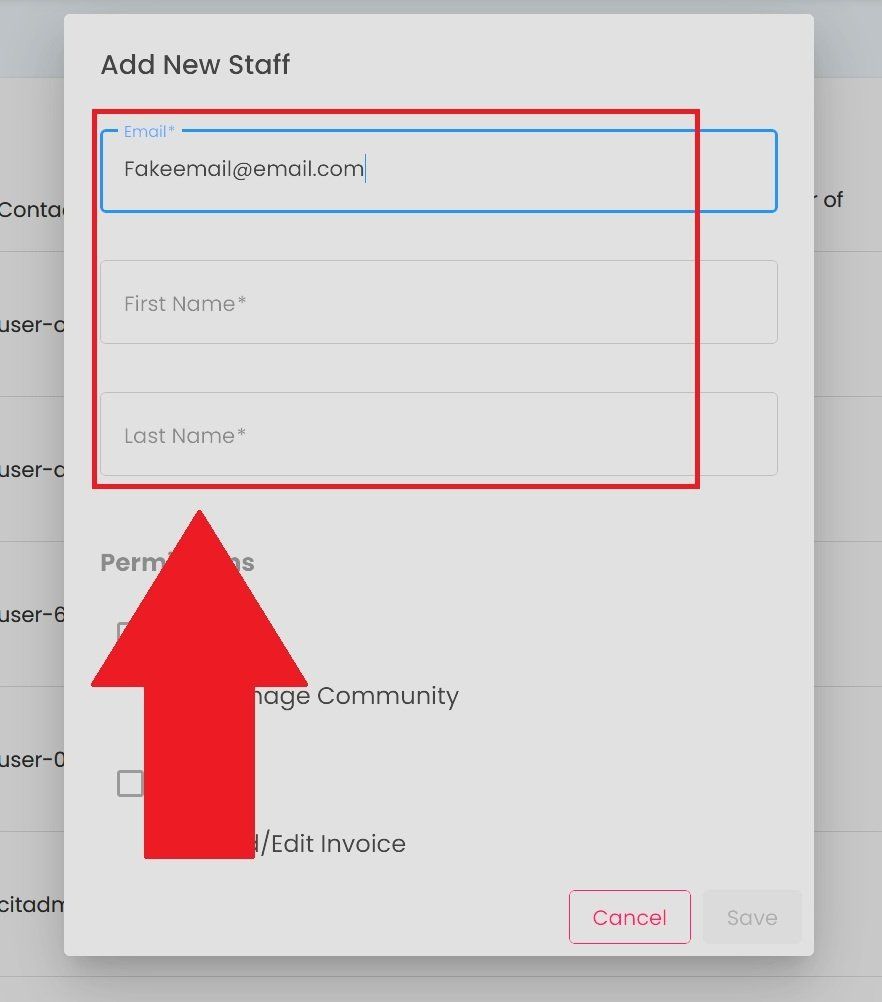
Add New Staff, Required Fields#
Delete User#
Use the Action: Delete action in the Column: Action column to remove a staff account.
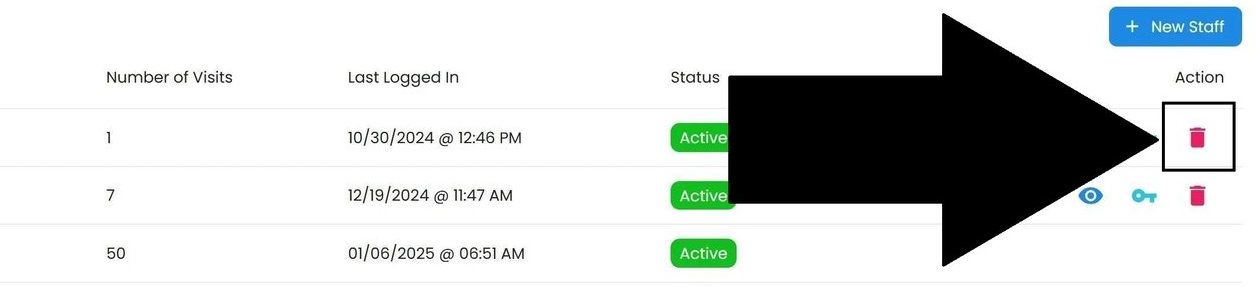
Staff List, Delete Action Location#