  • Home
  • Enterprise Manual
  • Investor Manual
  • Community Manual
  • CIT Corp Manual
  • How to Use This Site
Ctrl+K
CIT Manuals - Enterprise - Home
  • Community Investment Trust (CIT) Documentation for Enterprise Users

Enterprise Manual

  • My Accounts
    • Identifying the Current Account
  • Dashboard
    • CIT Corporation Summary Table
    • CIT Corporation Cashout Table
    • Dashboard Tables: Features Explained
  • Profile
    • Name and Contact Information
    • Primary Address
    • Mailing Address
  • User
    • Staff
    • Users
      • Users Homepage Location
  • Account
    • CIT Corporations
      • Table: CIT Corporations List
        • View CIT Corporation Details
          • Corporation Information Tab
          • Legal Information Tab
          • Users Tab
    • Investors
      • Table: Investors List
        • View Investor Details
          • Investor Details Tab
          • Beneficiaries Tab
            • Adding a New Beneficiary
          • Holdings Tab
            • Filter Holdings by Status
          • Documents Tab
          • Dividends Tab
          • Cashouts Tab
    • Sponsorship Organizations
      • Table: Sponsorship Organizations list
        • View Sponsorship Organization Details
          • Information Tab: Sponsorship Organization
          • Entity List Tab: Sponsor Organization
          • Adding a New User
        • Add New Sponsorship Organization
  • Document
    • CIT Corporation Onboarding Documents
      • CIT Onboarding Documents Table: Columns Explained
        • Action: View More Details
        • CIT Onboarding Status Filter
    • CIT Corporation Offering
      • CIT Offering Documents Table: Columns Explained
        • View More Details
        • CIT Offering Status Filter
    • Investor Documents
      • Investor Documents Table: Columns Explained
        • Filter by CIT Corporation
        • How to Search Investor Documents
        • Actions: View Details and Download
    • View More Details: Documents
      • View Details: Tabs Explained
      • View Details: Cards Explained
      • Available Actions
        • Upload Pending Status: Available Actions
        • Pending Approval Tab: Available Actions
        • Completed Tab: Available Actions
        • How to Approve Uploaded Document(s)
  • Offering
    • Offerings
      • Table: Offerings List
        • View Offering Details
          • Filter: Sponsor Organization & CIT Corporation
          • Offering Information Tab
          • Documents Tab
    • Enrollments
      • Enrollments Table
      • Using Enrollments Search
      • Using Enrollments Filters
      • Enrollment Status Legend
  • Investment
    • Investments
    • Investor Summary
    • Monthly/Quarterly Reports
  • Communication
    • Messages
      • Action: Mark as Read
      • Action: Reply to Message
  • Dividend
    • Dividends
      • Using Dividend Filters
      • Viewing Dividend Details
    • Cash Payouts
      • Using Cash Payouts Filters
      • Viewing Investor Details from Cash Payouts
  • Transaction
    • Directives
      • View Directive Details
    • Cashout
    • Complete Transactions
      • Using Complete Transactions Filters
  • Settings
    • Assessment Test
      • Assessment Test Questions
      • Add/Edit Assessment Question
        • Managing Answer Rows
    • Cashout Questions
    • Demographic Questions
    • Email Templates
      • Email Template Style Tab
    • Receive Notifications
    • Reminders
      • Onboarding Reminders
      • Offering Setup Reminders
    • Renew Demographic Questions
  • Report
    • Issuer Balance Report
      • Issuer Balance Report Data
        • Generating the Issuer Balance Report
    • Shareholder List Report
      • Filter Options
      • Display Options
      • Sorting Options
      • Download Report
    • Transaction List Report
      • Filter Options
    • Demographics Report
      • Report Filters
      • Report Tabs
        • Summary Tab
        • Questions & Answers Tab
    • Cashout Reason Report
      • Table: Cashout Reason Report
      • Generating the Cashout Reason Report
    • Assessment Test Reports
    • Additional Reports
  • Billing
    • Billing Plans
      • Table: Billing Plans List
        • Edit Billing Plan
    • Invoices
    • Payment Credit List
      • Payment Credit Details
      • Adding Payment Credits
    • Payment Management
      • Table: Payment Credits
      • Table: Invoices (Payment Management)
      • How to Apply Payment to an Invoice
    • TOL Invoice List
      • Table: TOL Invoices List
        • View TOL Invoice Details
    • TOL Payment Credit List
      • Table: TOL Payments List
        • View TOL Payment Details
  • Proxy
    • Table: Proxy List
      • View Proxy Details
        • Filter and Search Proxy List
        • Tab: Proxy Information
        • Tab: Proposals
        • Tab: Voted Shareholders
        • Tab: Not Voted Shareholders
        • Tab: Proxy Materials/Documents
  • Proof of Address
    • Table: Proof of Address List
      • View Proof of Address Details
        • Filter by Status
        • View History
  • Common
    • Navigating the CIT Application
    • General Sidebar Navigation
    • How to Toggle Primary Sidebar
    • Add New User
    • How to Delete User, Staff, Company, etc.
    • Edit Permissions
    • Users Tab
    • User Details Page
      • User Details: Accounts Tab
        • Accounts Tab Available Actions
    • View More Details: Documents
      • View Details: Tabs Explained
      • View Details: Cards Explained
      • Available Actions
        • Upload Pending Status: Available Actions
        • Pending Approval Tab: Available Actions
        • Completed Tab: Available Actions
        • How to Approve Uploaded Document(s)
    • How to Edit Form Fields
    • Information Pane

Using Enrollments Search

  • Possible Search Options: Enrollments Table
  • How To: Search for Investors

Using Enrollments Search#

This section covers how search for Investors in the Table: Enrollments table works and what the options are.

Using Filters for Enrollments Table

See Using Enrollments Filters for more information.

Possible Search Options: Enrollments Table#

You can search for for names that would be in the Item: Investor column.
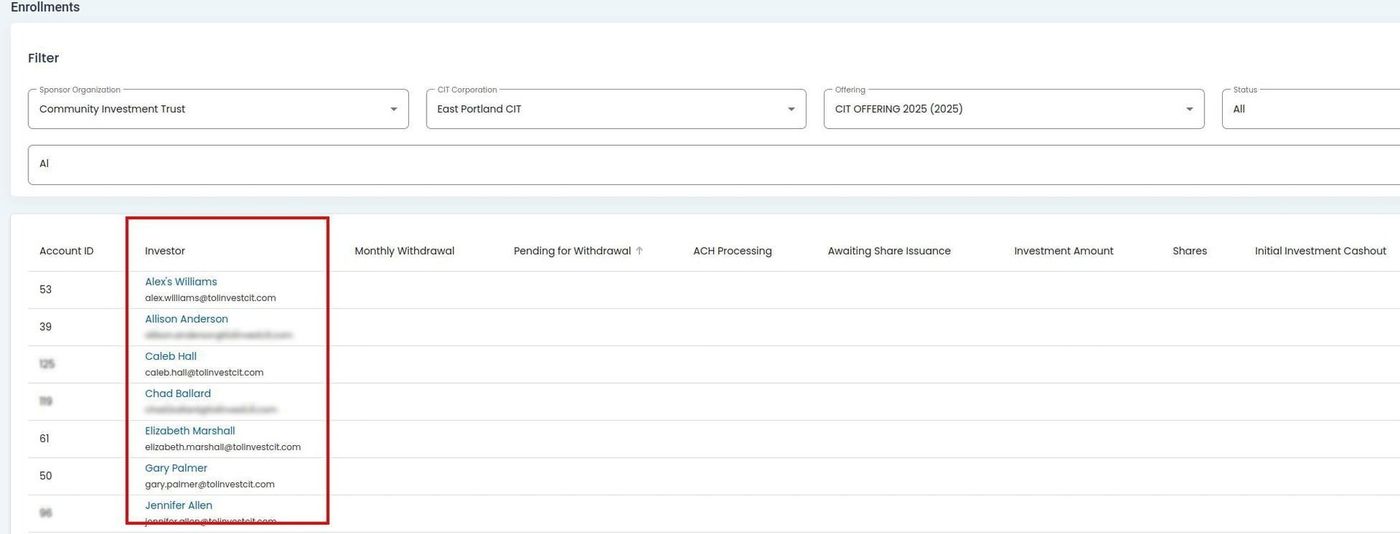
../../../_images/6-Offering_Enrollments_search-results-search-column-highlighted.jpg

Offering, Enrollments, Search Column Highlighted#

How To: Search for Investors#

To Search for Investors:

  1. Place your cursor in the search bar.

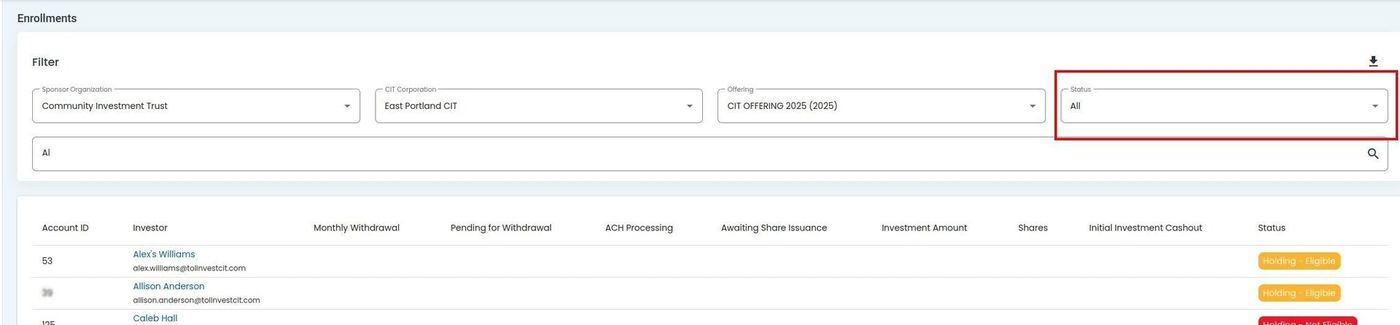
    ../../../_images/8-offering_enrollments_status-dropdown-location.jpg

    Offering, Enrollments, Search Bar Location#

  2. Type the name of the Item: Investor to see their Option: Status and overview.

    Search Results Automatically Populate

    When you type in the search bar, the search results will automatically populate.
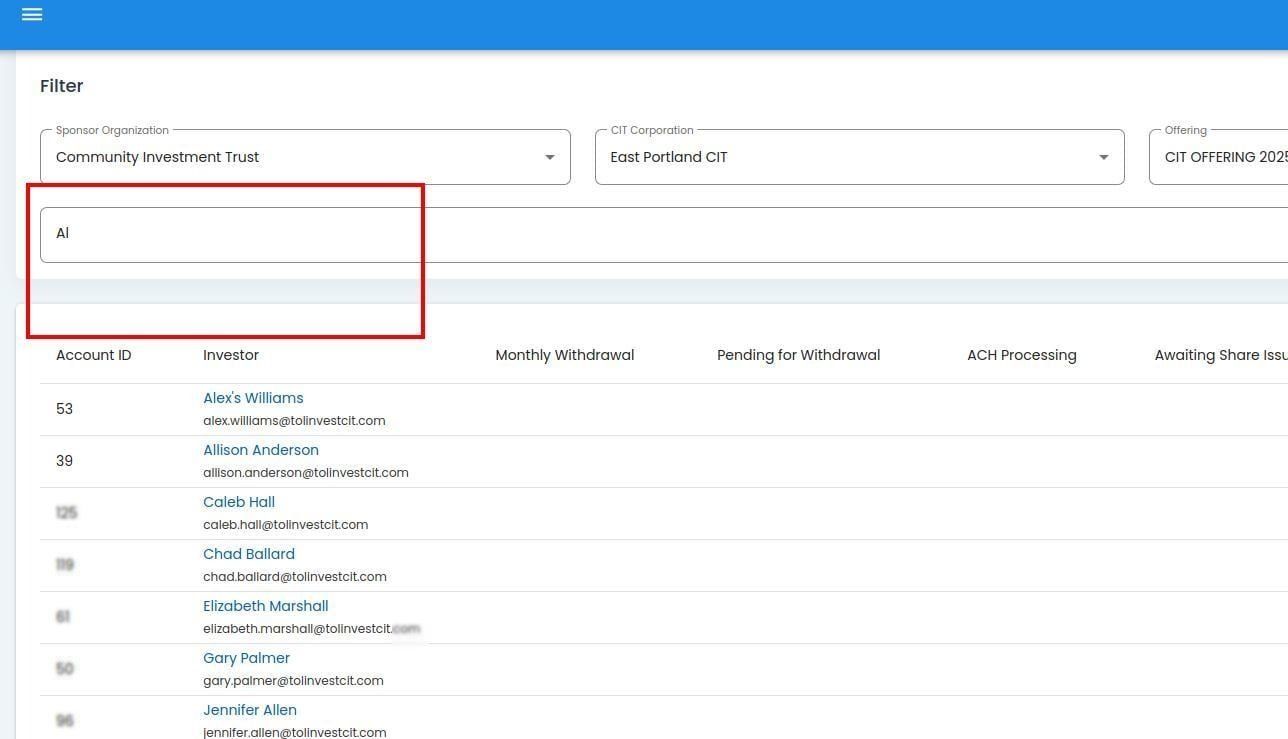
    ../../../_images/Offering_Enrollments_search_example_name_in_field.jpg

    Offering, Enrollments, Search Example, Name in Field#

  3. Action: Click the Item: Investor to view their Investor Details.

previous

Enrollments Table

next

Using Enrollments Filters

  • Possible Search Options: Enrollments Table
  • How To: Search for Investors

© Copyright 2026, Transfer Online..