
Directives#
Features#
The Section: Directives section allows you to:
View all transaction directives in the Directives List table
Location: Directives Section#
You can find the Section: Directives section underneath the Navigation Category: Transaction category:
Locate the primary sidenav to the left of the page.
Don’t see the sidenav?
See How to Toggle Primary Sidebar for more information.
Action: Select the dropdown for the Navigation Category: Transaction category.
Action: Select Section: Directives from the dropdown.
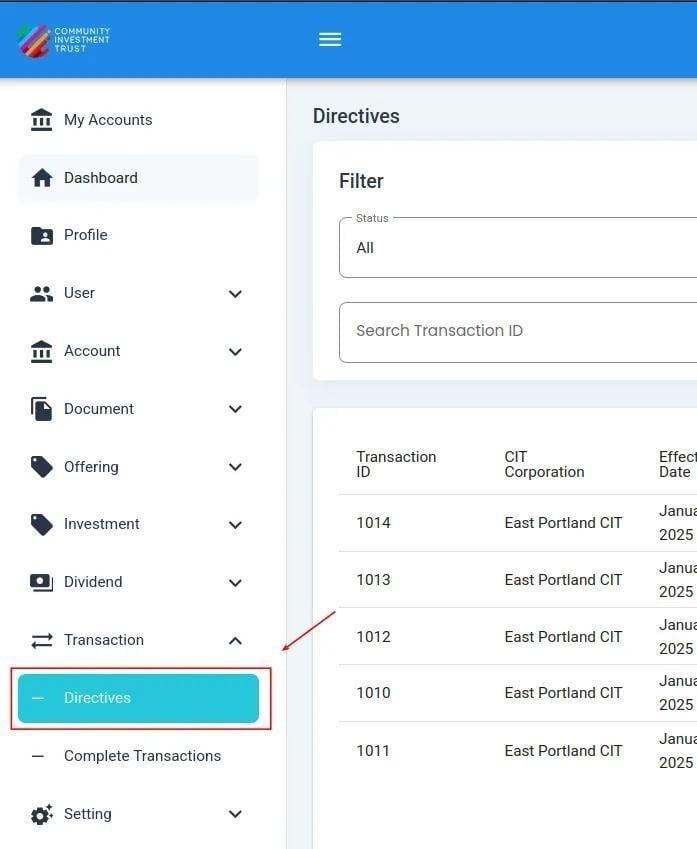
Directives, Primary Sidenav Location#
Directives List Table#
The Section: Directives section opens to the Table: Directives List table:
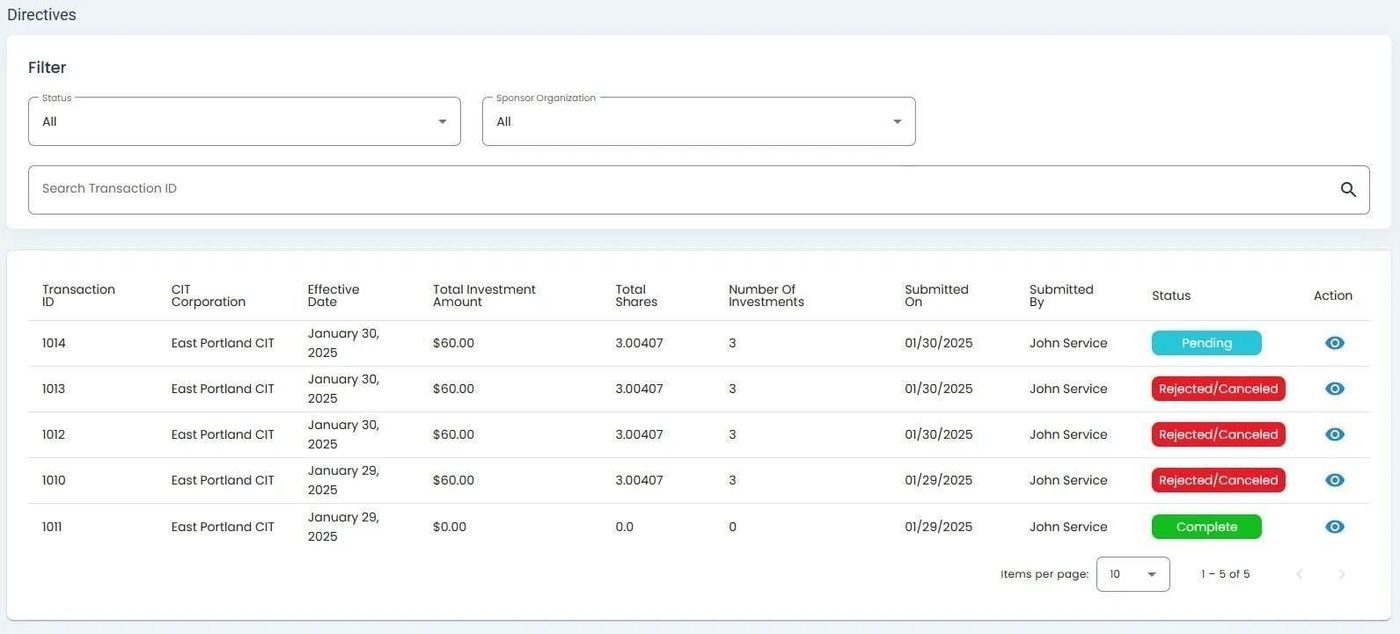
Directives List Table#
Columns: Directives List Table#
The Column: Columns for the Table: Directives List table can be found at the top of the table:
Column: Transaction ID - Unique identifier assigned to each transaction in the system.
Column: CIT Corporation - The corporation linked to this transaction.
Column: Effective Date - Date when the transaction officially takes effect.
Column: Total Investment Amount - Sum of all money invested in this transaction.
Column: Total Shares - The total number of shares included in the transaction.
Column: Number Of Investments - Count of individual investments included in the transaction.
Column: Submitted On - Date the transaction was submitted for processing.
Column: Submitted By - User who submitted the transaction.
Column: Status - Current state of the transaction (e.g., Pending, Complete).
Column: Action - Available options to view or manage the transaction.
Filtering the Directives List#
The filter section allows you to narrow results by status, organization, or search term.
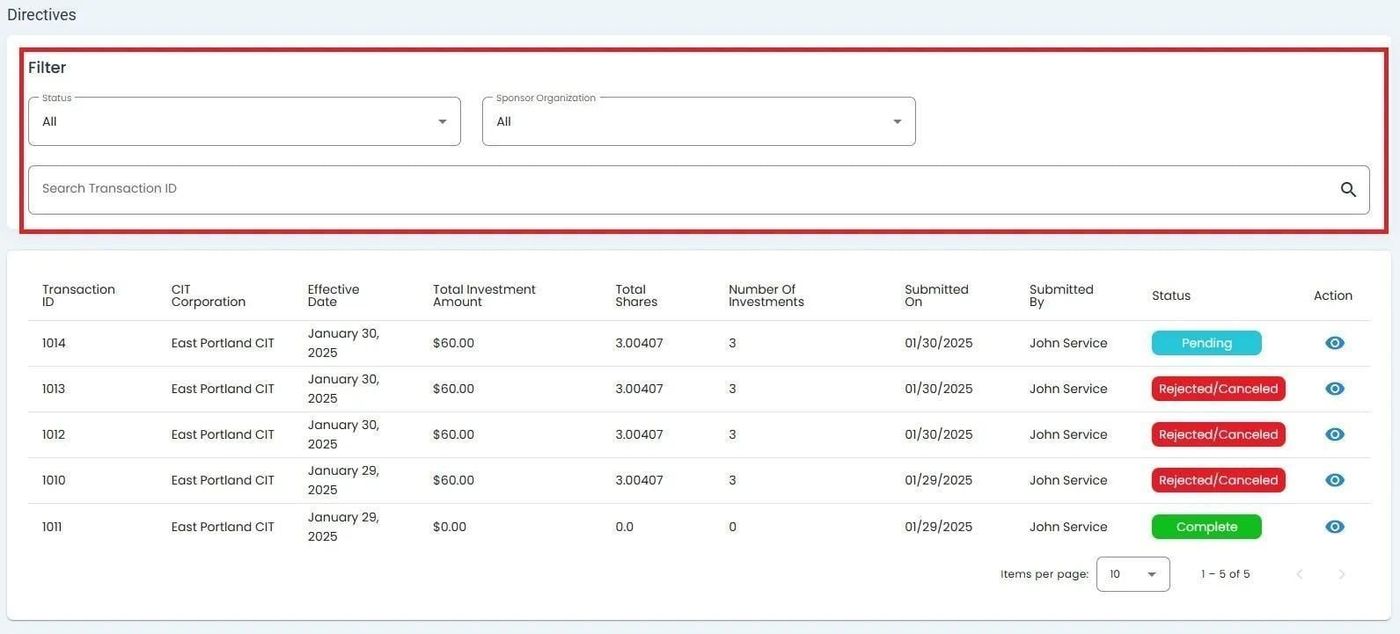
Directives, Filter Section Location#
Filter by Status#
Action: Locate the dropdown in the filter section.
Action: Select a status to filter results.
Status: All - View all directives regardless of status.
Status: Pending - Directives awaiting processing.
Status: Complete - Successfully processed directives.
Status: Rejected/Canceled - Directives that were rejected or canceled.
Filter by Sponsor Organization#
Action: Locate the dropdown.
Action: Select an organization to filter results.
Search for Directives#
Use the search bar to find specific directives by Transaction ID.
Wildcard Search
Use * as a wildcard for partial matches. Example: TRX-2024* matches all IDs starting with “TRX-2024”.
Available Actions#
The Column: Action column provides:
Action: View Details - View detailed directive information
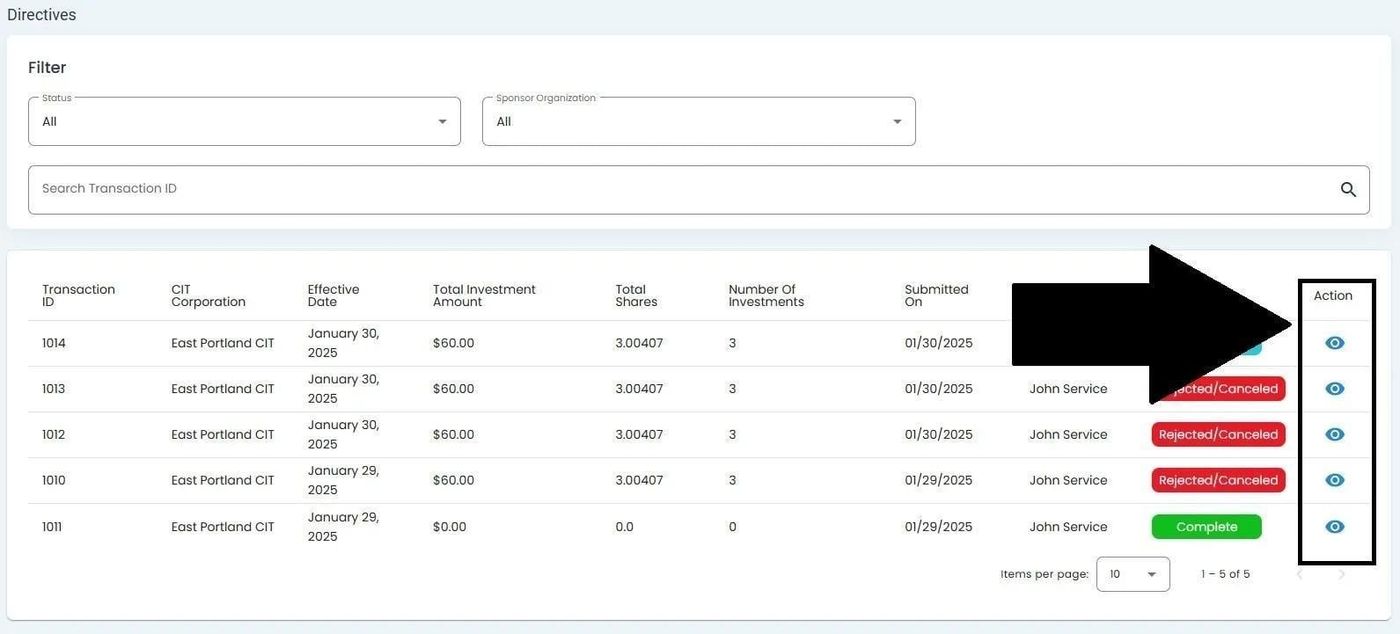
Action Column Location#