
Managing Answer Rows#
The dialog allows you to add and manage answer options for each question.
Adding an Answer Row#
Action: Click the button to add a new answer row.
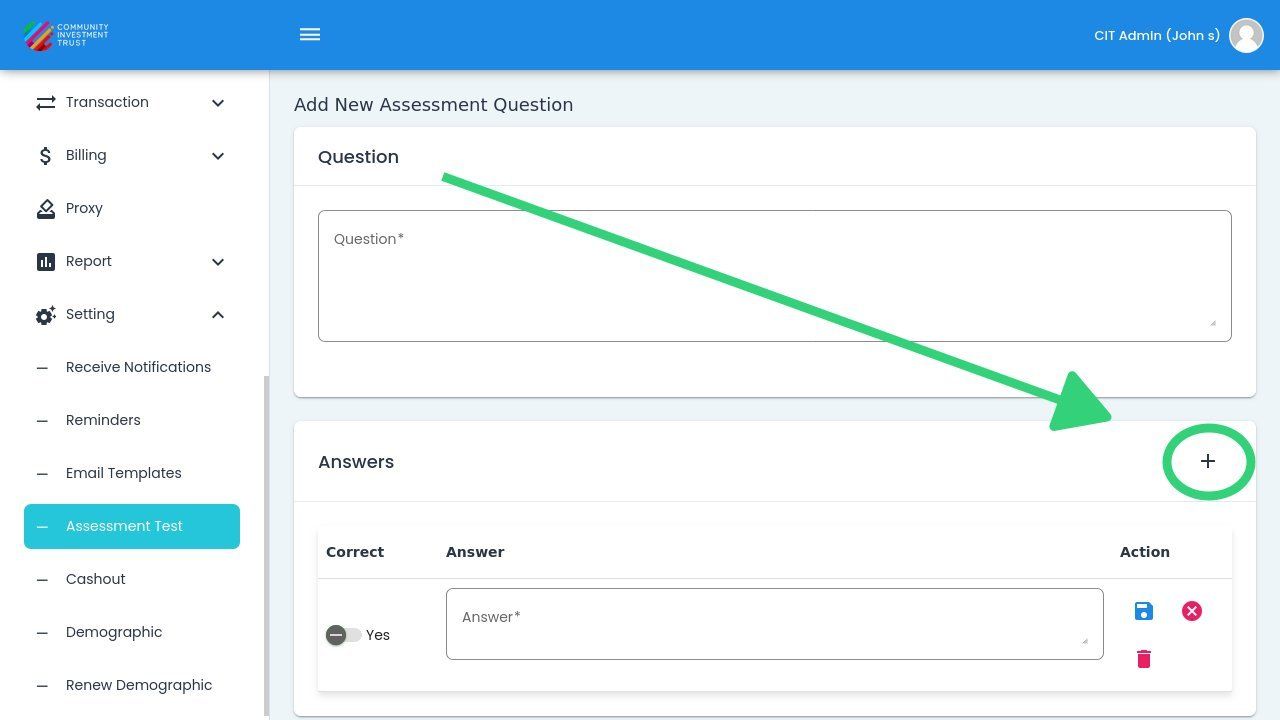
Add Answer Button Location#
After adding an answer row, enter the answer text and select whether it is the correct answer.
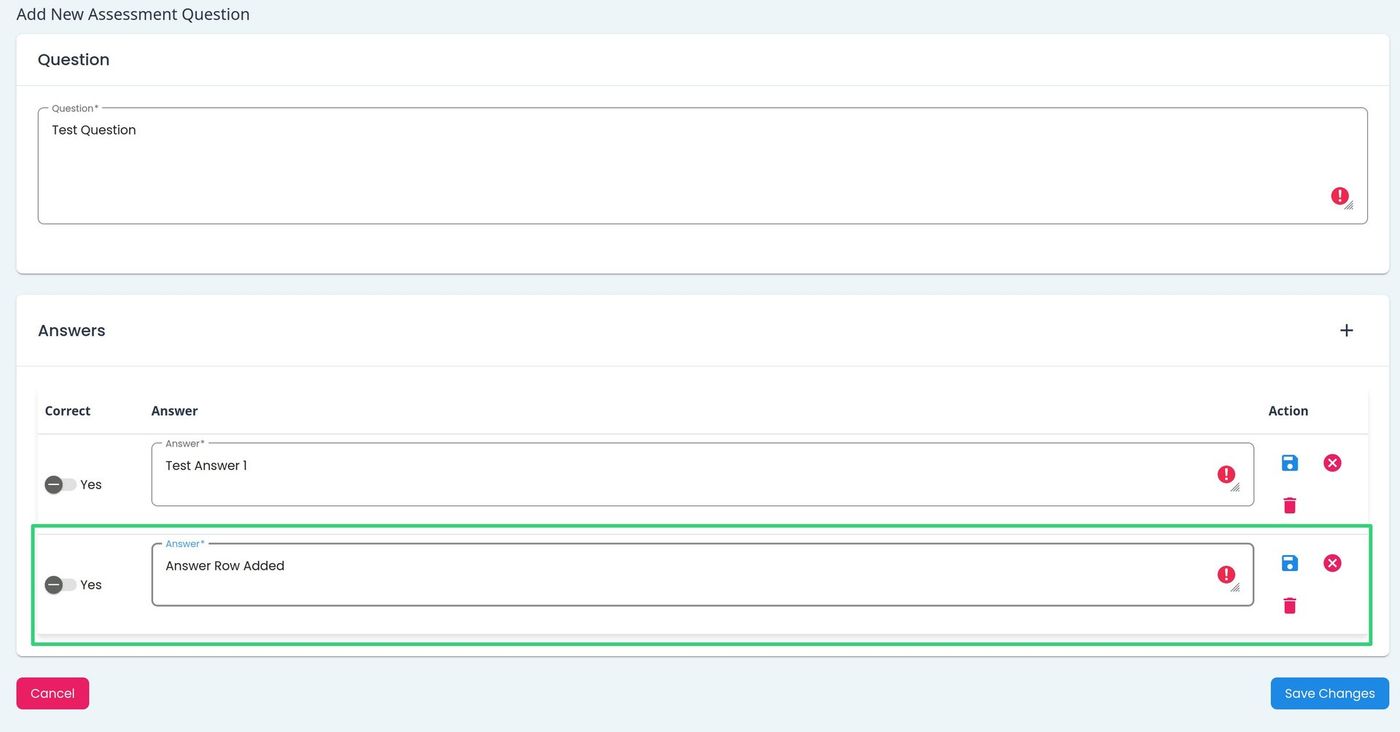
Answer Row Added to Question#
Answer Row Actions#
Each answer row includes action buttons for managing the row.
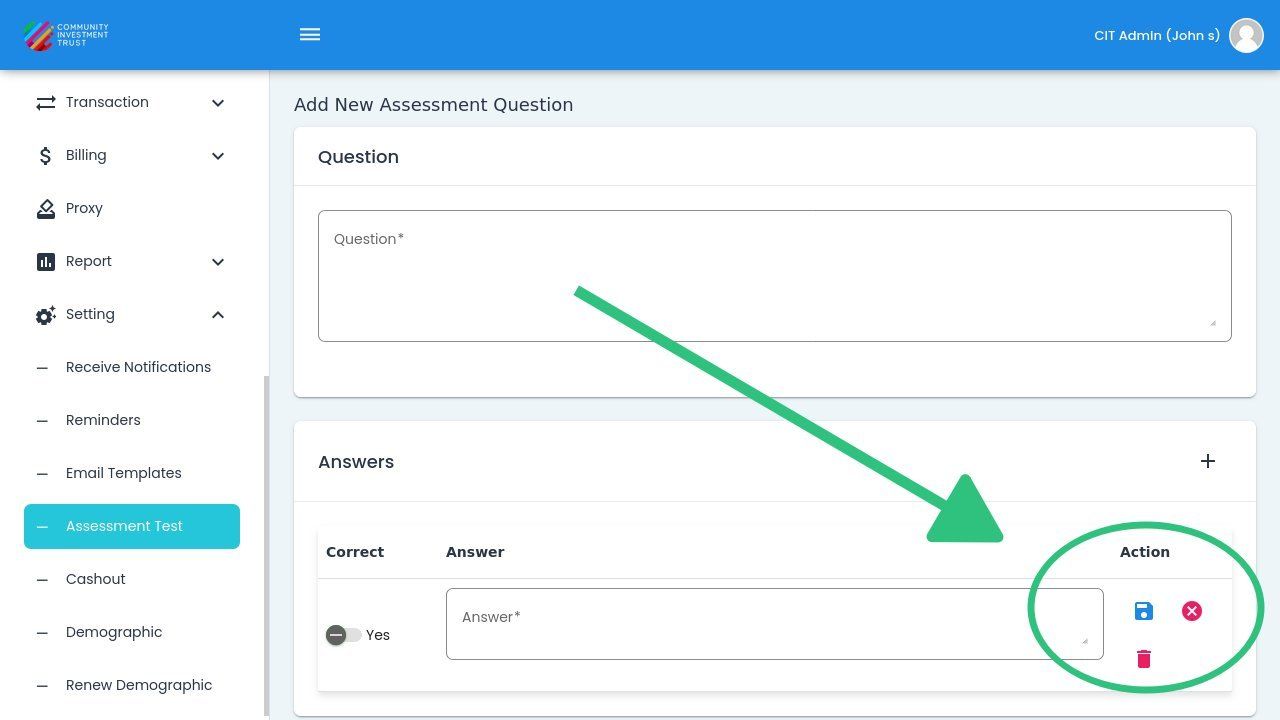
Answer Row Action Buttons#
Save Button#
Action: Click the button to save changes to the answer row.
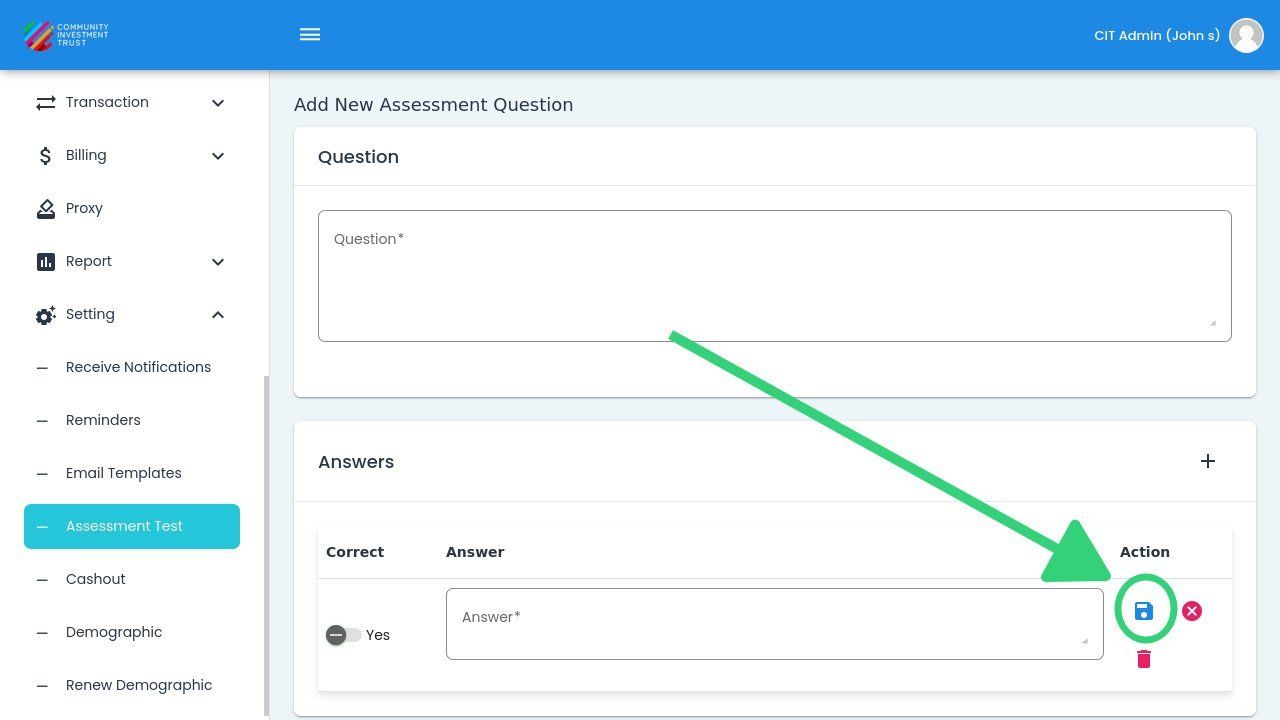
Save Button Location#
Cancel Button#
Action: Click the button to discard changes to the answer row.
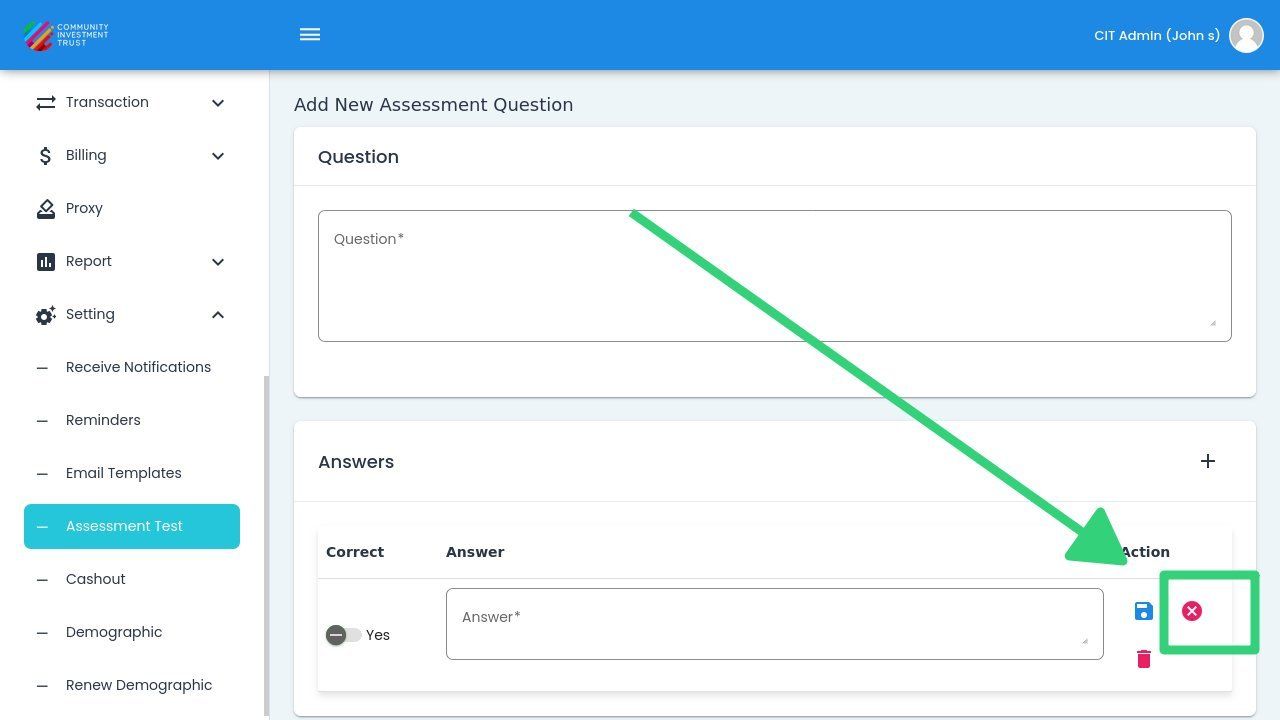
Cancel Button Location#
Delete Button#
Action: Click the button to remove the answer row.
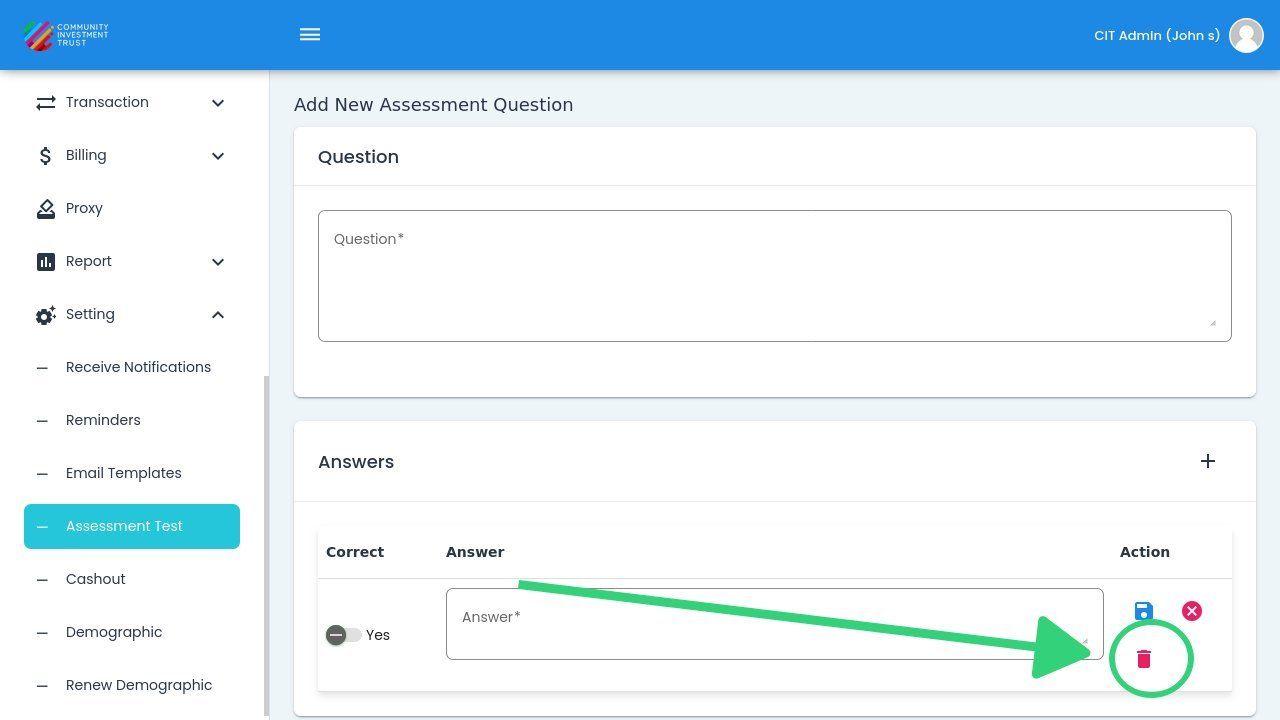
Delete Button Location#