
Additional Reports#
The Section: Additional Reports section provides access to specialized demographic and analysis reports within the CIT App. These reports enable you to compare demographics across offerings, track renewal patterns, and analyze investor cashout behavior.
Location
Report > Demographics (for Renew/Compare Demographics) Report > Cashout Reason (for Cashout Reason analysis)
Features: Additional Reports#
The Section: Additional Reports section allows you to:
Demographic Analysis:
Cashout Analysis:
For cashout reason analysis, see the dedicated Cashout Reason Report
Report Location#
The Page: Additional Reports pages are located in the Report category in the Item: Primary Sidenavigation menu.
Don’t see the Primary Sidenavigation menu?
See How to Toggle the Primary Sidenavigation menu for more information.
Renew Demographics Report#
The Section: Renew Demographics Report compares demographic data between renewal periods, helping you track how investor demographics change over time.
Report Filters#
Configure the following filter to generate the report:
CIT Corporation Selection#
Action: Select a CIT Corporation from the Item: Choose CIT Corporation dropdown to view renewal demographics for that corporation.
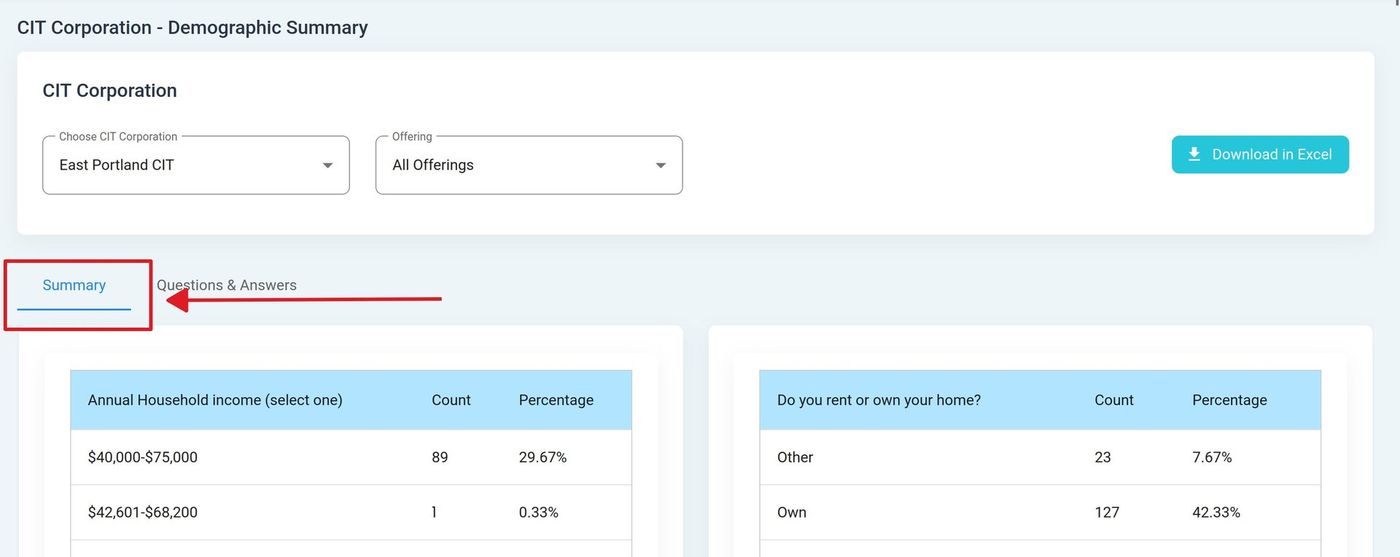
Renew Demographics Report with Filter Options#
Note
The report displays demographic comparison data once a CIT Corporation is selected.
Compare Demographics Report#
The Section: Compare Demographics Report provides side-by-side comparison of demographic data across offerings, enabling you to analyze how investor demographics differ between investment periods.
Report Filters#
Configure the following filters to generate the comparison:
CIT Corporation Selection#
Action: Select a CIT Corporation from the Item: Choose CIT Corporation dropdown.
Offering Selection#
Select two offerings to compare:
Compare Offering: Action: Select the first offering from the Item: Compare Offering dropdown
To Offering: Action: Select the second offering from the Item: To Offering dropdown
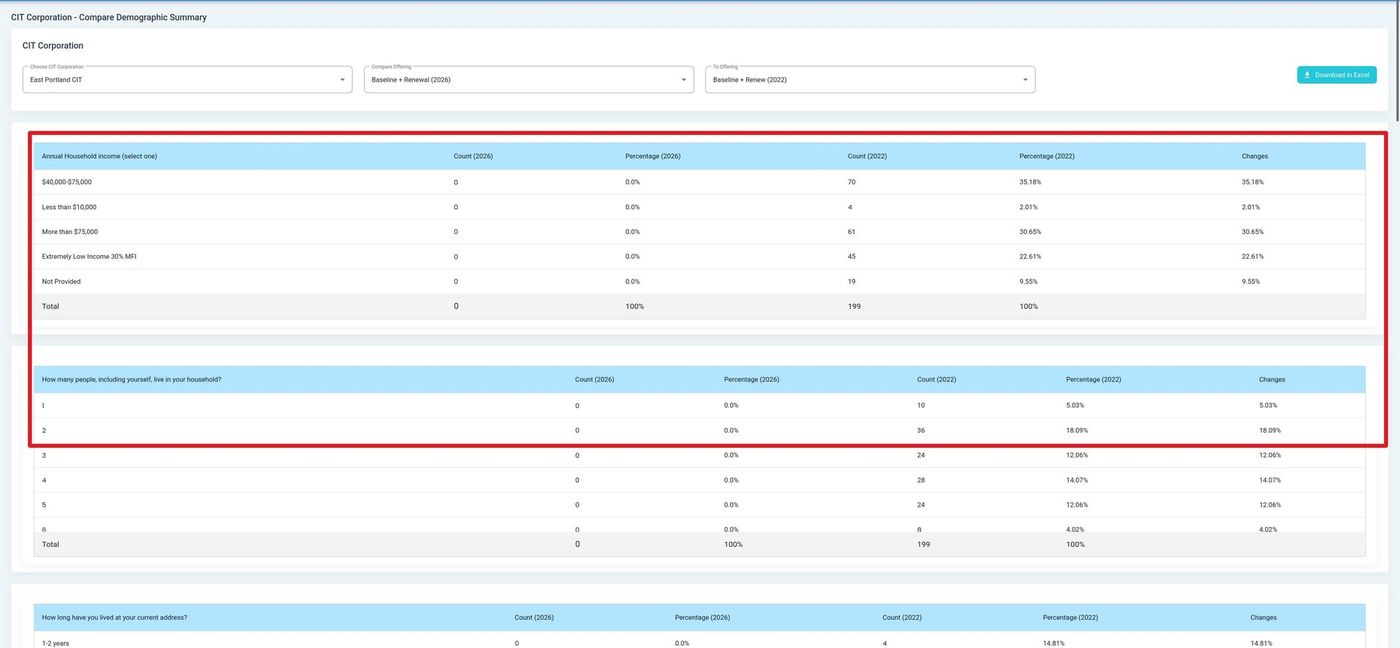
Compare Demographics Report Interface with Filter Options#
Tip
Select offerings from different years to analyze demographic changes over time.
Downloading the Report#
Action: Click the Item: Download in Excel button to export the comparison data.
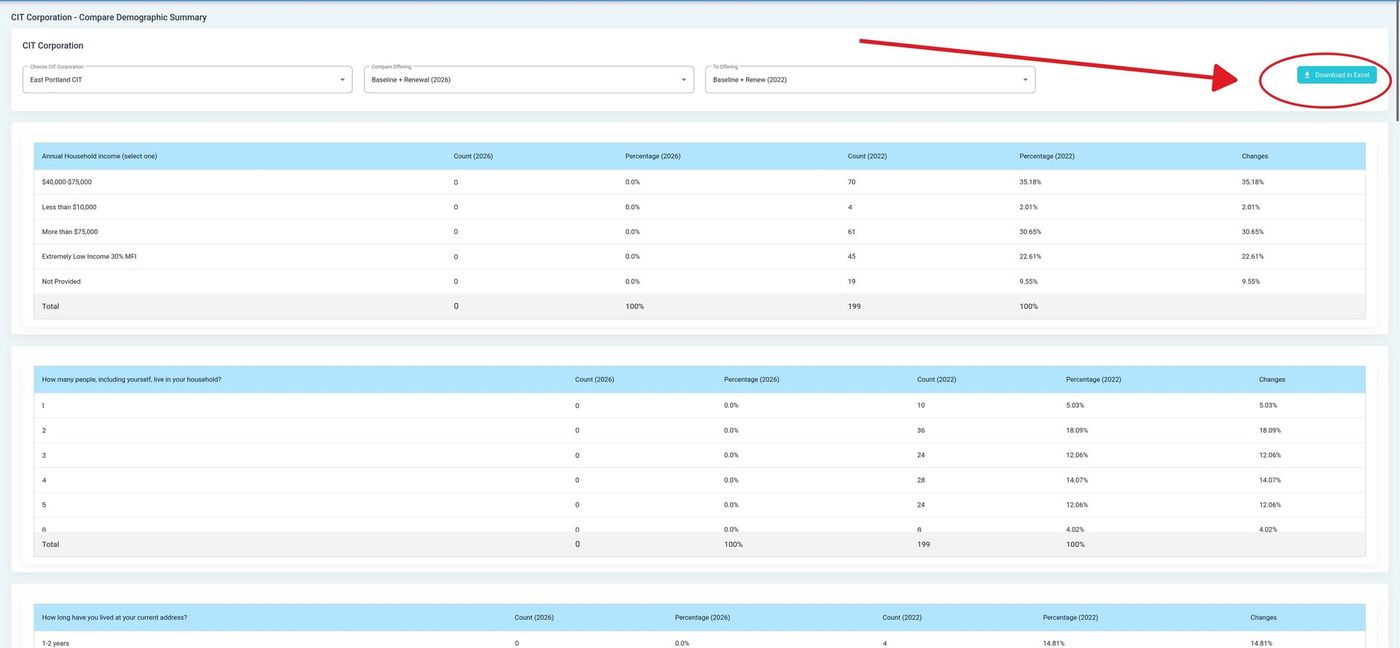
Download in Excel Button Location#
The downloaded Excel file contains demographic comparison data organized by category.