
Users#
The Section: Users section covers everything listed in the Table of Contents below:
Hover for Page Preview
Hover over the links below for a page preview tooltip.
Location: Users Section#
To Find the Users List Homepage:
Locate the primary sidenav to the left of the page.
Don’t see the sidenav?
See How to Toggle Primary Sidebar for more information.
Action: Select the dropdown for the Navigation Category: User category.
Action: Select Section: Users from the dropdown.
User List Homepage#
The Section: Users section opens up to the Table: User List table:
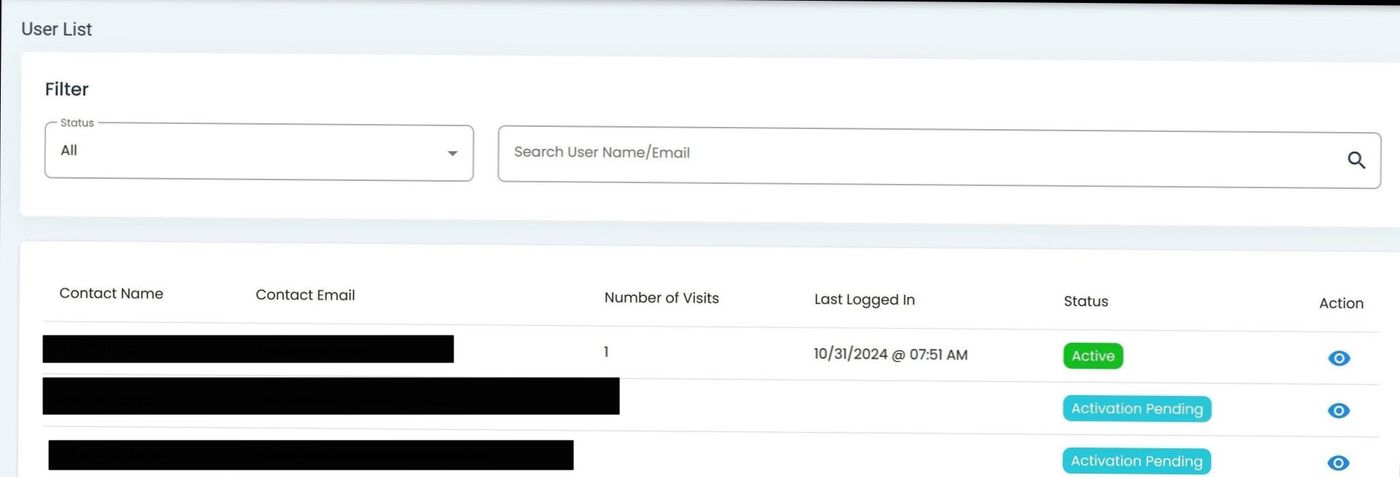
Users, User list Table#
Columns: User List Table#
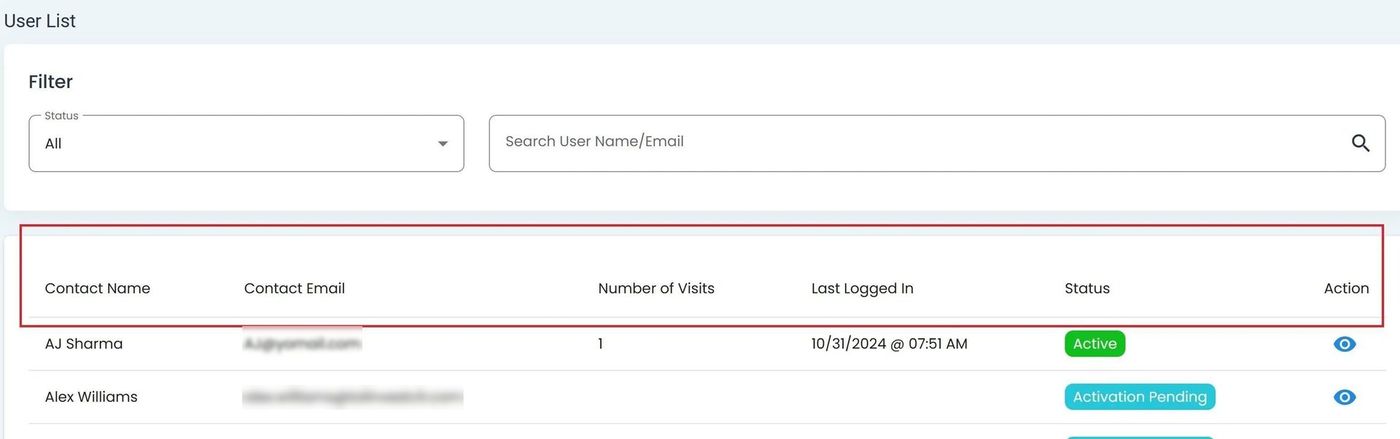
User, Users List Table, Column Options#
The Table: User List table summarizes key details for each Item: User in the current Item: CIT Corporation. It contains six Column: Columns with Column: Status and Column: Action at the end:
Column: Contact Name - Full name of the user associated with the account.
Column: Contact Email - The user’s primary email address for account communication and notifications.
Column: Number of Visits - Total times this contact has logged into the platform.
Column: Last Logged In - Date and time the contact last accessed the platform.
Column: Status - Indicates if the user account is active or inactive.
Column: Action - Column for available user operations, such as edit or delete.
Search and Filter Options#
The Table: User List table can be filtered using two methods:
Search by User Name or Email: Enter keywords into search field.
Filter by Status: Select predefined status options from the dropdown menu.
Status Options#
The Item: Status dropdown includes five different options:
Option: All (Shows all users regardless of status)
Green Option: Active
Item: Inactive
Teal Option: Pending Activation
Reference to Locked Out itemLocked Out
To Filter Users by Status:
Action: Click the Item: Status dropdown at the top of the user list.
Action: Select your desired filter option.
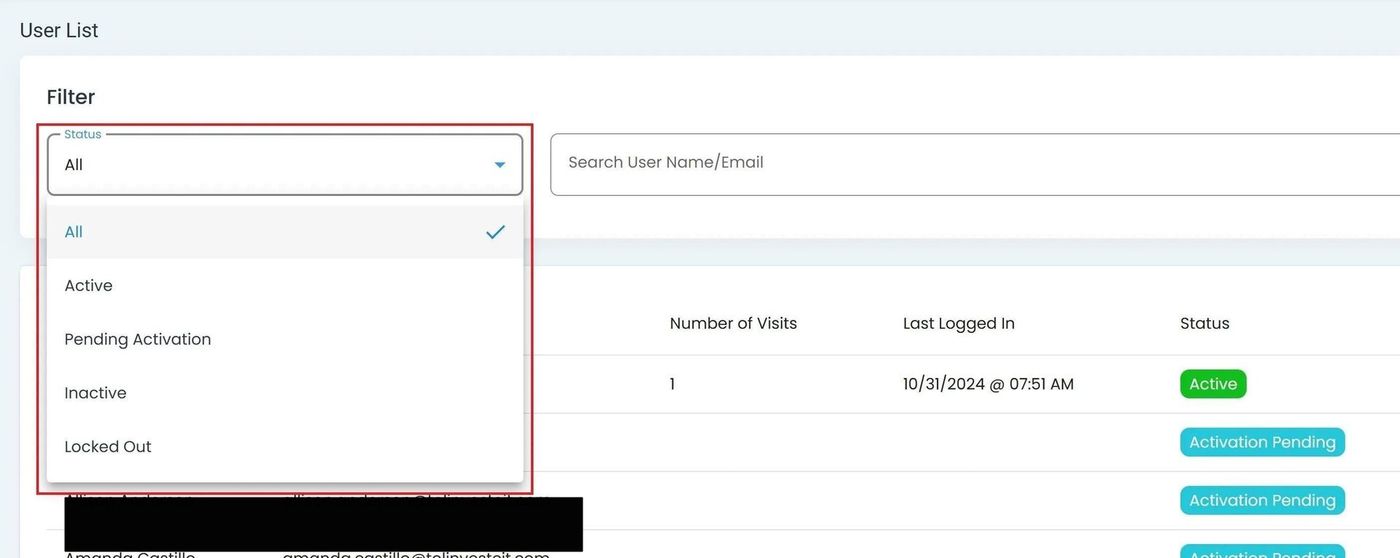
User, Users List Table, Status Filter Dropdown#
Action Complete: Status Filter Updated
The table will update automatically once an option is chosen.
View User Details and Other Remaining Sections#
The remaining sections are universally shared throughout the app.
These sections include: