
Generating the Cashout Reason Report#
This section describes how to generate and download the Cashout Reason Report.
Location
Report > Cashout Reason
Generating the Report#
To Generate the Cashout Reason Report:
Navigate to the Section: Cashout Reason section from the Report category.
Action: Select a CIT Corporation from the Item: Choose CIT Corporation dropdown.
Action: Select a year from the Item: Choose Year dropdown.
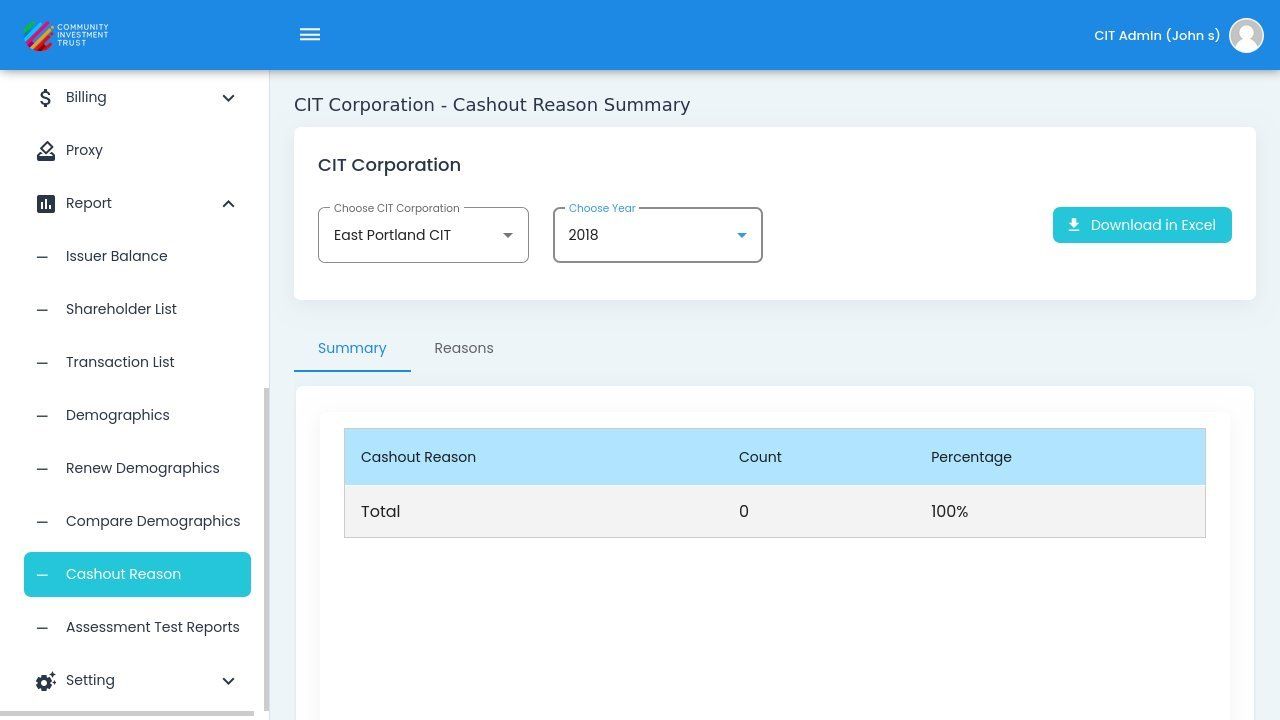
Cashout Reason Report with CIT Corporation and Year Selected#
The report data will automatically display after both selections are made.
Action Complete: Report Generated
The Cashout Reason Report displays with reason categories, counts, and percentages for the selected CIT Corporation and year.
Downloading the Report#
The Cashout Reason Report can be exported to Excel format for further analysis.
To Download the Report:
Generate the report by selecting a CIT Corporation and Year.
Locate the Action: Download in Excel button.
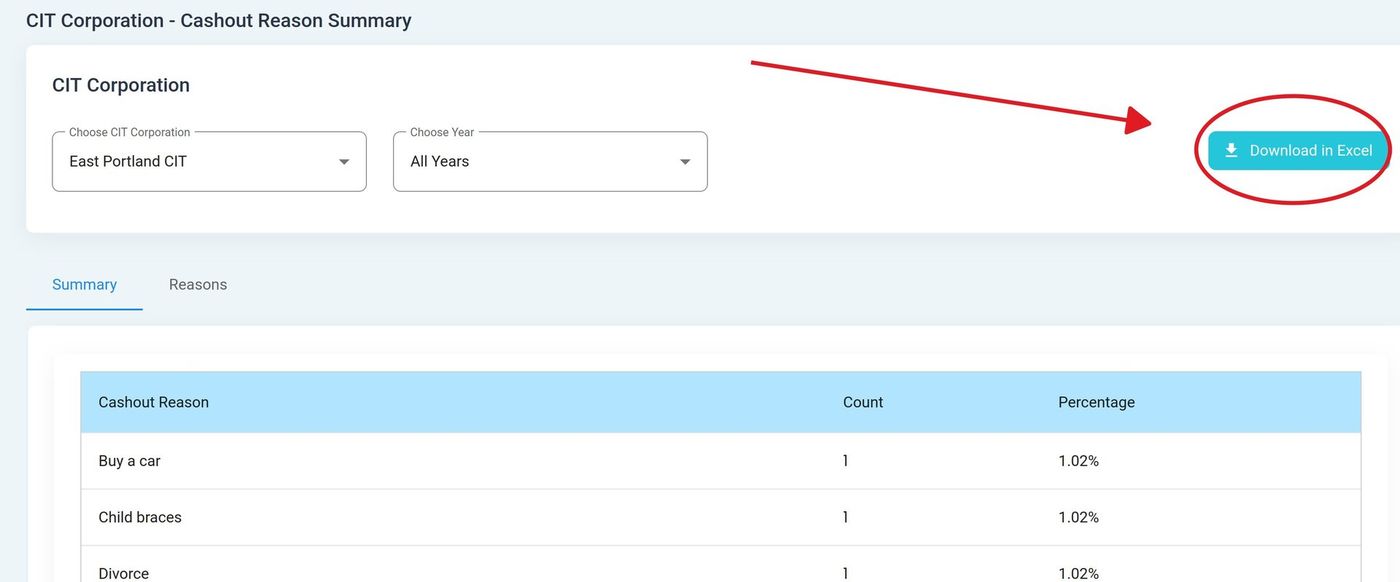
Download in Excel Button Location#
Action: Click the Action: Download in Excel button.
The Excel file will download to your default downloads location.
Action Complete: Report Downloaded
The Cashout Reason Report has been downloaded as an Excel (.xlsx) file containing all displayed data.
Note
The downloaded file includes the same data displayed on screen: reason categories, counts, and percentages for the selected filters.
Using the Downloaded Data#
The Excel export allows you to:
Create custom charts and visualizations
Combine data from multiple years for trend analysis
Share reports with stakeholders who don’t have system access
Perform additional calculations or filtering
Archive historical data for compliance purposes