
Using Cash Payouts Filters#
The Section: Cash Payouts Filters allow you to search and filter cash payout records by various criteria.
Overview#
The filter section appears at the top of the Table: Cash Payouts List table and provides multiple filtering options.
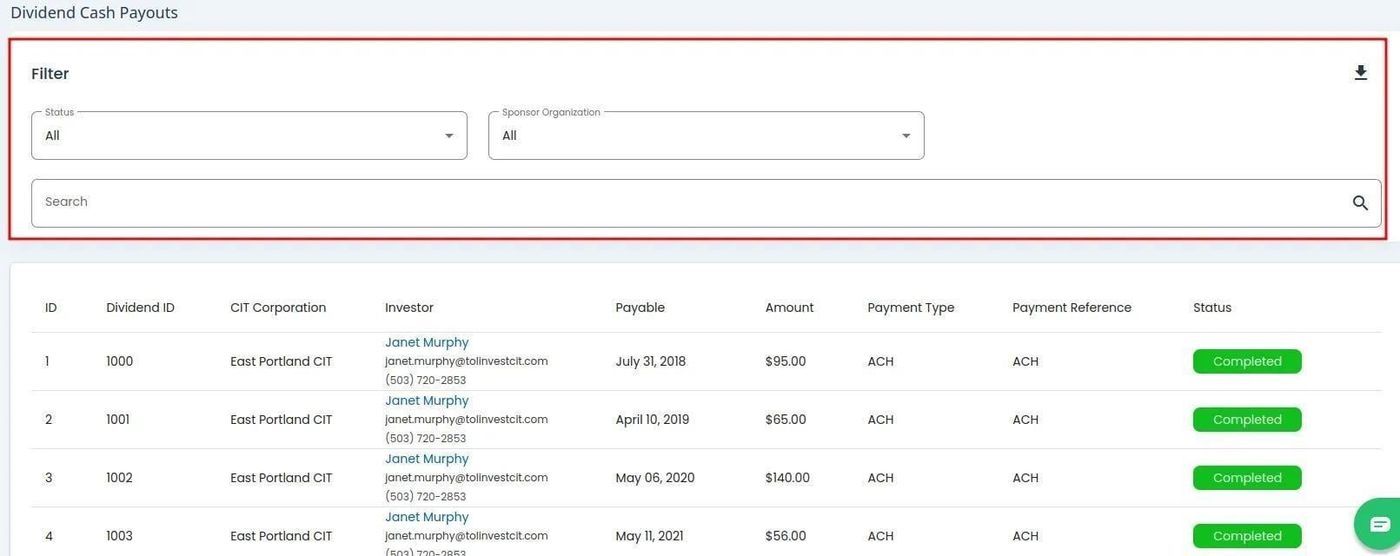
Cash Payouts Filter Section#
Filter by Status#
To Filter by Status:
Find and Action: Click on the Item: Status dropdown, located above the table.
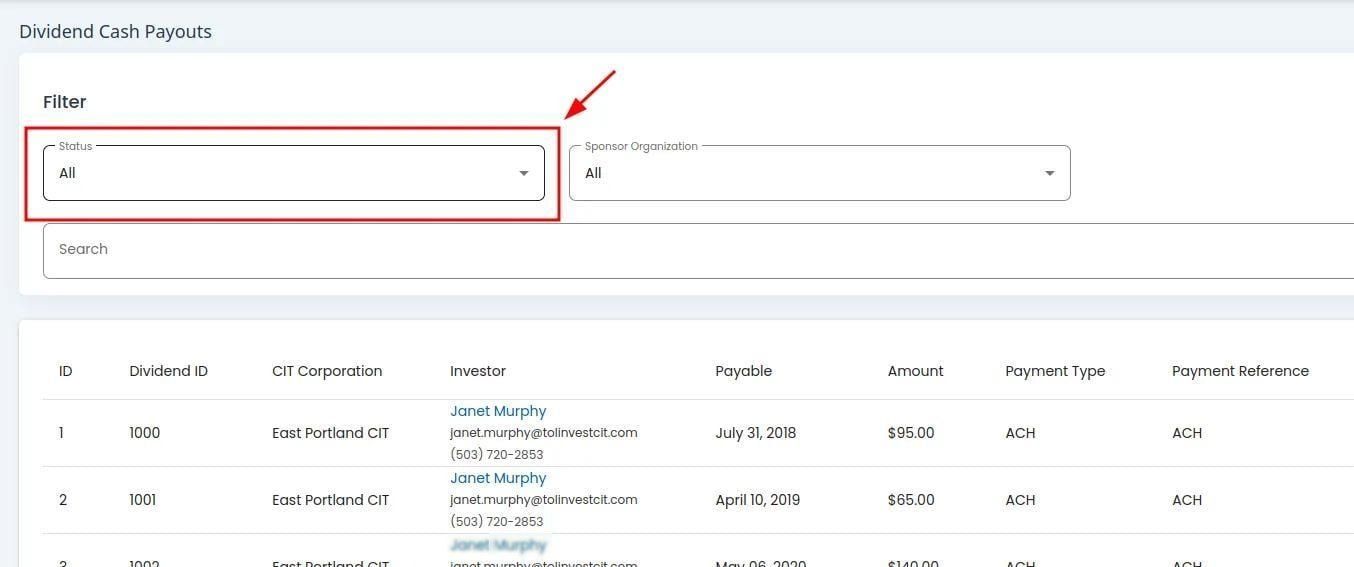
Cash Payouts, Status Dropdown Location#
Action: Select the status you want to filter by from the dropdown.
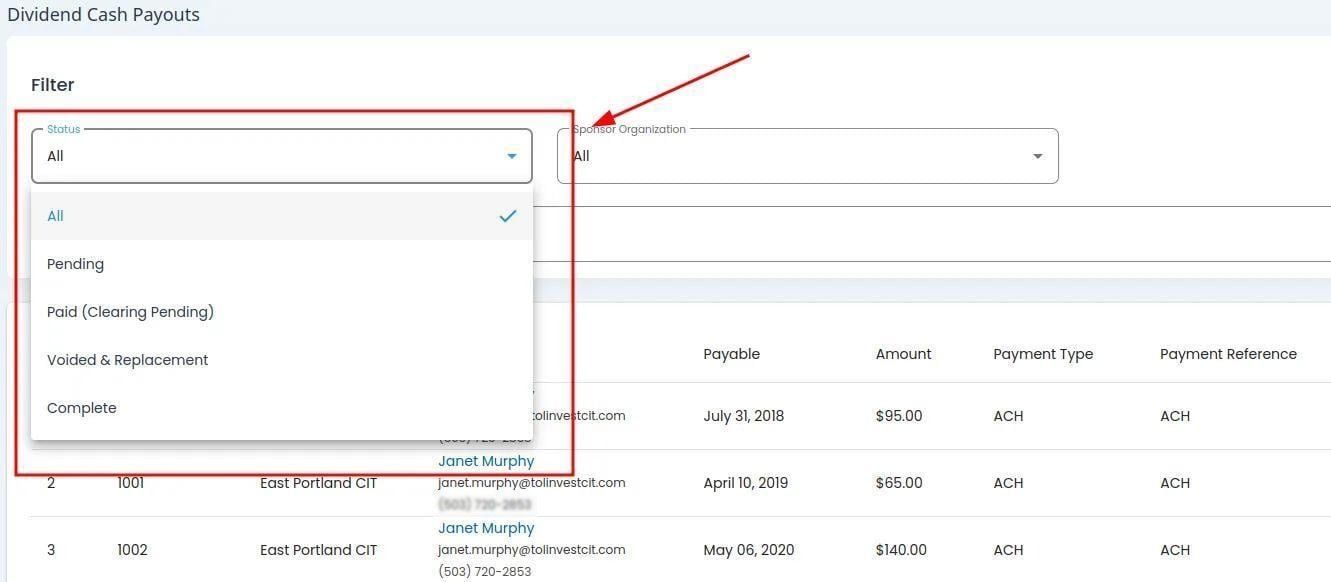
Cash Payouts, Status Dropdown Expanded#
Available Status Options#
Status: All - View all cash payout records regardless of status.
Status: Complete - Cash payouts that have been fully distributed.
Status: Pending - Cash payouts awaiting distribution.
Status: In Process - Cash payouts currently being processed.
Filter by Sponsor Organization#
To Filter by Sponsor Organization:
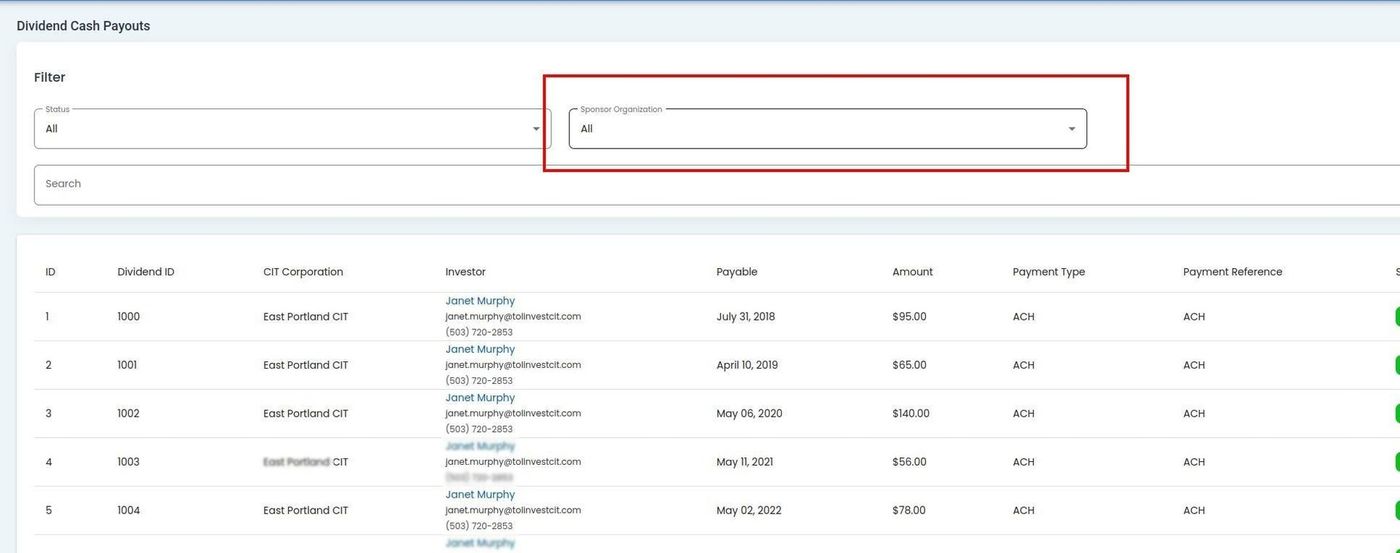
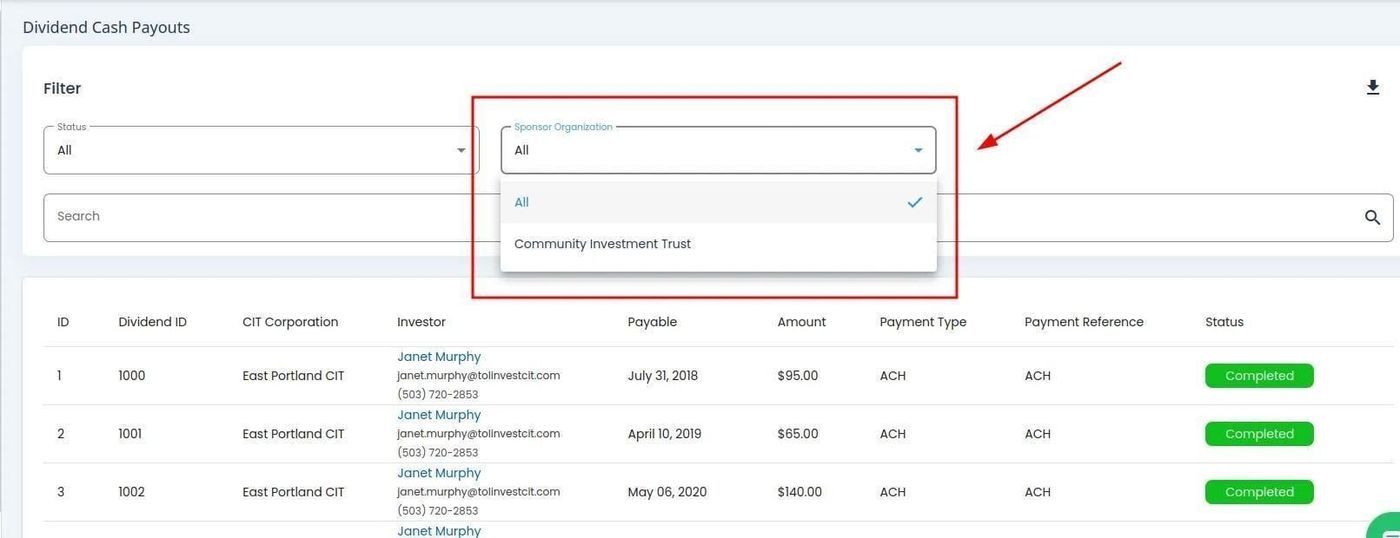
Search for Specific Payouts#
To Search for Cash Payout Information:
Find and Action: Click on the Item: Search field.
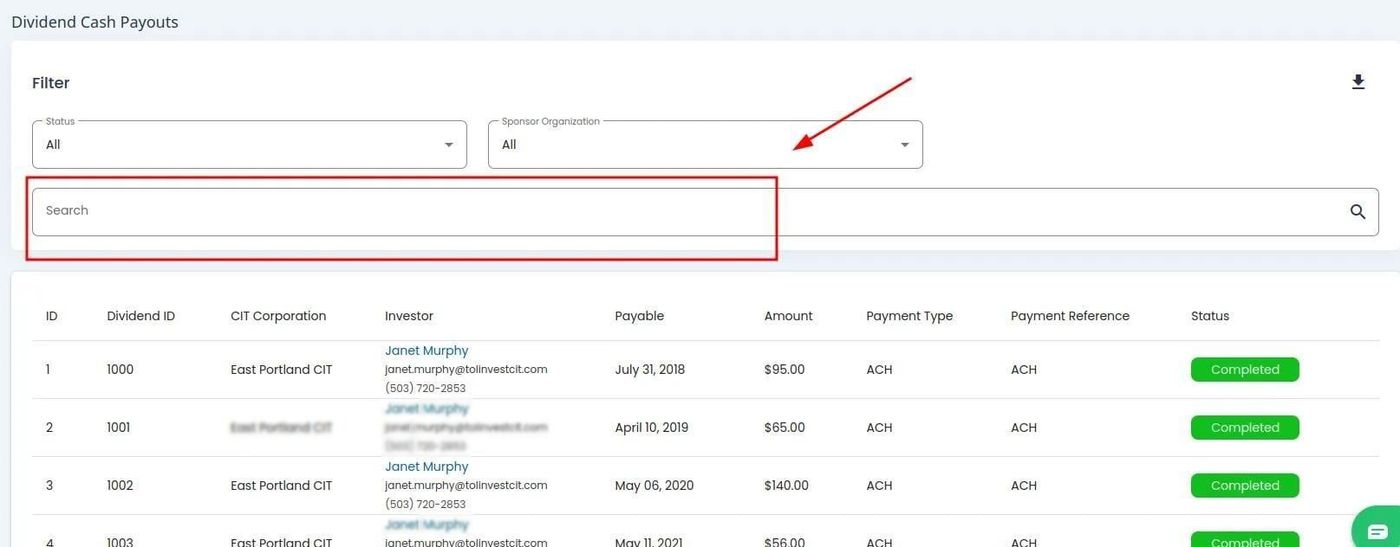
Cash Payouts, Search Bar Location#
Action: Type the name of the investor you want to find.
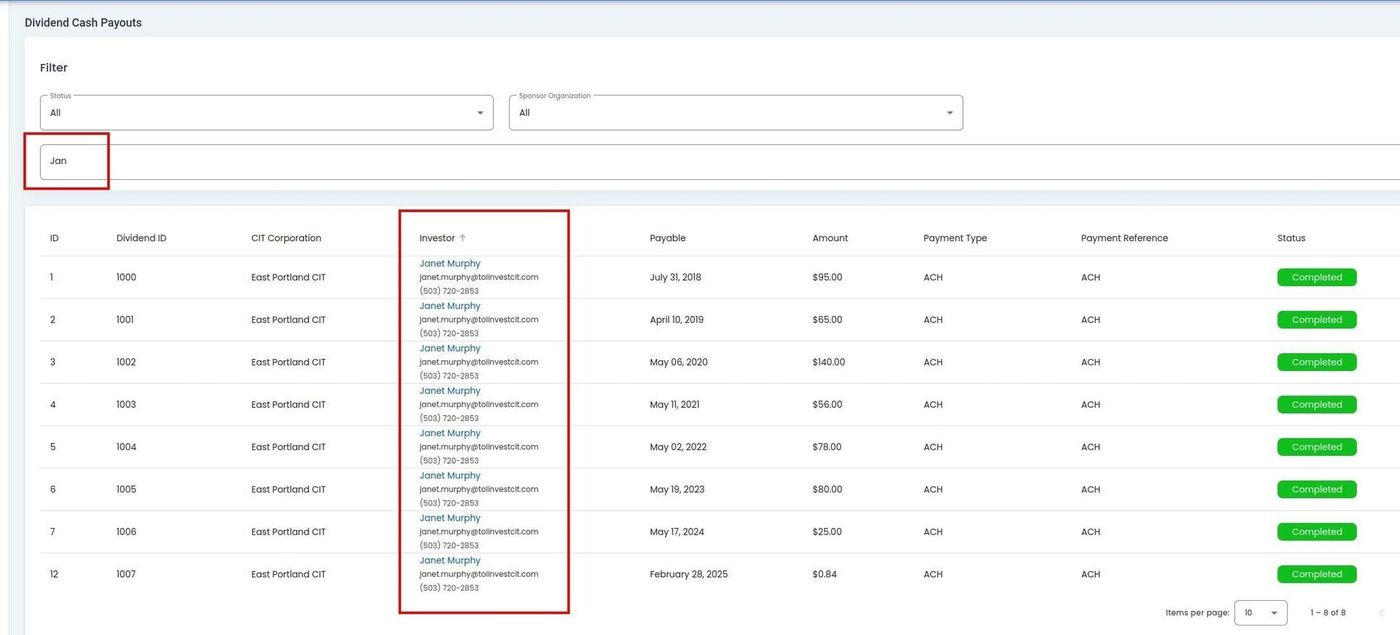
Cash Payouts, Search Bar Example#
Search Tips#
Search by investor name for quick results
Use partial names for broader searches
Search is case-insensitive
Applying Filters#
Automatic Filtering
The table automatically updates as you select filter options. There’s no need to click a separate “Apply” button.
Filter Combinations#
You can combine multiple filters for more specific results:
Filter by status AND sponsor organization
Search for an investor within a specific organization
Apply all filters simultaneously for the most targeted results
Clearing Filters#
To clear all filters and view all cash payouts:
Click the Action: Clear Filters button (if available)
Or manually reset each dropdown to “All” or the default option
Clear the search field