
Cashout#
Features#
The Section: Cashout section allows you to:
View all cashout requests in the Cashout List table
Location: Cashout Section#
You can find the Section: Cashout section underneath the Navigation Category: Transaction category:
Locate the primary sidenav to the left of the page.
Don’t see the sidenav?
See How to Toggle Primary Sidebar for more information.
Action: Select the dropdown for the Navigation Category: Transaction category.
Action: Select Section: Cashout from the dropdown.
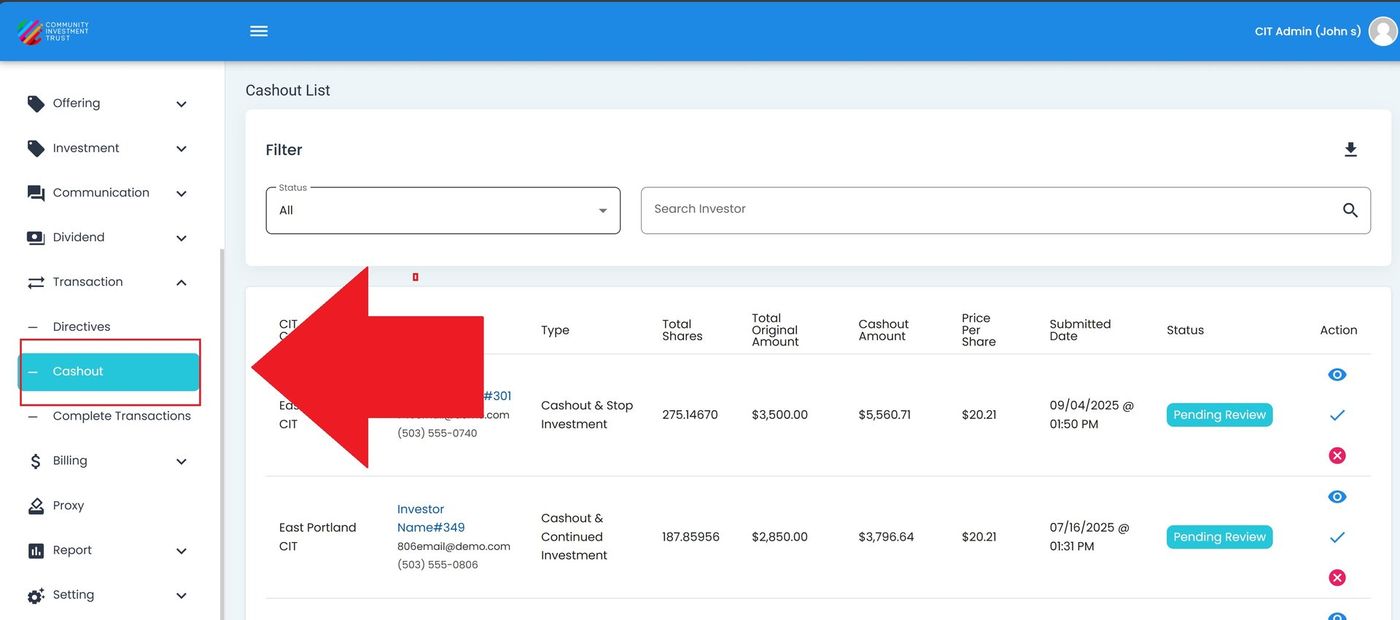
Cashout, Primary Sidenav Location#
Cashout List Table#
The Section: Cashout section opens to the Table: Cashout List table:
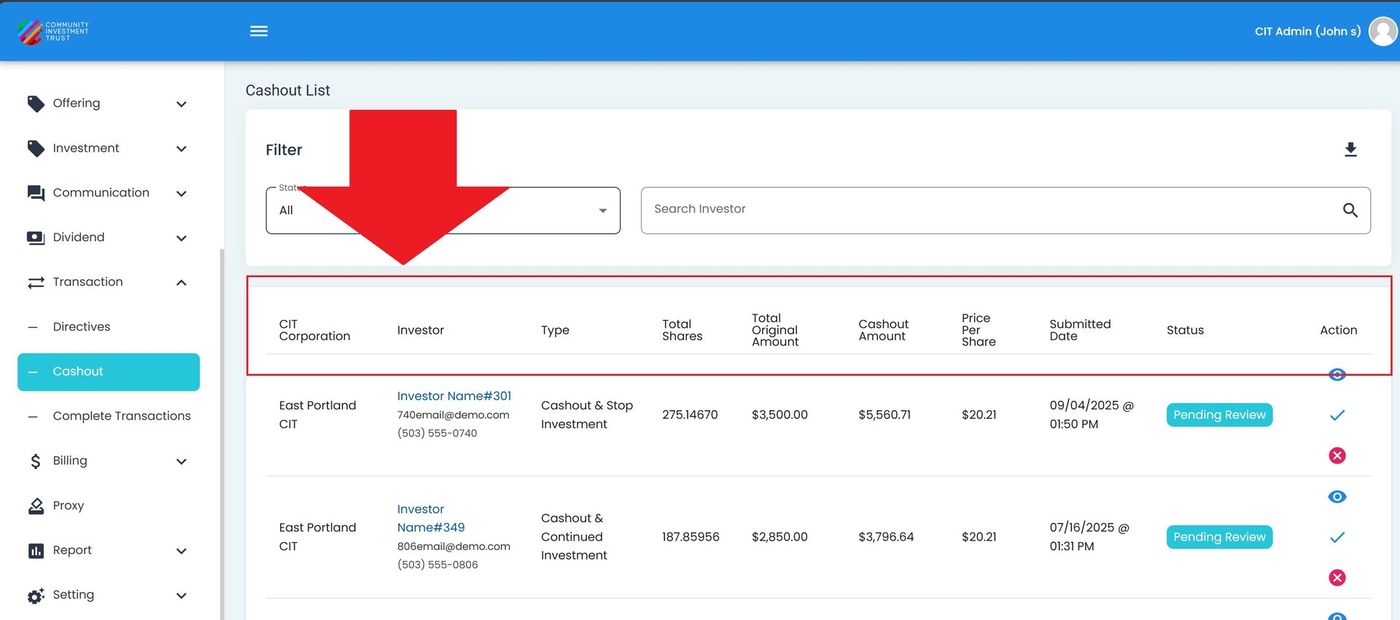
Cashout List Table#
Columns: Cashout List Table#
The Column: Columns for the Table: Cashout List table can be found at the top of the table:
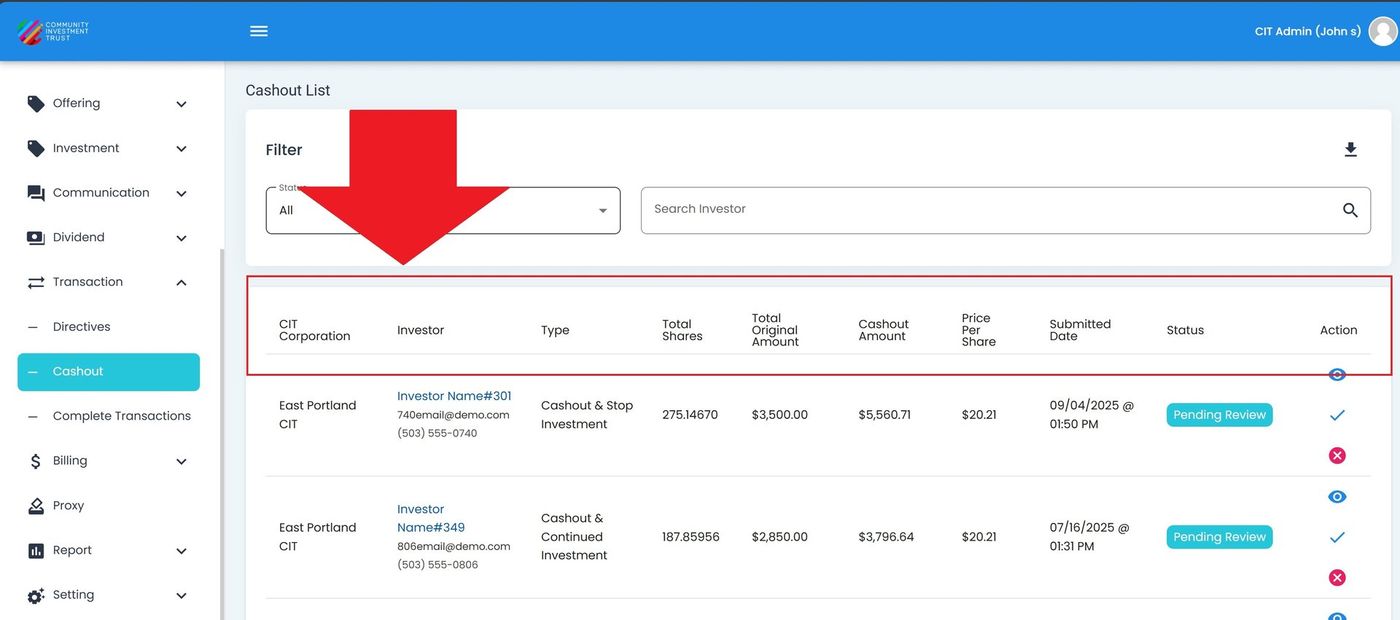
Cashout List Table Column Headers#
Column: CIT Corporation - The corporation associated with the cashout request.
Column: Investor - The investor requesting the cashout (clickable link to investor profile).
Column: Type - The type of cashout request (Cashout & Stop Investment, Cashout & Continued Investment).
Column: Total Shares - The total number of shares being cashed out.
Column: Total Original Amount - The original investment amount.
Column: Cashout Amount - The amount to be paid out.
Column: Price Per Share - The current price per share.
Column: Submitted Date - The date and time the request was submitted.
Column: Status - The current status of the request (Pending Review, Processing, Canceled, Completed).
Column: Action - Available actions for the request (View, Approve, Reject).
Filtering the Cashout List#
The filter section allows you to narrow results by status or search for specific investors.
Filter by Status#
Action: Locate the Item: Status dropdown in the filter section.
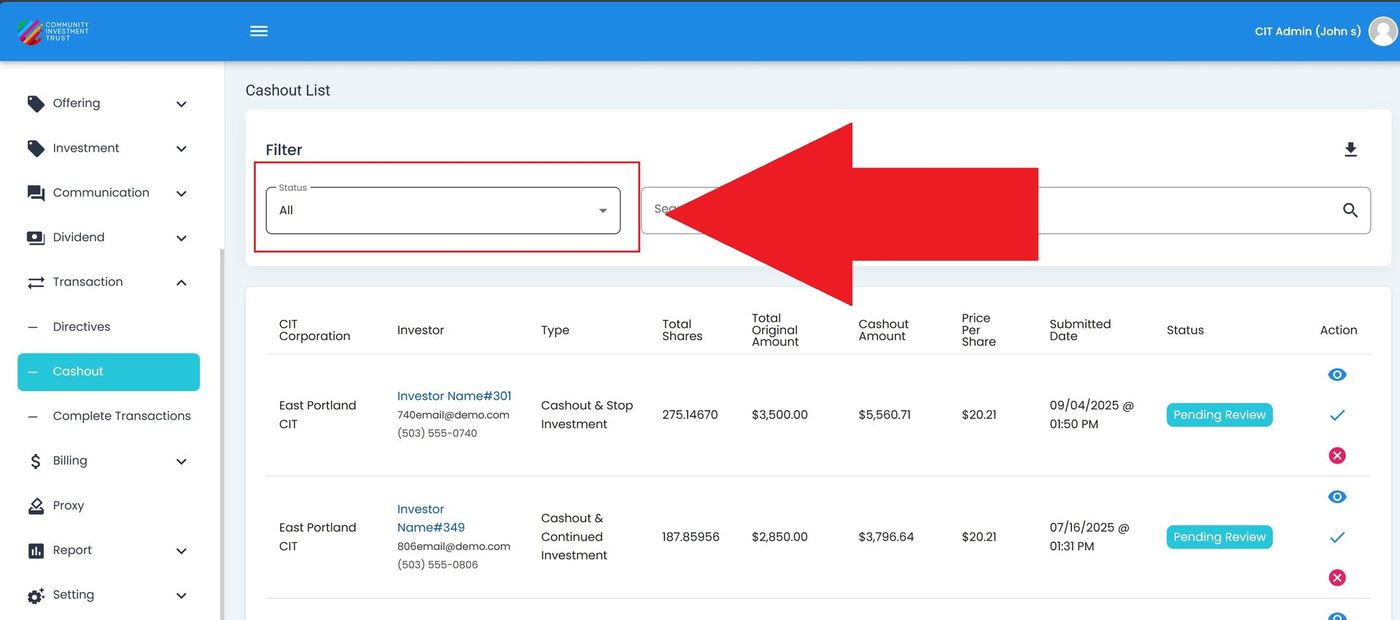
Status Dropdown Location#
Action: Select a status to filter results.
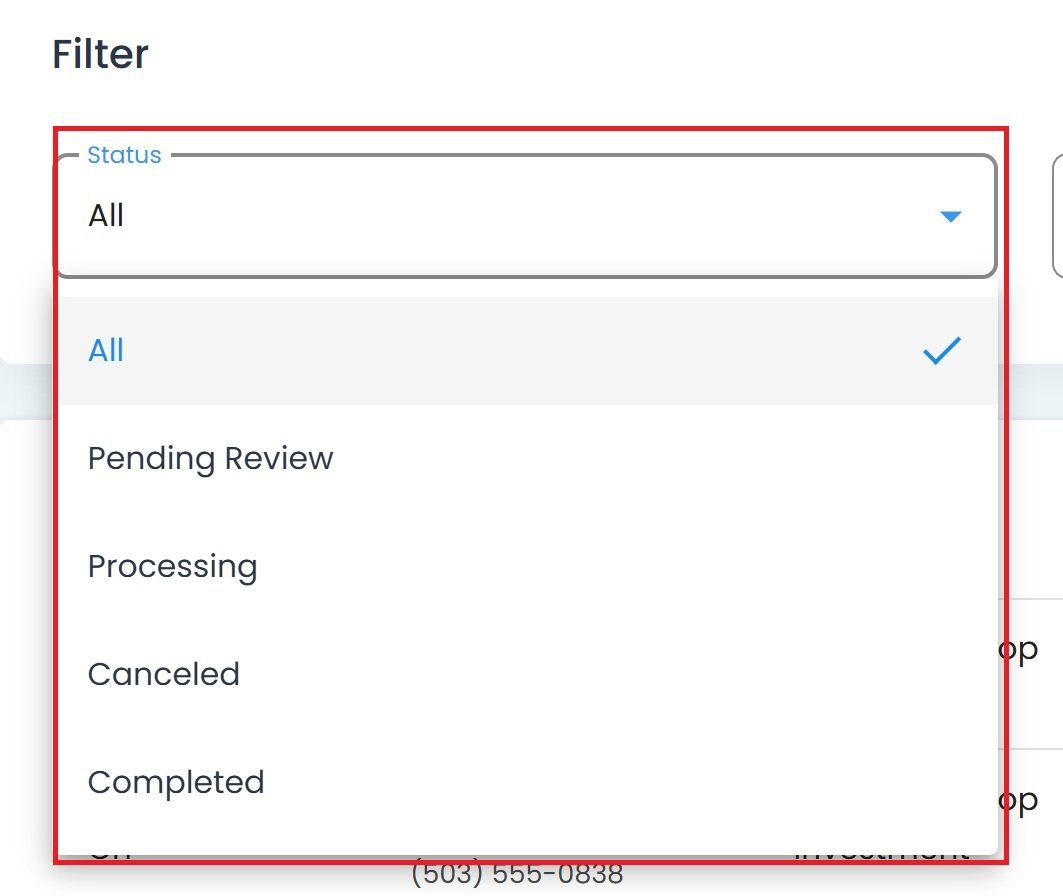
Status Dropdown Expanded#
Available Status Options#
Status: All - View all cashout requests regardless of status.
Status: Pending Review - Requests awaiting review and approval.
Status: Processing - Approved requests currently being processed.
Status: Canceled - Requests that have been canceled.
Status: Completed - Successfully completed cashout requests.
Search for Investors#
Use the search field to find cashout requests for a specific investor.
Action: Locate the Item: Search Investor field.
Action: Enter the investor name to search.
The table automatically filters to show matching results.
Viewing Investor Details#
The Column: Investor column contains clickable links that navigate to the investor’s profile.
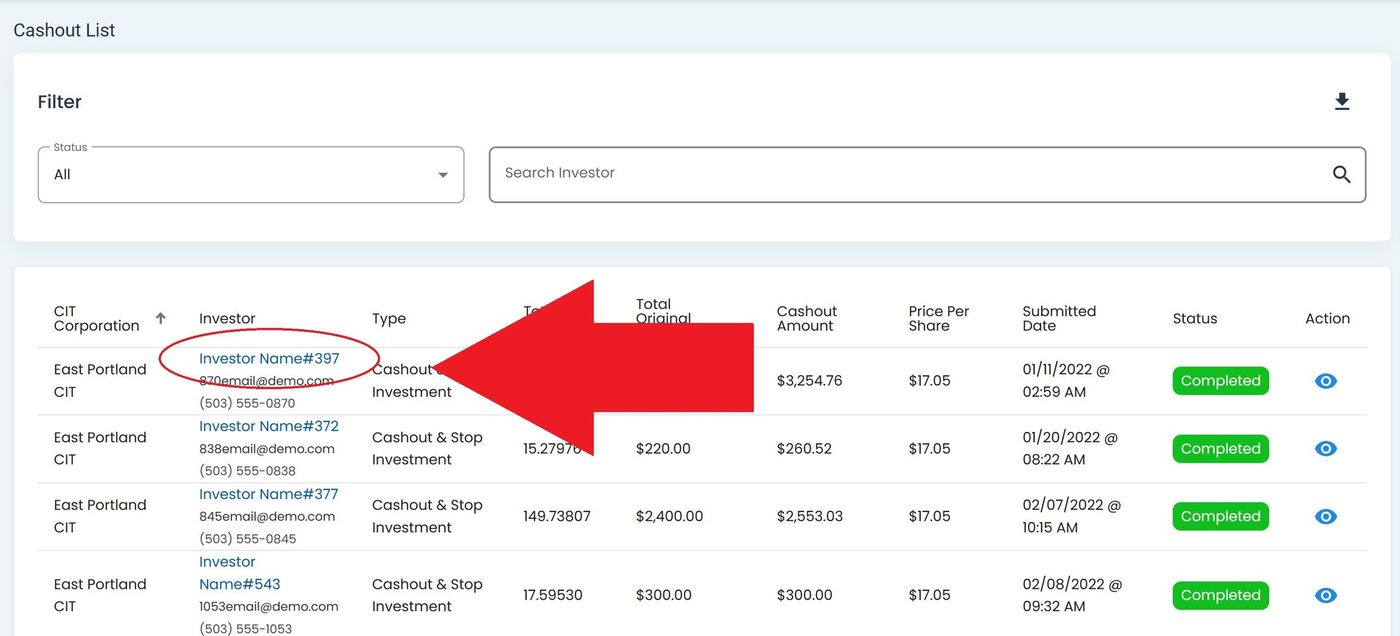
Clickable Investor Name#
Action: Click on an investor name to view their complete investor profile.
Available Actions#
The Column: Action column provides the following options for each cashout request:
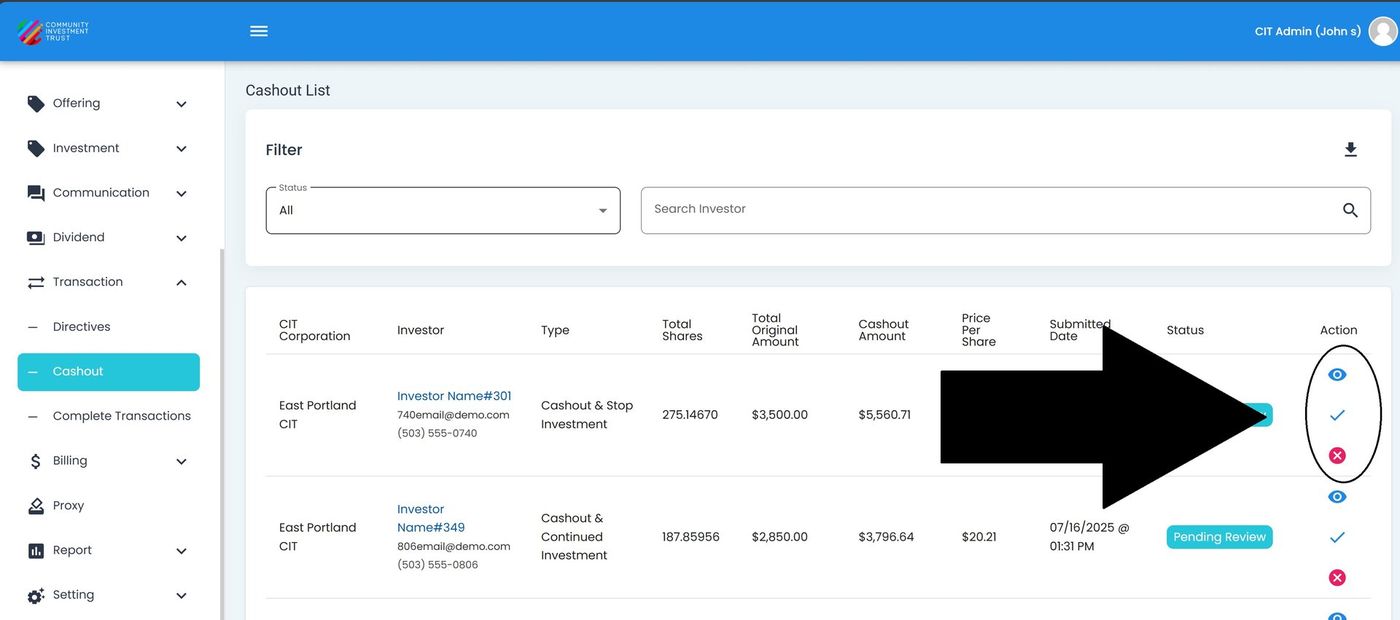
Action Column Options#
View Details#
Action: Click the view icon to see detailed information about the cashout request.
Approve Request#
For requests with Orange Option: Pending Review status:
Action: Click the checkmark icon to approve the request.
Confirm the approval in the dialog.
Action Complete
The request status changes to Option: Processing.
Reject Request#
For requests with Orange Option: Pending Review status:
Action: Click the X icon to reject the request.
Provide a reason for rejection if prompted.
Confirm the rejection.
Action Complete
The request status changes to Option: Canceled.
Important
Approve and reject actions are only available for requests with Orange Option: Pending Review status. Completed or canceled requests cannot be modified.
Export to Excel#
Export the current Cashout List data to an Excel file.
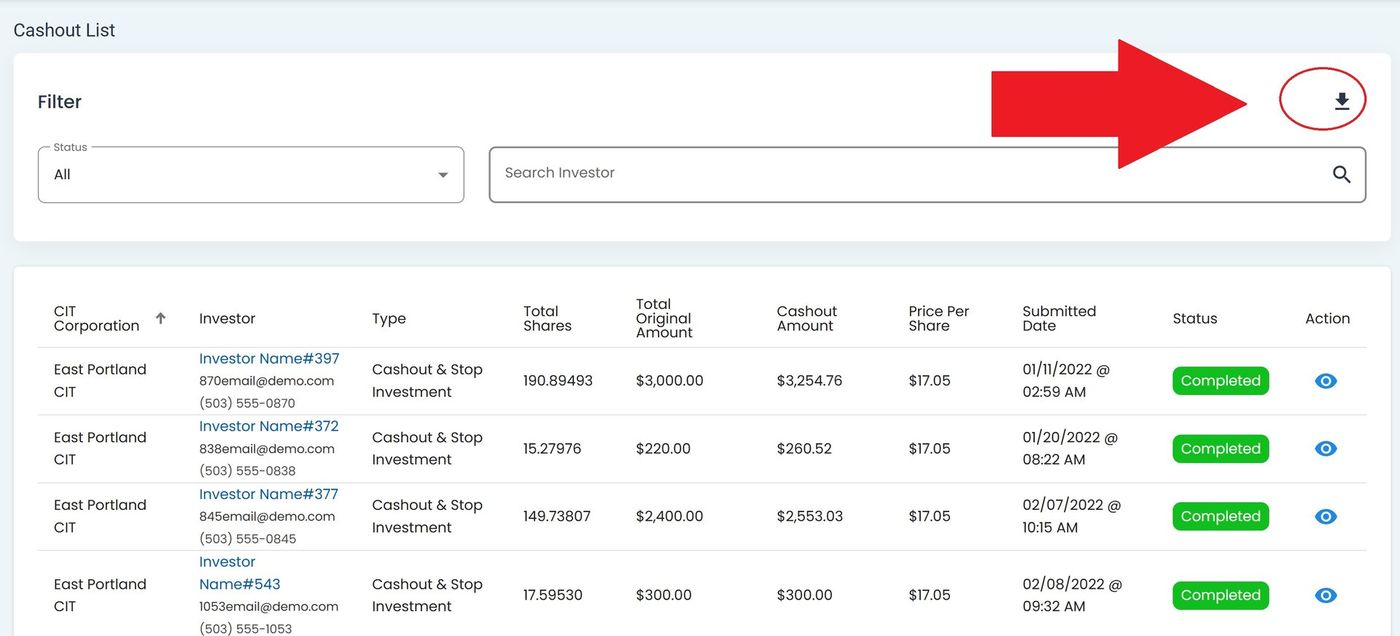
Export to Excel Button Location#
Action: Apply any desired filters to narrow the data.
Action: Click the download icon in the top-right corner of the filter section.
Action Complete
Your browser downloads an Excel file containing the filtered cashout data.