
Invoices#
The Section: Invoices section covers everything listed in the Table of Contents below:
Hover for Page Preview
Hover over the links below for a page preview tooltip.
Invoices Homepage#
The Section: Invoices section opens up to the Table: Invoices List table:
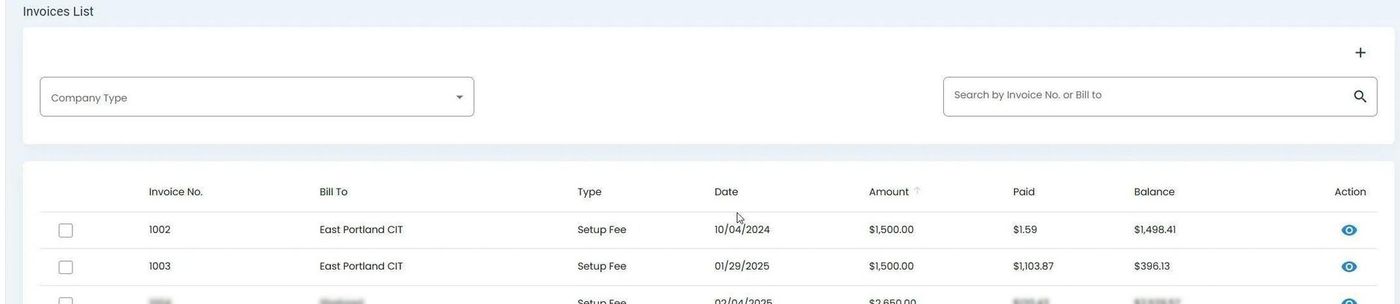
Billing, Invoices, Homepage#
Columns: Invoices List Table#
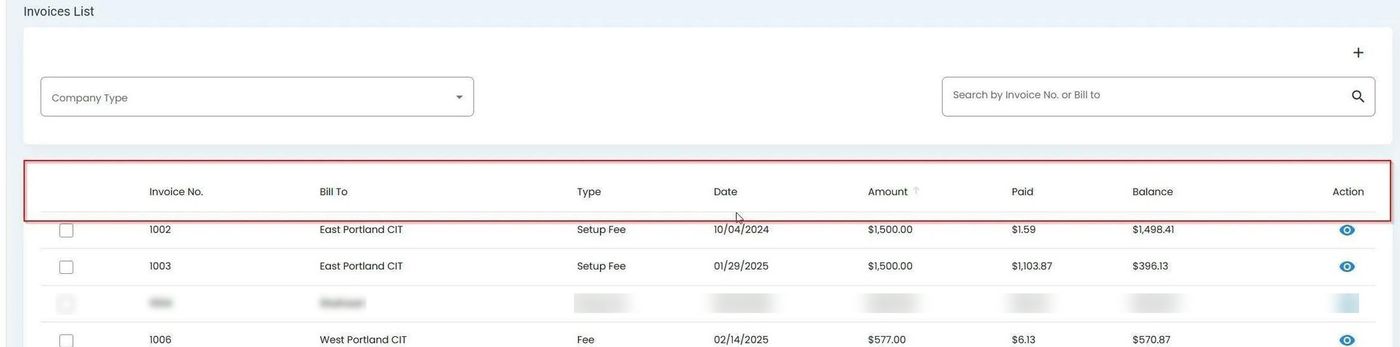
Billing, Invoices, Columns Explained#
Column: Invoice No. - Unique identifier assigned to each invoice for tracking purposes.
Column: Bill To - Name or entity responsible for paying the invoice amount.
Column: Type - Indicates the category or nature of the invoice (Service, Fee).
Column: Date - Date the invoice was issued to the customer.
Column: Amount - Total money charged on this invoice, shown in currency.
Column: Paid - Amount already paid toward this invoice.
Column: Balance - Remaining amount due on this invoice.
Column: Action - Available actions: View details, Download PDF.
Searching and Filtering Invoices#
Search by Invoice Number or Bill To#
You can search for specific invoices using the search field:
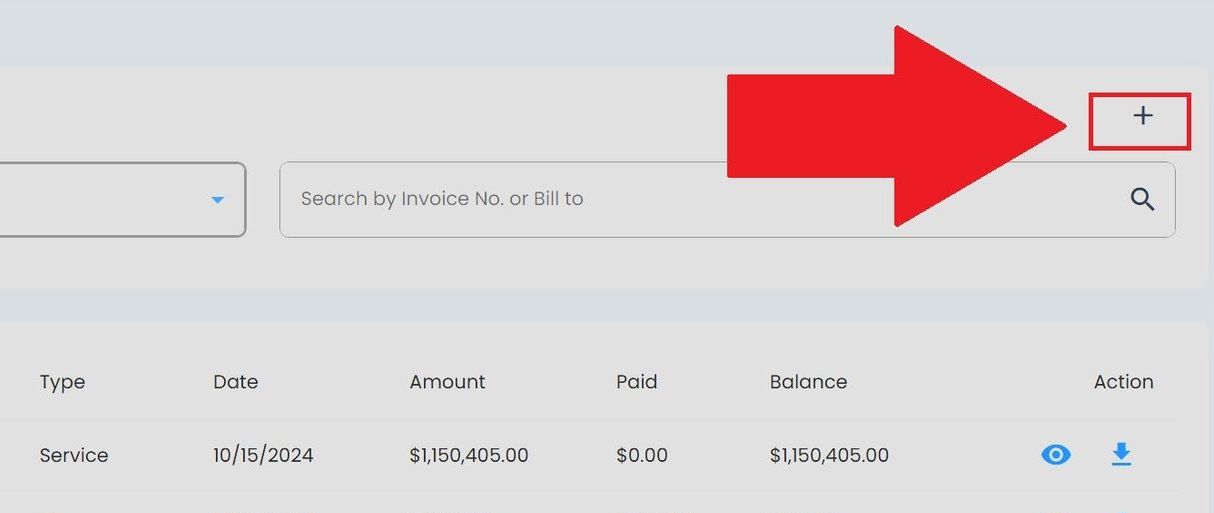
Billing, Invoices, Search Field for Invoice Number or Bill To#
Filter by Billing Account#
Use the Item: Billing Accounts dropdown to filter invoices by a specific billing account:
Locate the Item: Billing Accounts dropdown in the Filter section:
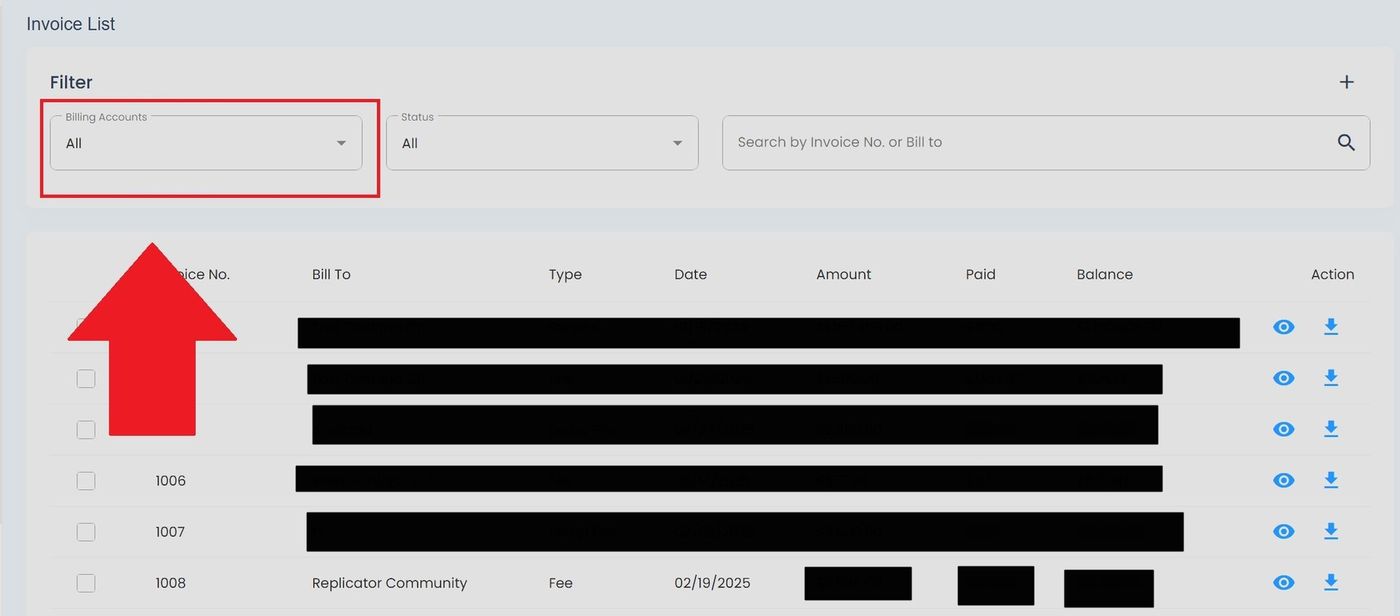
Billing, Invoices, Billing Accounts Filter Location#
Select a billing account from the dropdown options:
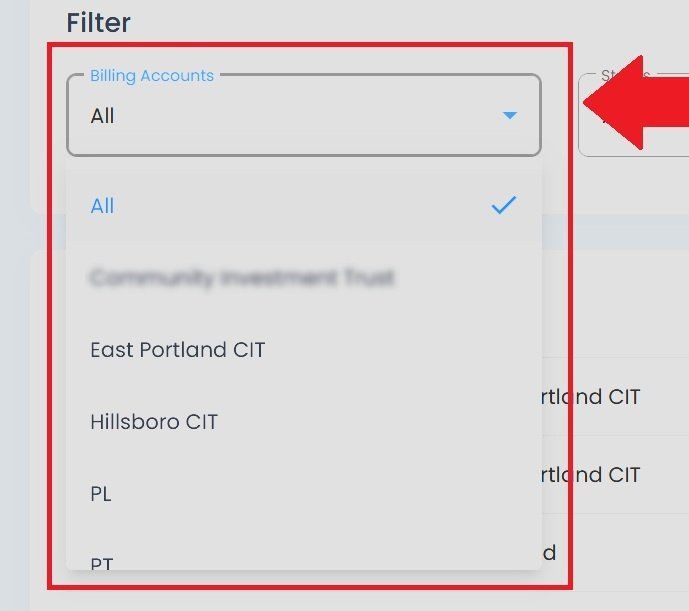
Billing, Invoices, Billing Accounts Dropdown Expanded#
Filter by Status#
Use the Item: Status dropdown to filter invoices by payment status:
Locate the Item: Status dropdown in the Filter section:
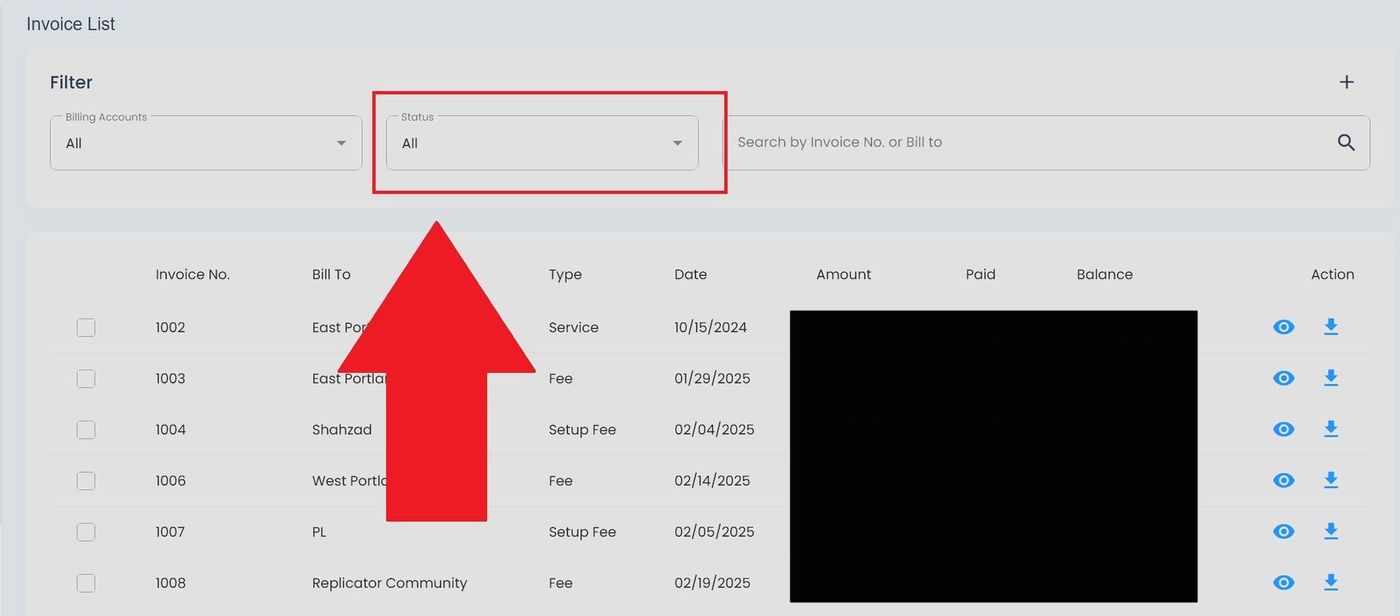
Billing, Invoices, Status Filter Location#
Select a status from the dropdown options:
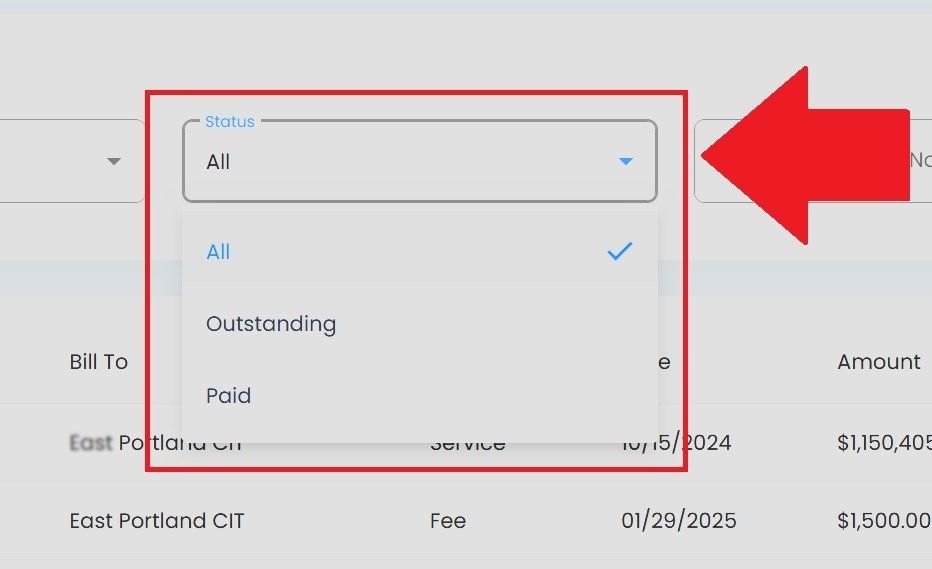
Billing, Invoices, Status Dropdown Expanded#
Status Definitions#
Status: All - View all invoices regardless of payment status.
Status: Outstanding - Invoices with remaining balance that have not been fully paid.
Status: Paid - Invoices that have been fully paid with zero balance remaining.
Automatic Filtering
The table automatically updates as you select filter options. There’s no need to click a separate “Apply” button.
View Invoice Details#
To view the details of a specific invoice, click the Action: View button (eye icon) in the Column: Action column:
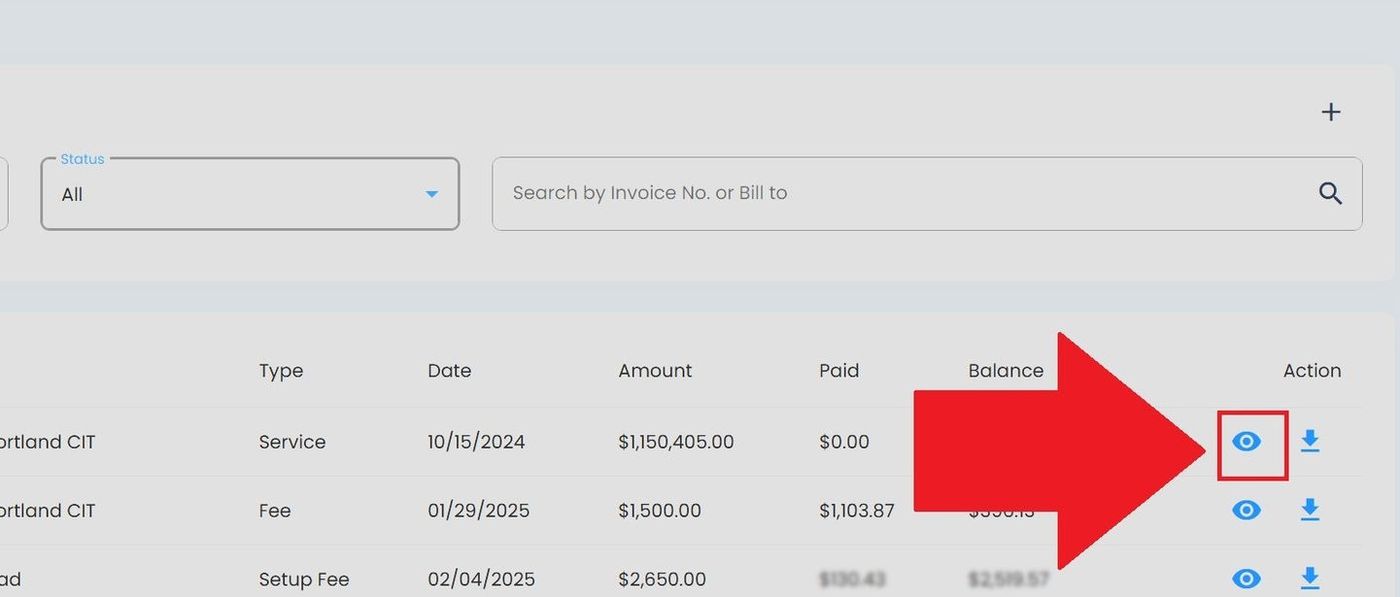
Billing, Invoices, View Invoice Details Button Location#
This opens the Page: Invoice Details page with complete invoice information:
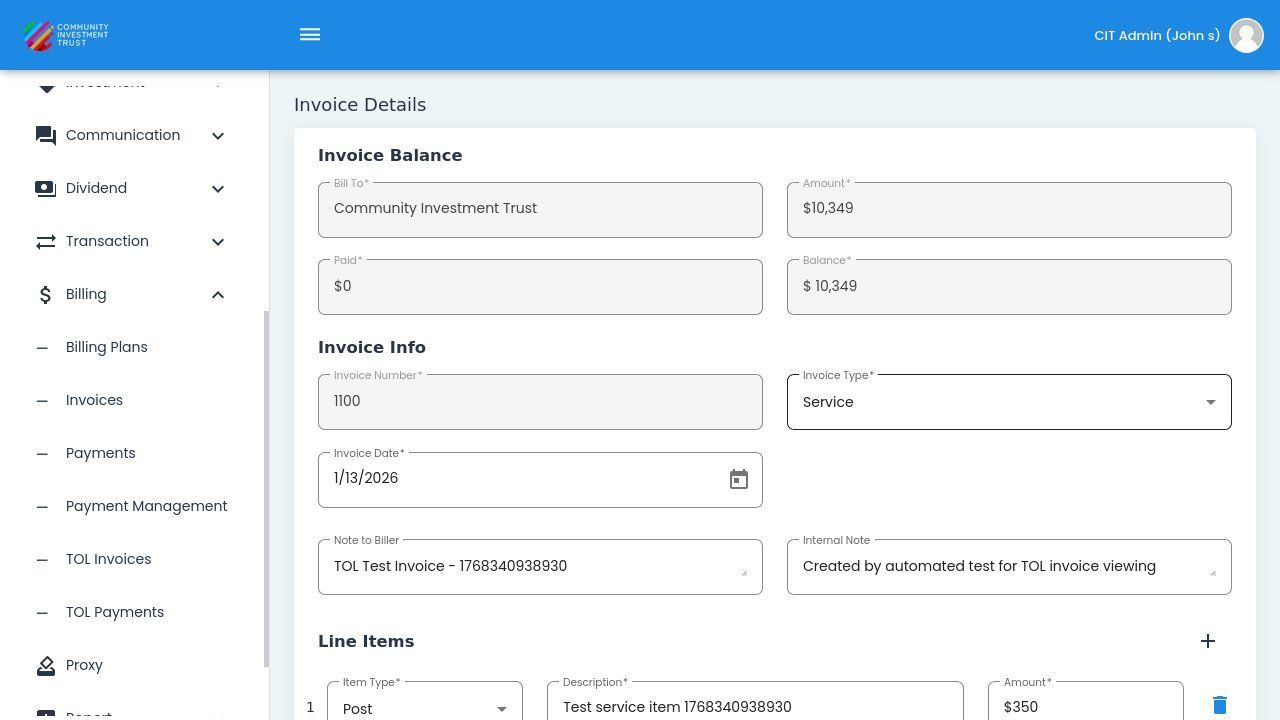
Invoice Details Page#
Invoice Details Page Structure#
The Page: Invoice Details page is organized into three main sections:
Invoice Balance Section#
The Section: Invoice Balance section displays the payment status:
Warning
Status group ‘invoice-details-fields’ not found in /home/runner/work/CITApp-Documentation-Master/CITApp-Documentation-Master/source/_data/status_definitions.json
Invoice Info Section#
The Section: Invoice Info section displays core invoice information including the Invoice Number, Invoice Type, Invoice Date, and notes fields.
Invoice Type Options#
Status: Service - Service-related invoice for ongoing services.
Status: Fee - Fee-based invoice for specific charges.
Line Items Section#
The Section: Line Items section displays itemized charges on the invoice:
Status: Item Type - Type of line item (Post, etc.).
Status: Description - Description of the line item.
Status: Amount - Amount for this line item.
How to Download Invoices#
Download Individual Invoice#
To download a single invoice, click the Action: Download button (download icon) in the Column: Action column for that invoice:
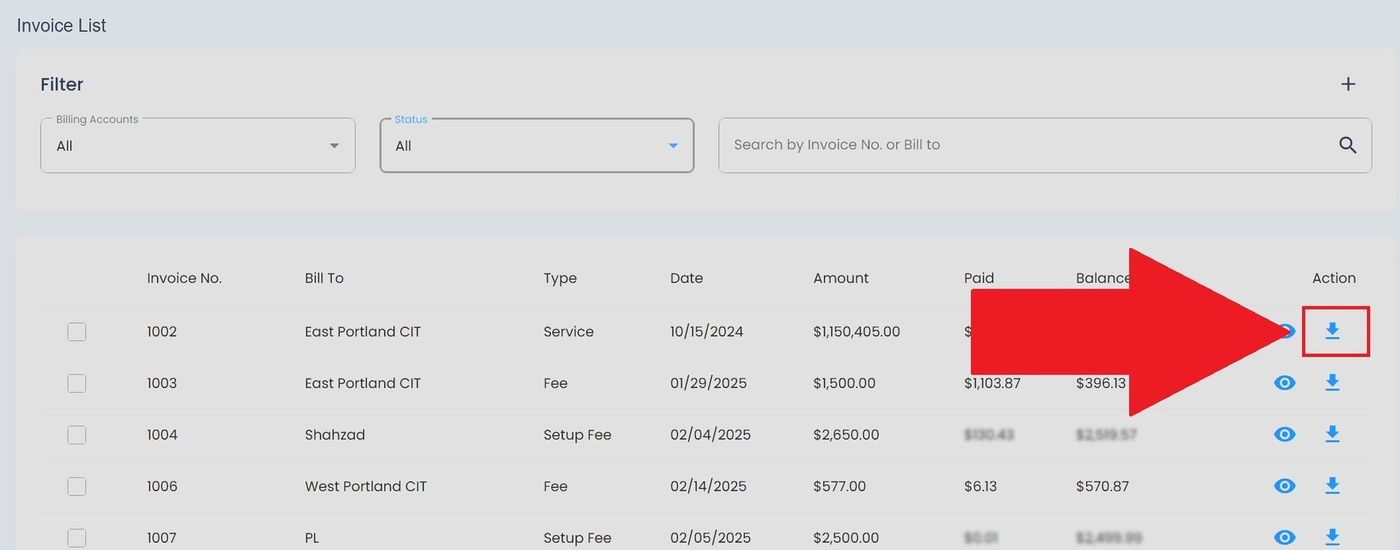
Billing, Invoices, Download Individual Invoice Button#
Download Multiple Invoices in PDF#
To download multiple invoices in PDF format:
Select the checkboxes next to the invoices you want to download:
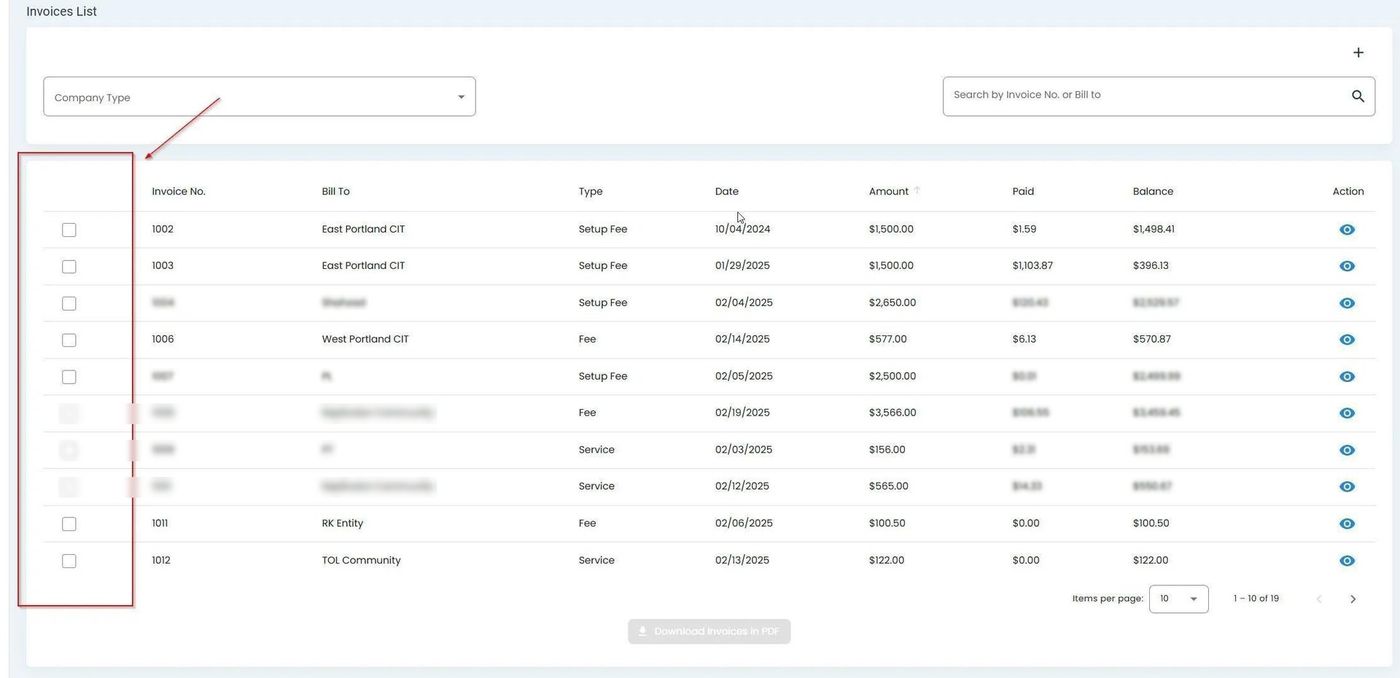
Billing, Invoices, Selecting Invoices#
Once selected, the checkboxes will show as checked:
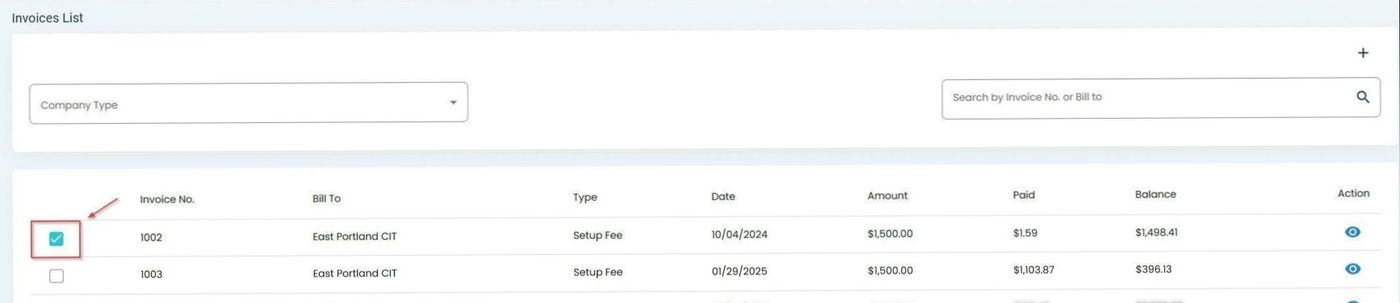
Billing, Invoices, Selected Invoices with Checkmarks#
Click the Action: Download Invoices in PDF button to download all selected invoices.
How to Add an Invoice#
To add a new invoice:
Click the Item: Add New Invoice button (plus sign):
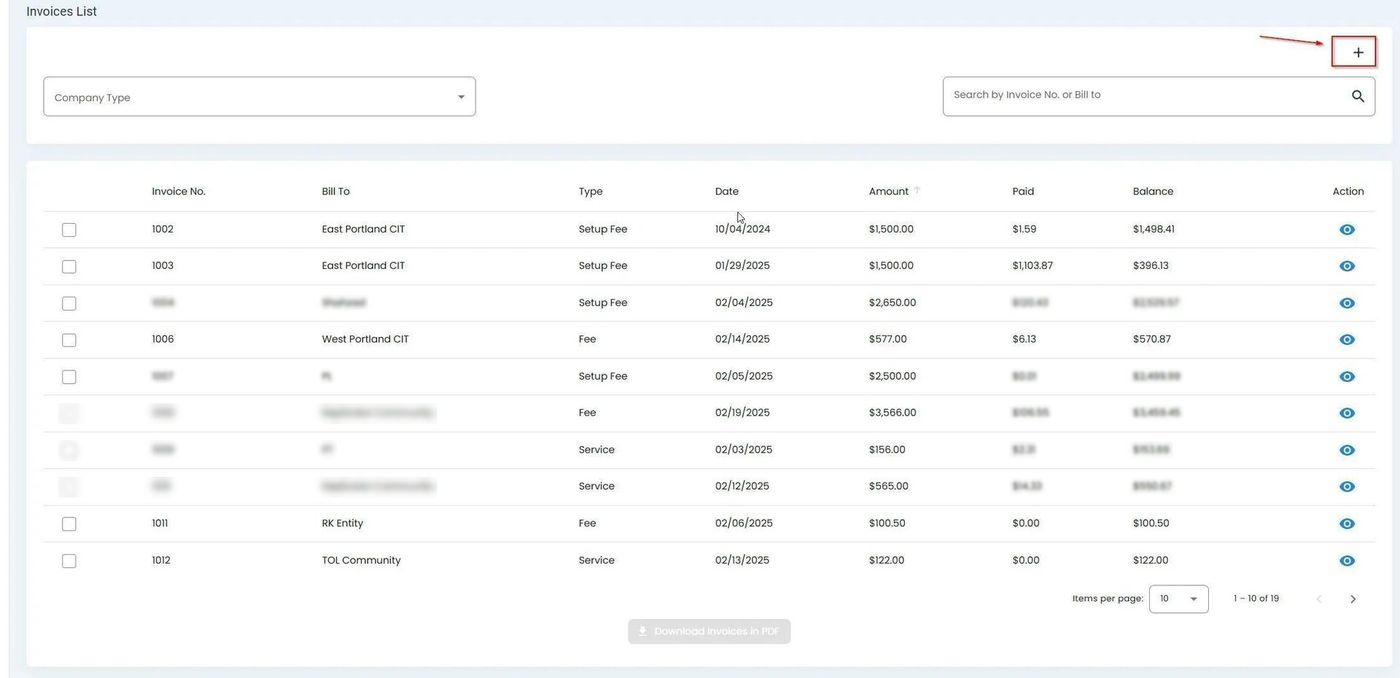
Billing, Invoices, Add New Invoice Button#
Fill out the invoice form:
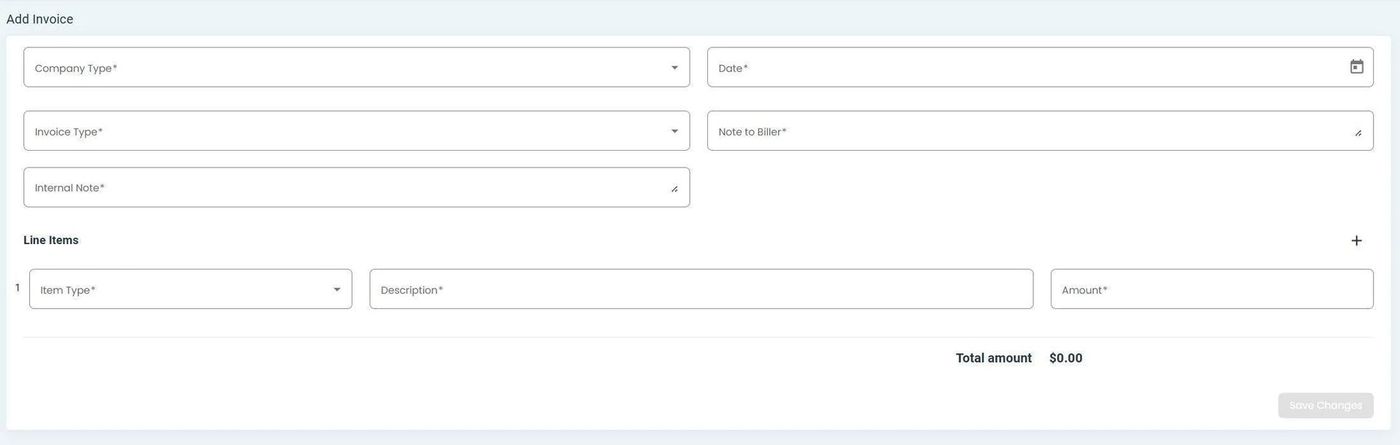
Billing, Invoices, Add Invoice Form#
Note
Reference to All fields are required itemAll fields are required for creating a new invoice.
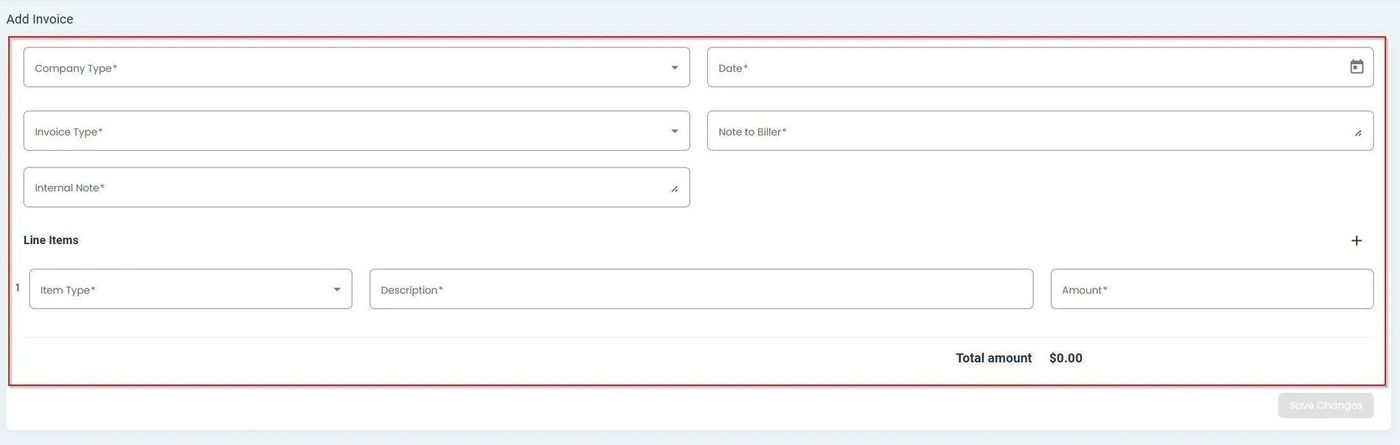
Billing, Invoices, All Fields Required#
Complete all required information (example):
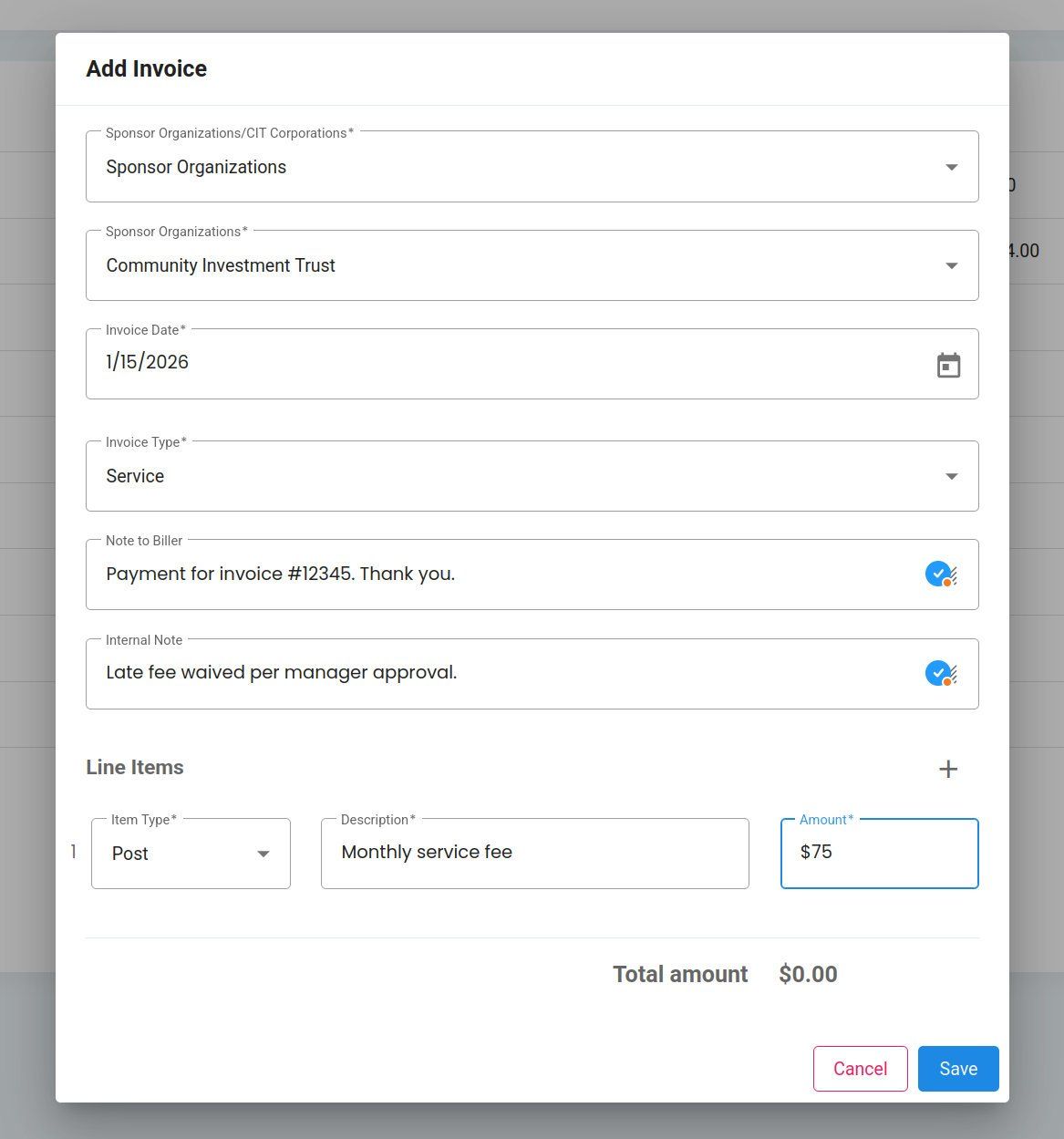
Billing, Invoices, Example of Filled Out Form#
Click the Action: Save button to create the invoice:
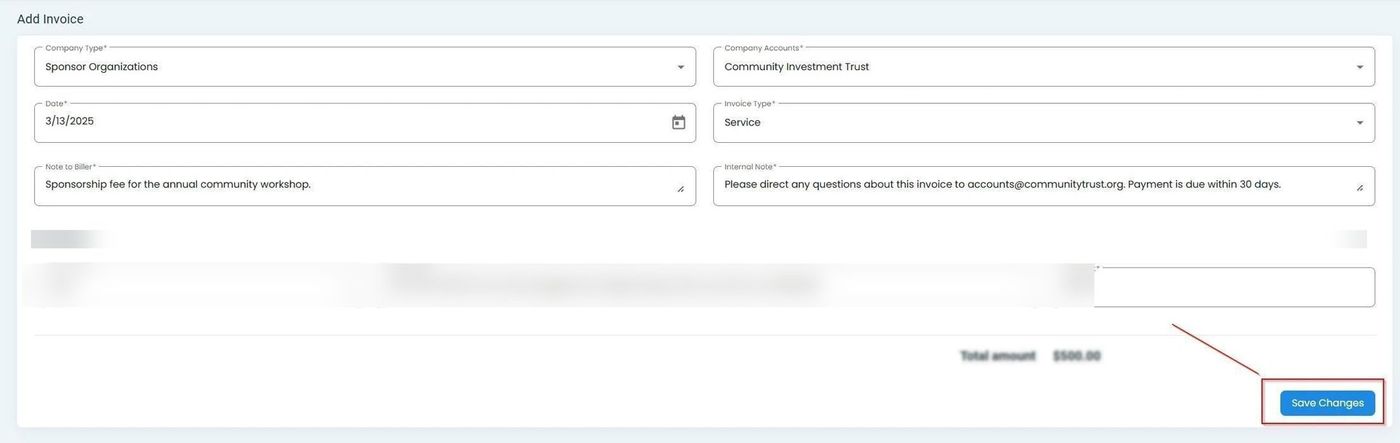
Billing, Invoices, Save Button Location#
How to Add New Line Items#
Optional Feature
Adding line items is optional when creating an invoice. This feature allows you to itemize multiple products or services on a single invoice.
You can add multiple line items to an invoice:
Click the Action: Add Line Item button:
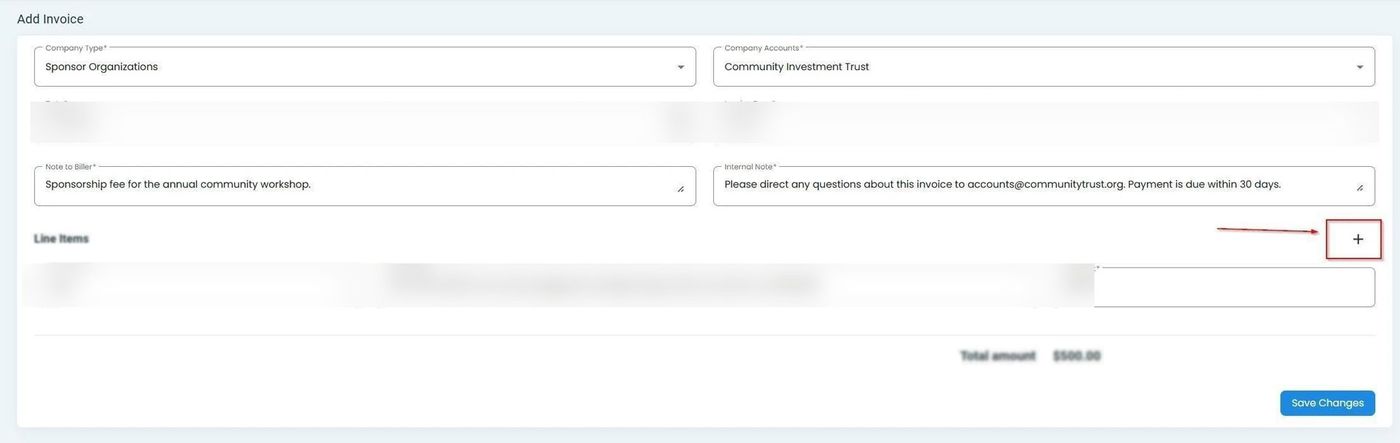
Billing, Invoices, Add Line Item Button#
Fill out the details for the new line item:
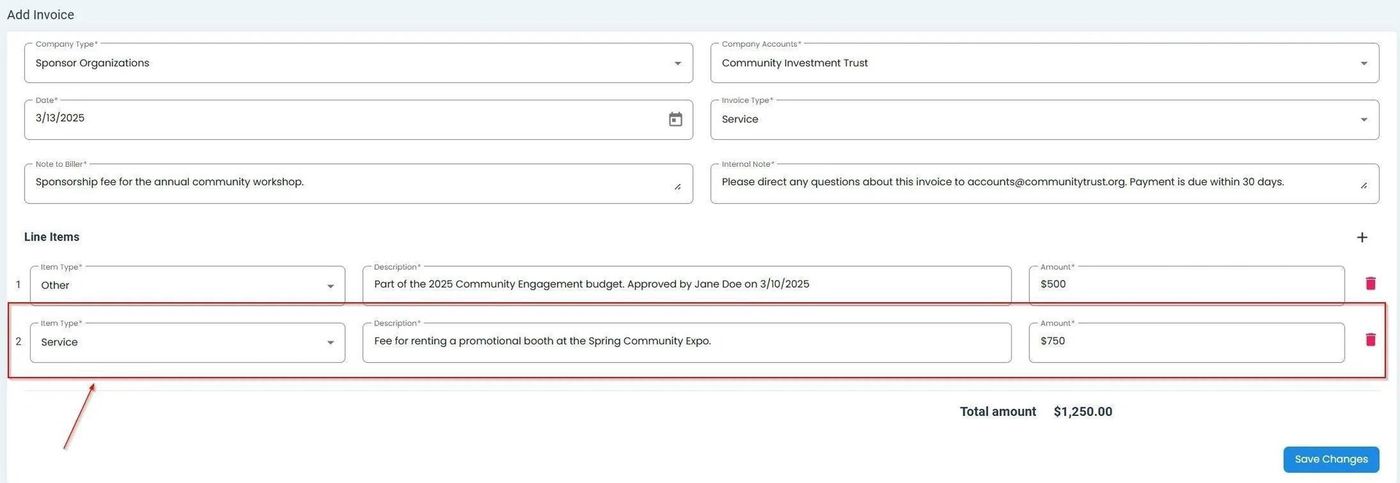
Billing, Invoices, Second Line Item Added#
The total will automatically update to reflect all line items:
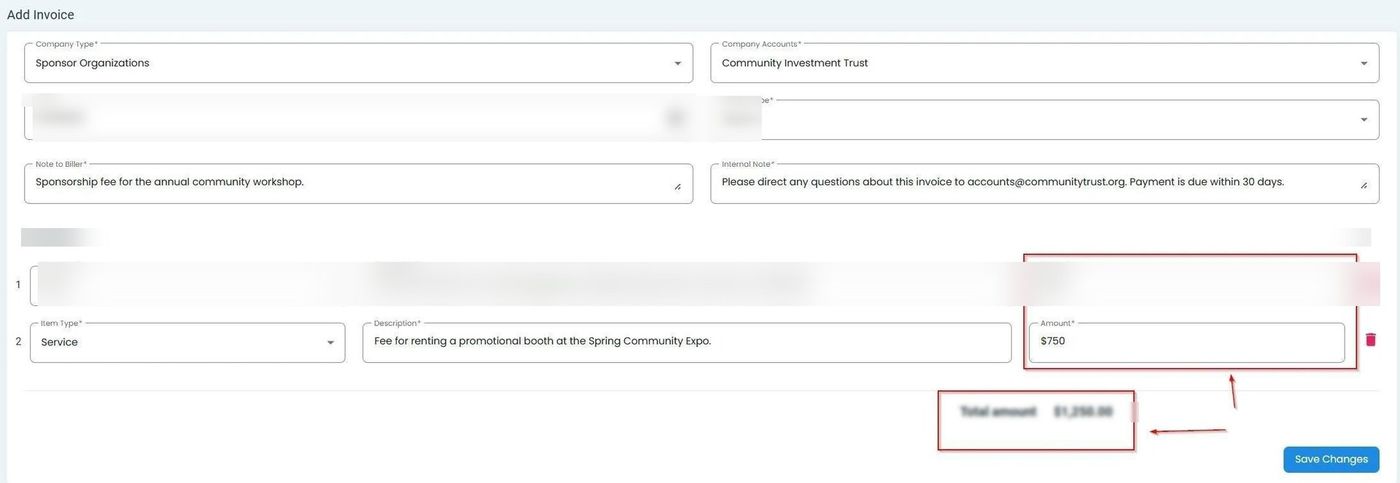
Billing, Invoices, Total Updated with New Line Item#
Automatic Calculation
The invoice total automatically recalculates when you add, modify, or remove line items.