
Using Complete Transactions Filters#
Learn how to filter complete transactions to find specific records quickly.
Filter Section Overview#
The filter section appears at the top of the Table: Complete Transactions List table.
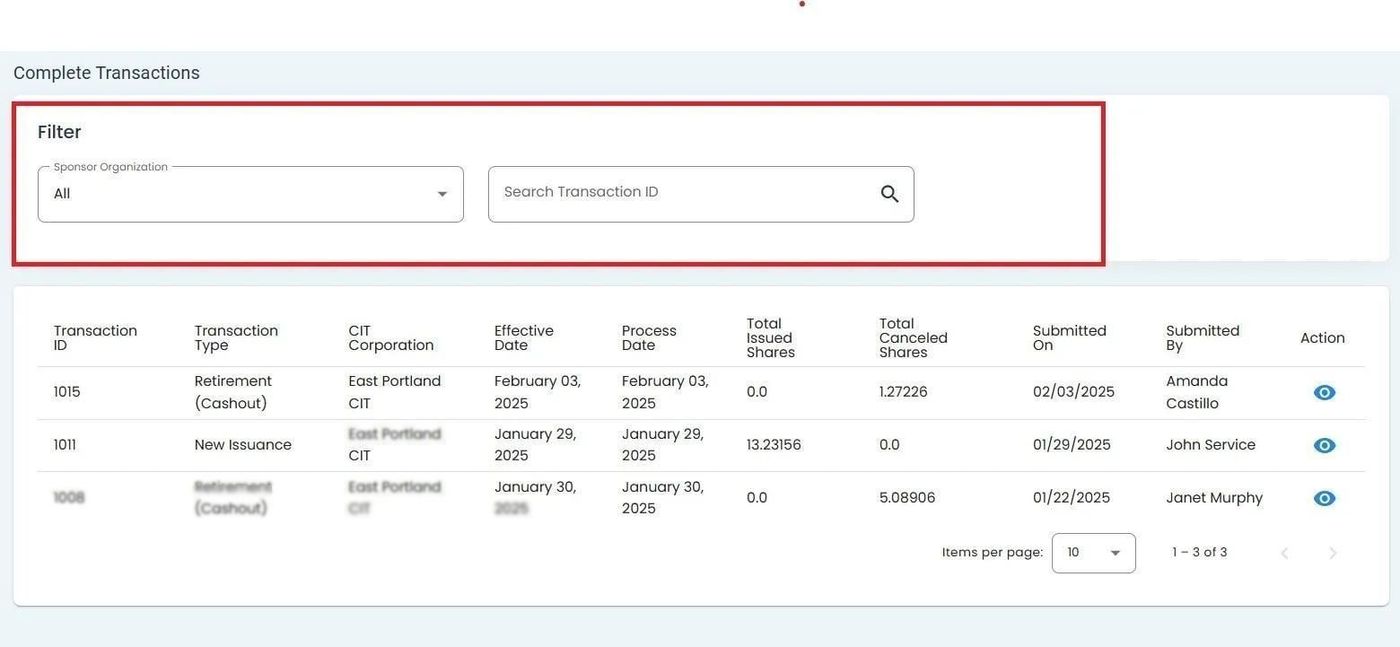
Complete Transactions Filter Section#
Filter by Sponsor Organization#
To Filter by Sponsor Organization:
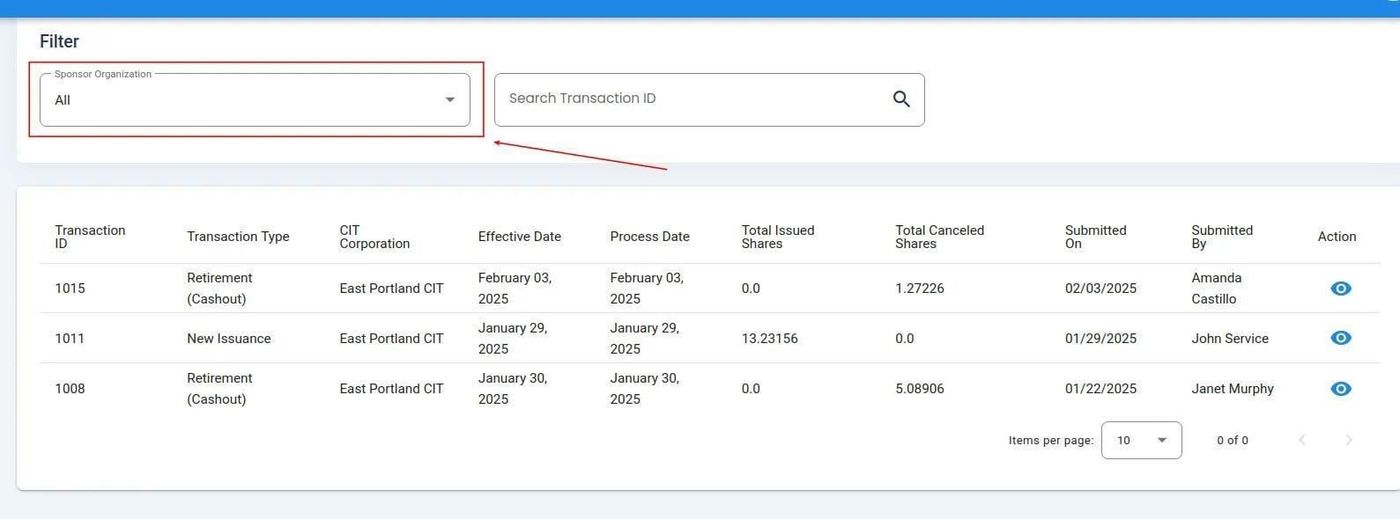
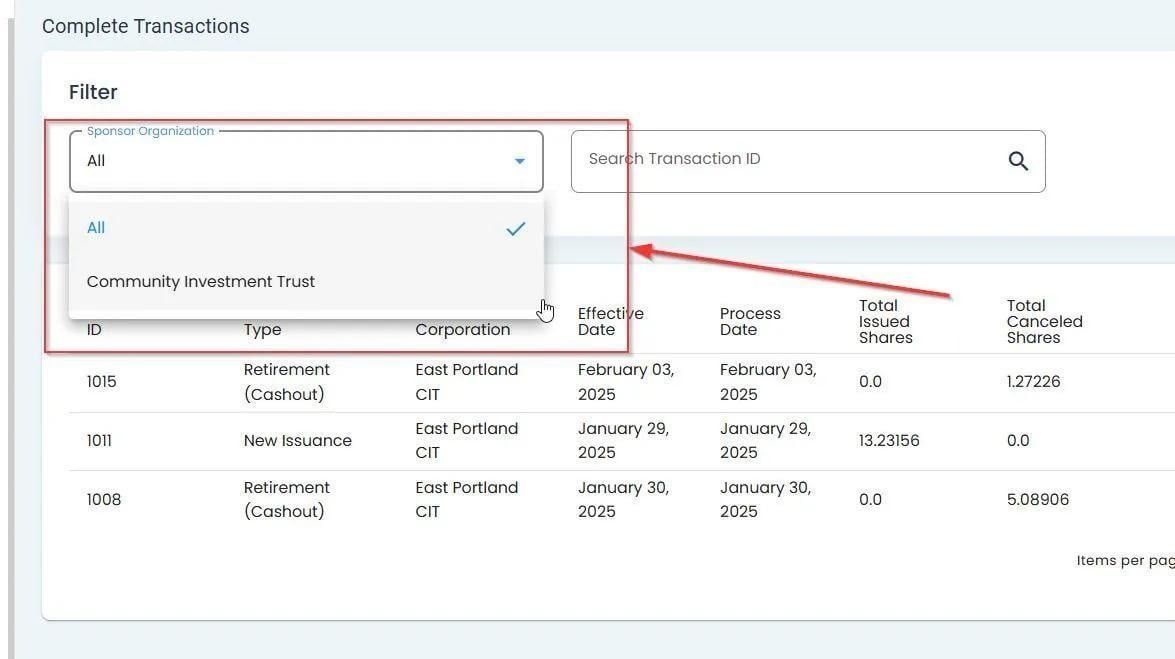
Search by Transaction ID#
To Search for Specific Transactions:
Locate the Item: Search Transaction ID field.
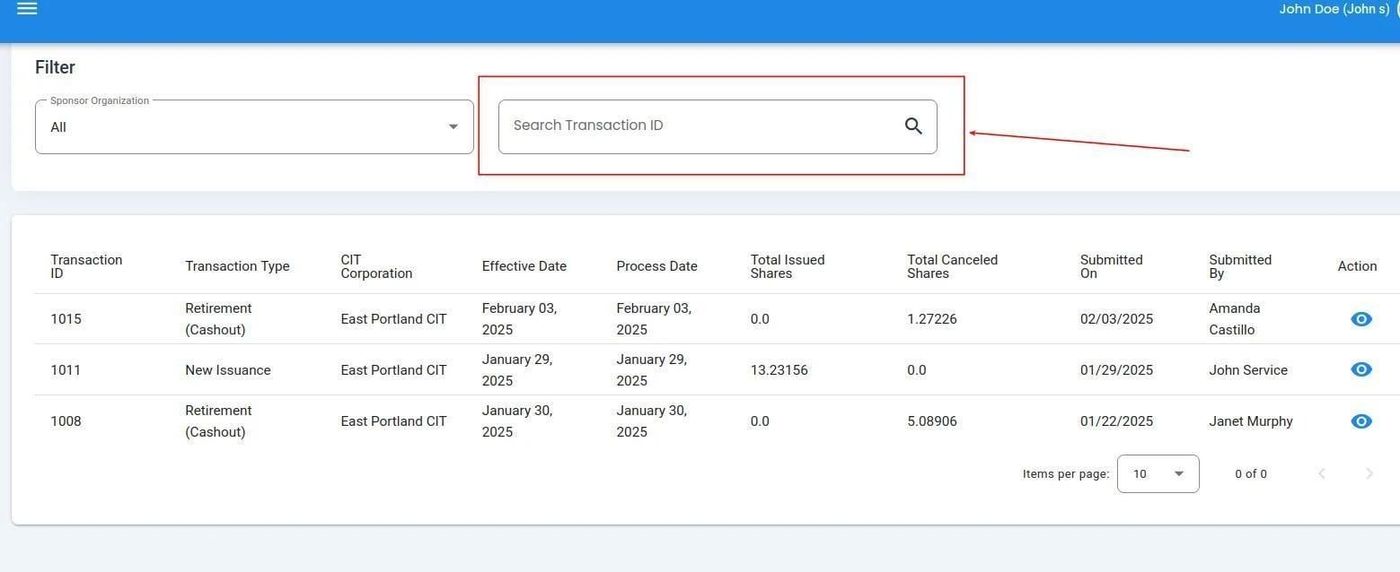
Search Transaction ID Field Location#
Enter the Transaction ID you want to find.
The table will automatically filter to show matching results.
Using Wildcard Searches#
You can use the asterisk (*) as a wildcard to search for multiple Transaction IDs:
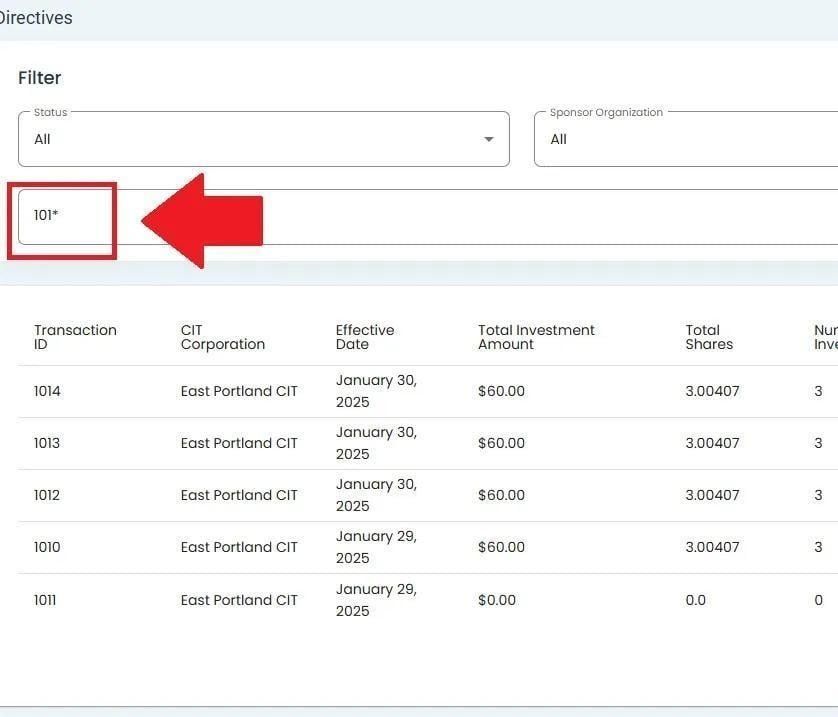
Wildcard Search Example#
Wildcard Search Tips
Use
*to match any charactersExample:
TRX-2024*finds all transactions starting with “TRX-2024”*-001finds all transactions ending with “-001”*INVEST*finds all transactions containing “INVEST”
Combining Filters#
You can use multiple filters together:
Select a Item: Sponsor Organization
Enter a search term in the Item: Search Transaction ID field
The table will show results matching both criteria
Clearing Filters#
To clear filters and view all complete transactions:
Reset the Item: Sponsor Organization dropdown to “All”
Clear the Item: Search Transaction ID field
The table will refresh to show all records
Note
Filters are applied automatically as you make selections. There’s no need to click a separate “Apply” button.
Export Filtered Results#
After applying filters, you can export the filtered results:
Apply your desired filters
Click the Action: Export button
Choose your export format (Excel, CSV, or PDF)
The export will include only the filtered records