
Demographic Questions#
The Section: Demographic Questions settings allow administrators to configure the demographic data collection questions presented to investors.
Features: Demographic Questions#
The Section: Demographic Questions settings allow you to:
Location#
The Page: Demographic Questions settings page is located in the Settings Category: Settings category in the Item: Primary Sidenavigation menu.
Don’t see the Primary Sidenavigation menu?
See How to Toggle Primary Sidebar for more information.
Demographics Overview#
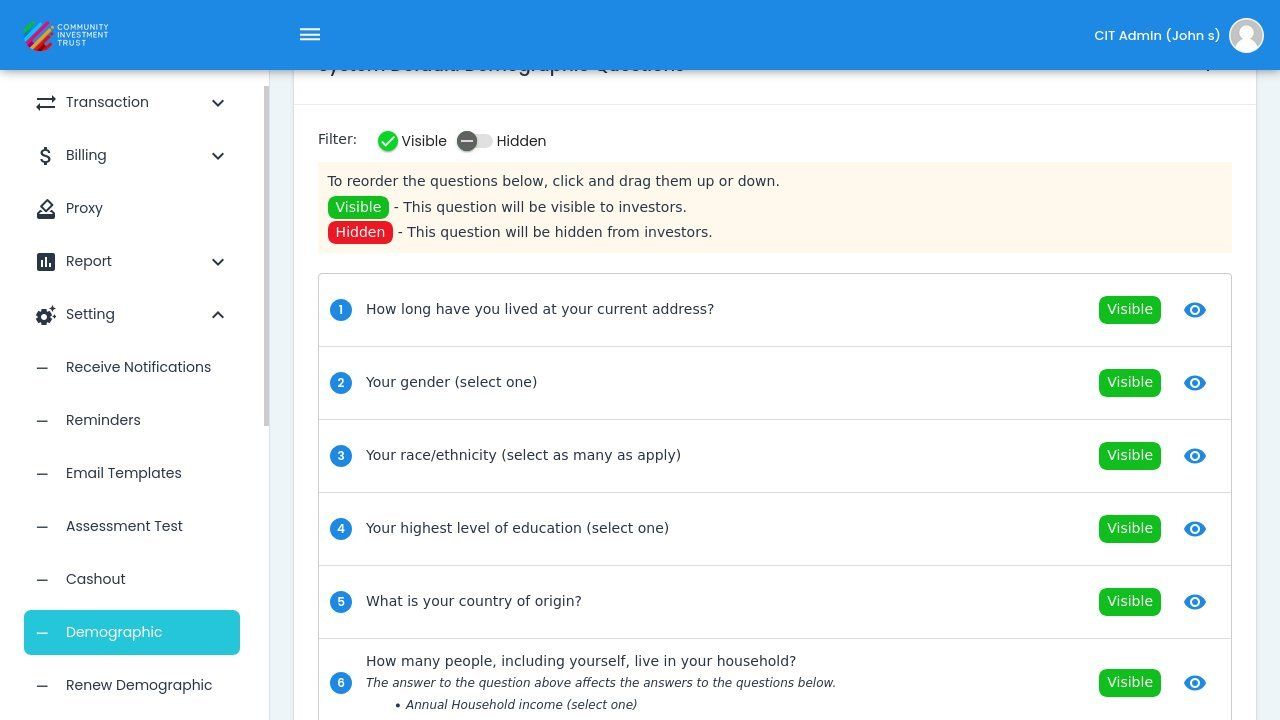
The Section: Demographic Questions page displays all configured demographic questions with their visibility status.
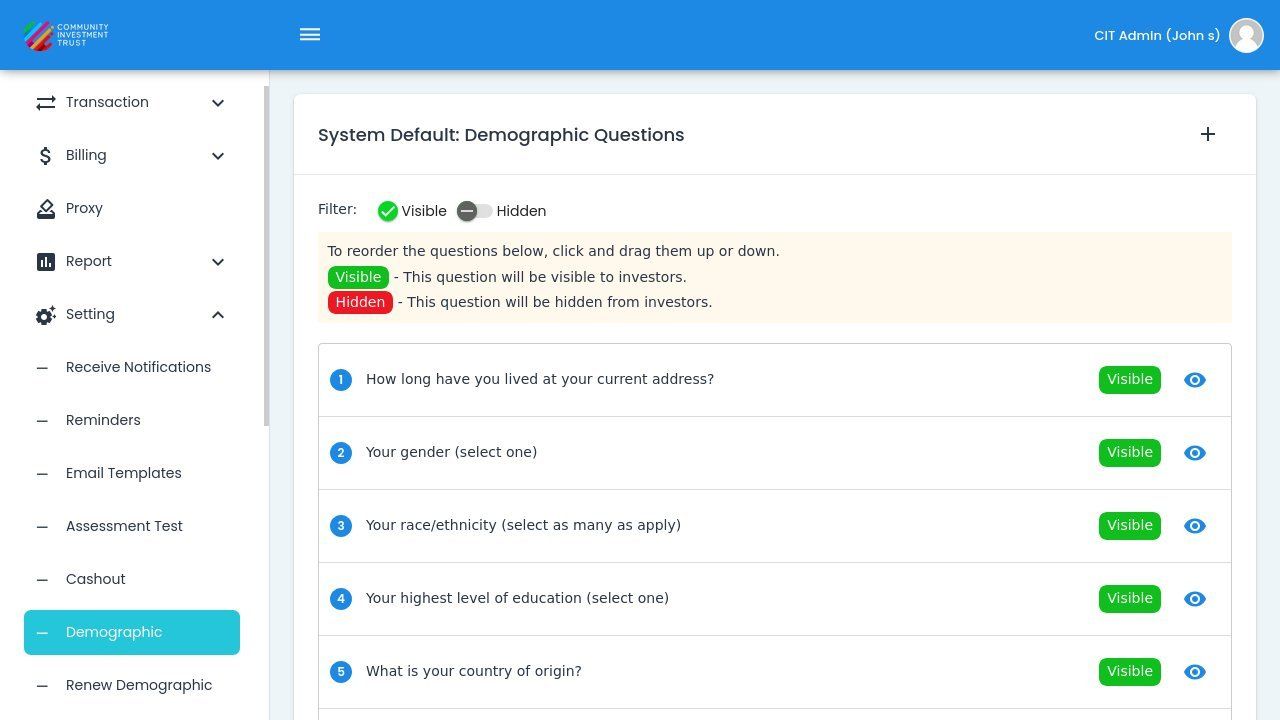
Demographic Questions Page Overview#
Filter by Visibility#
Use the and switches to filter which questions are displayed in the list.
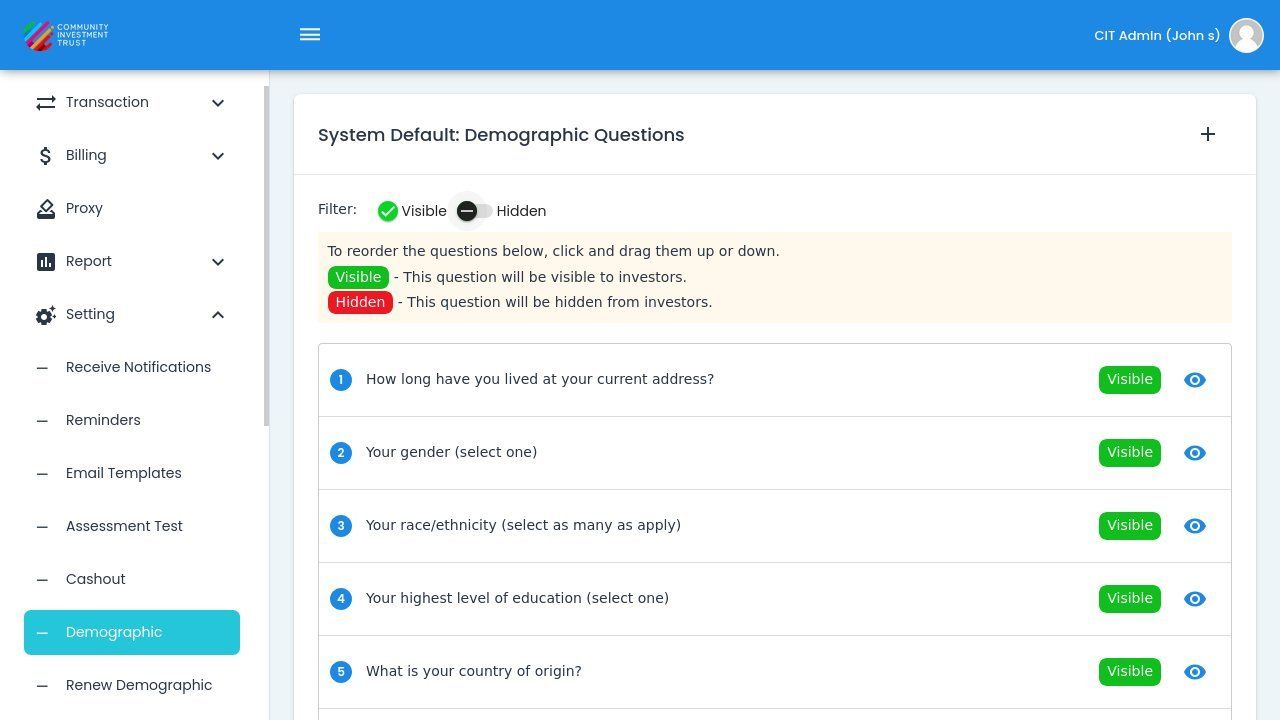
Visible/Hidden Filter Switches#
Common Pattern
See Filter by Visibility for detailed explanation of visibility filtering.
Reordering Questions#
Questions can be reordered to change the order in which they appear to investors.
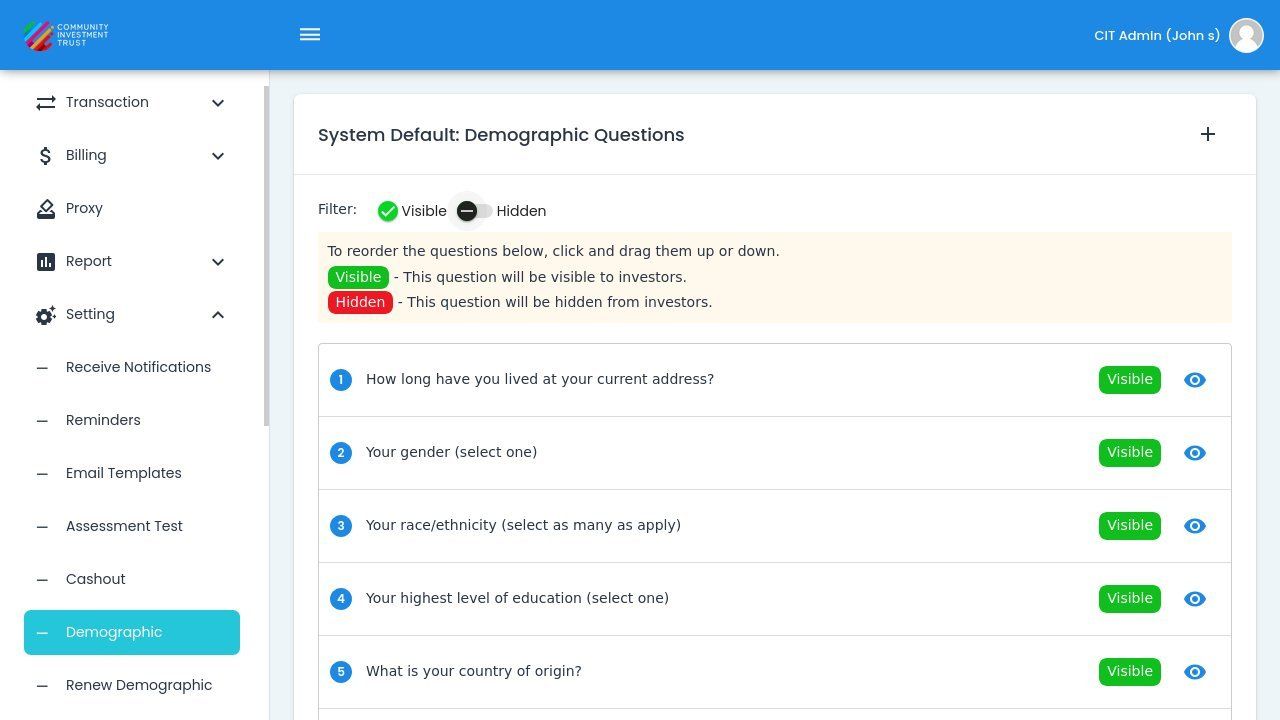
Question Reordering Instructions#
Note
Drag and drop questions to change their order. The order determines how questions are presented to investors.
Add System Demographic Question#
Question & Answer Basics
For details on the question field and Pre-Select Answer Option, see Add Cashout Question.
To add a new demographic question:
Action: Click the button.
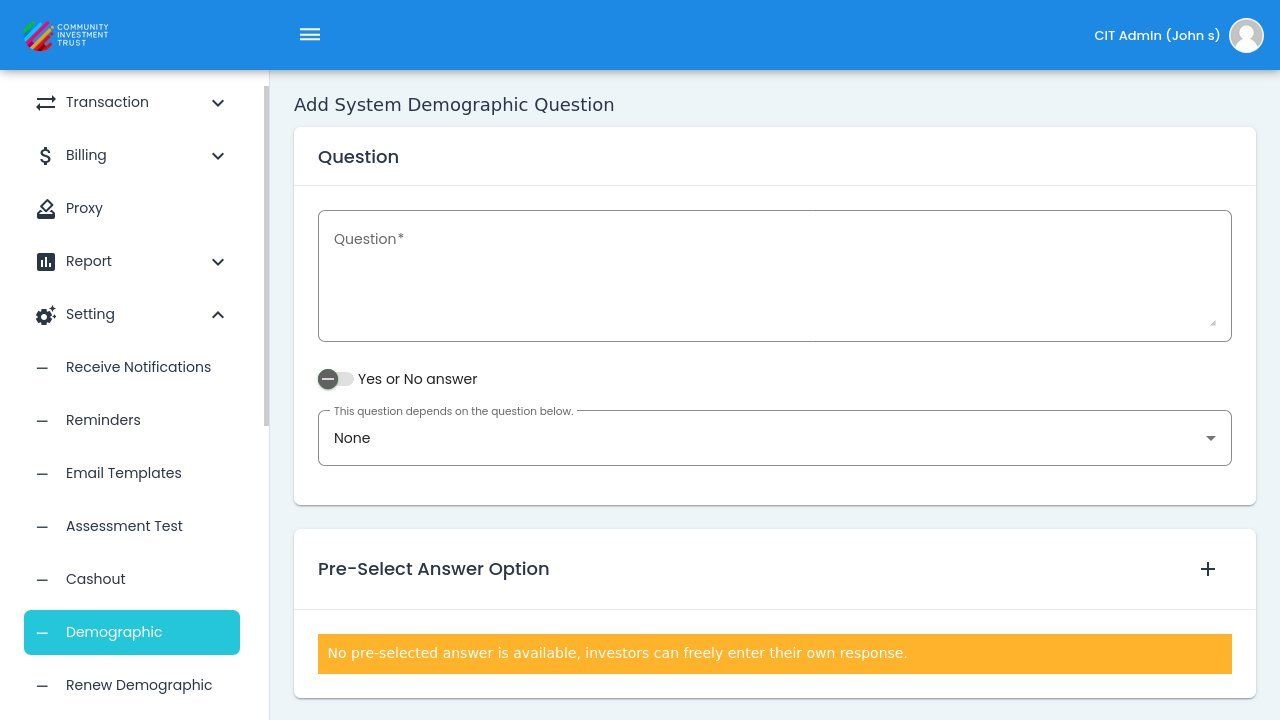
Add System Demographic Dialog#
Question Field#
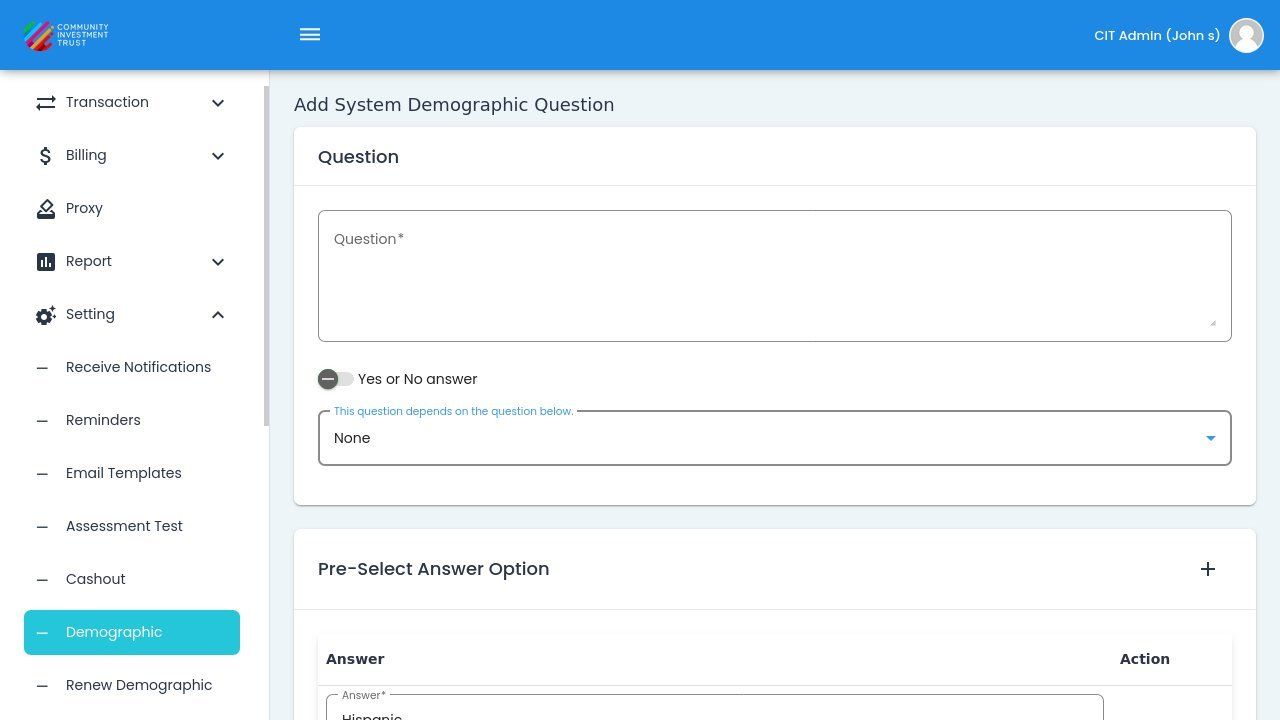
Enter the question text in the field.
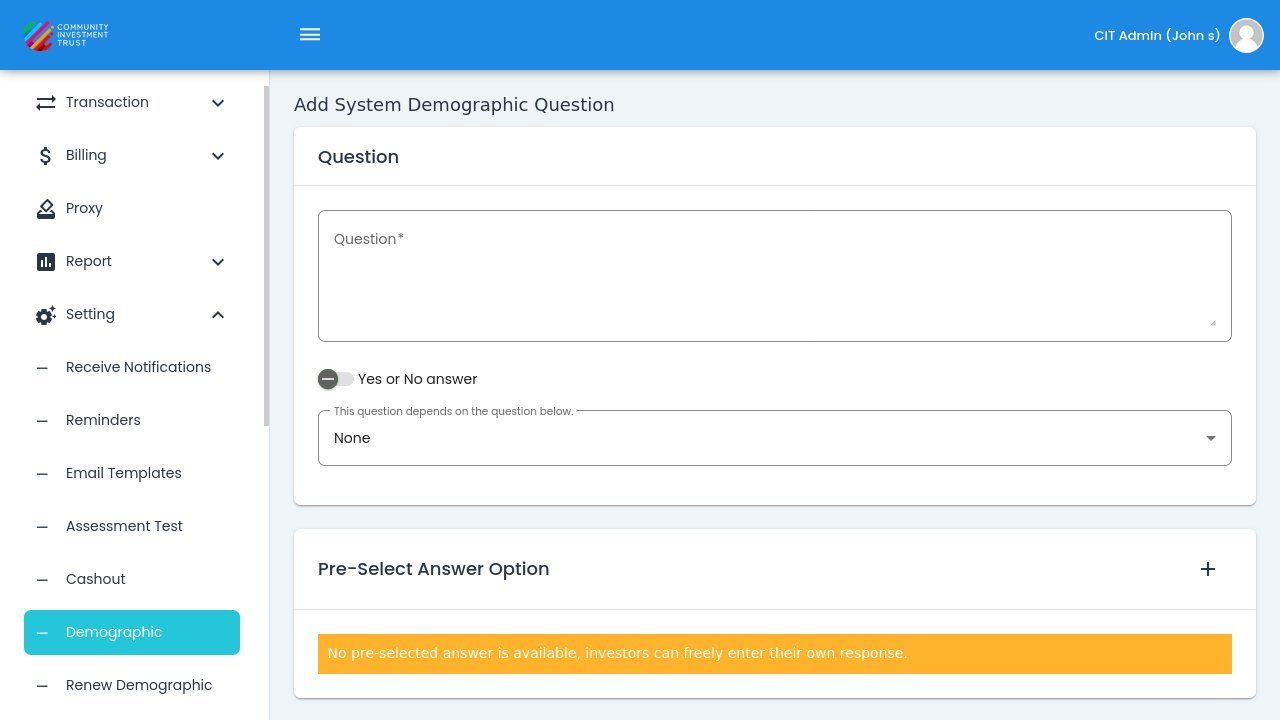
Question Field Configuration#
Yes or No Answer Toggle#
Configure whether the question uses a simple Yes/No response format.
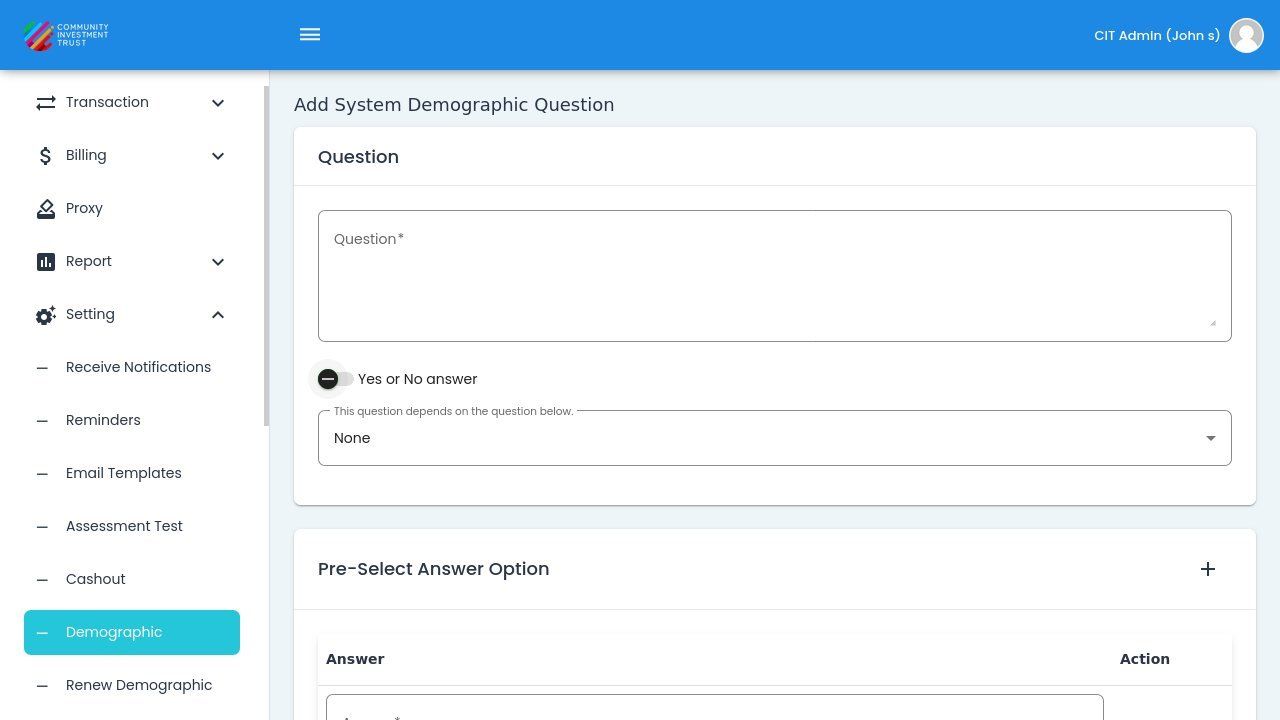
Yes or No Answer Toggle#
Question Dependencies#
Configure question dependencies to show questions conditionally based on answers to other questions.
Opening the Dependencies Dropdown#
Action: Click the dependencies dropdown to select a parent question.
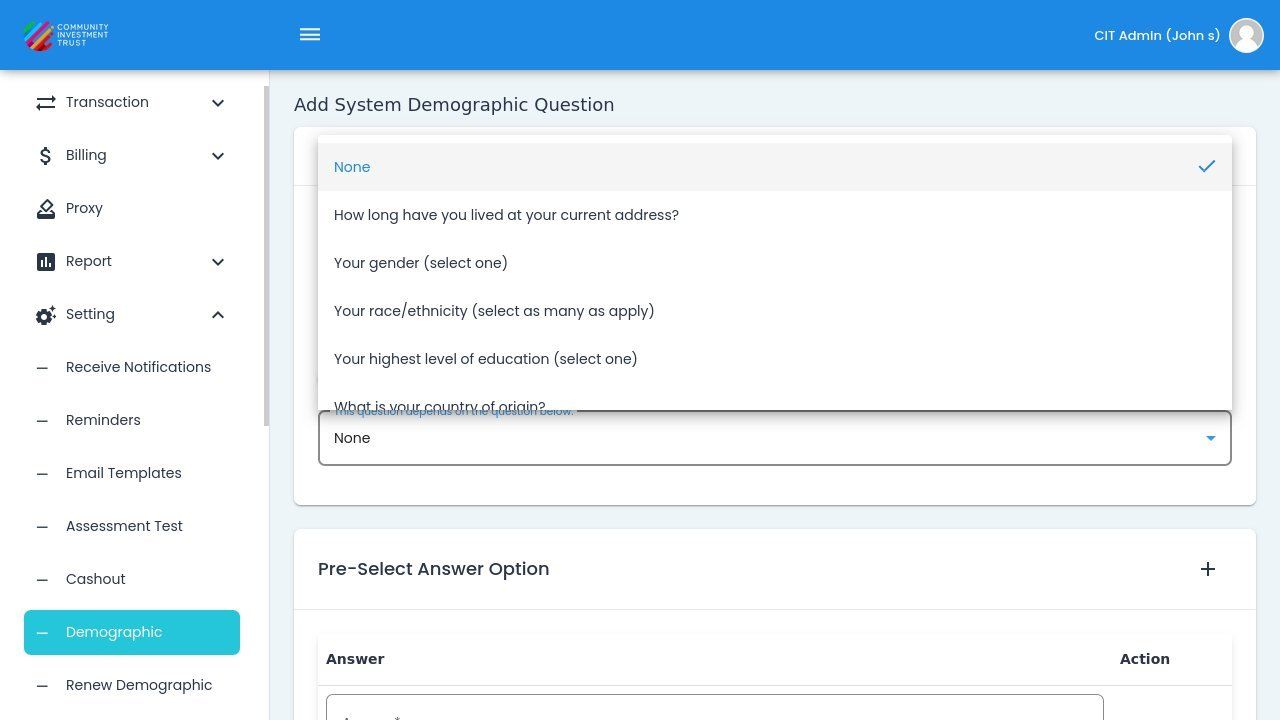
Question Dependencies Dropdown#
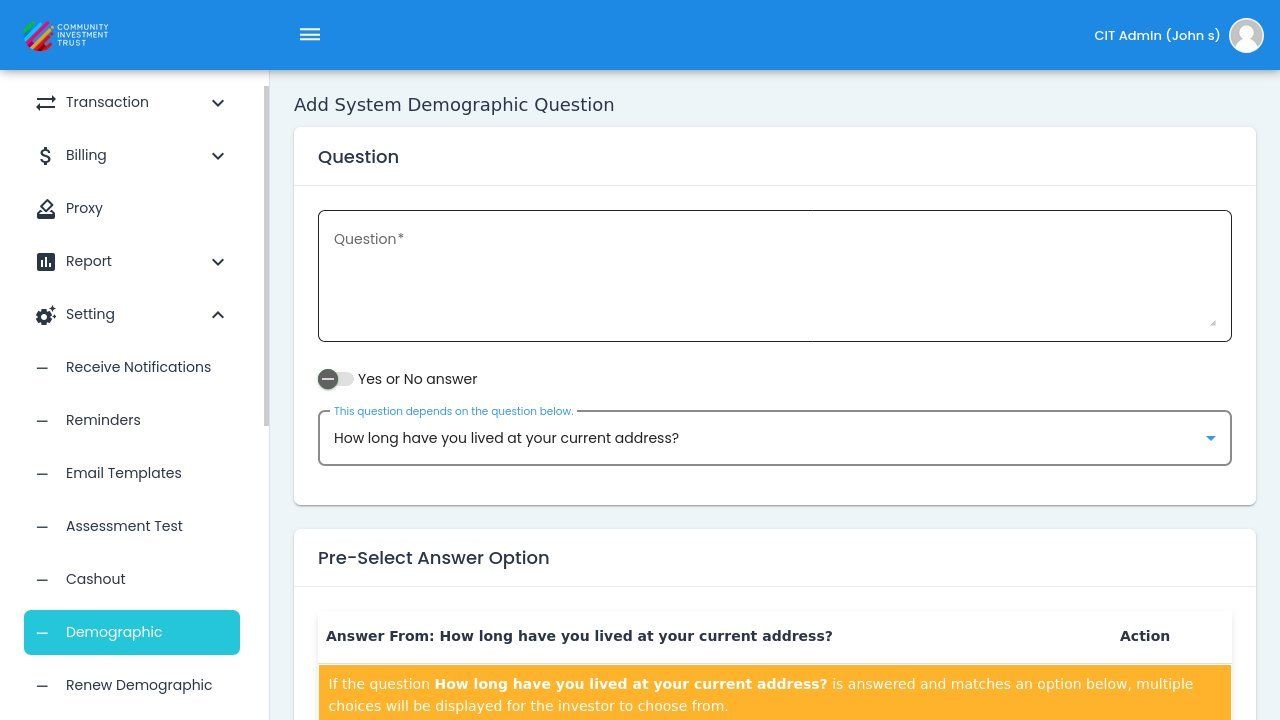
Selecting a Different Dependency Question#
Select a specific question that this question depends on.
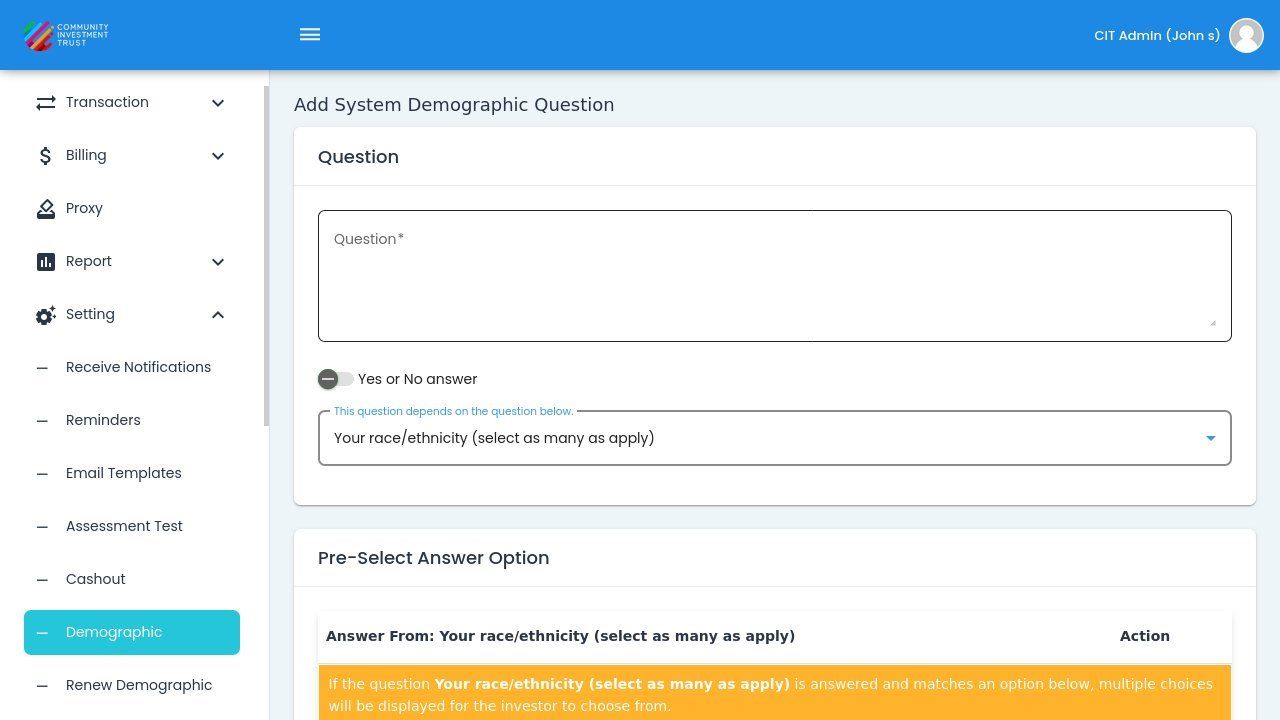
Selecting a Different Dependency Question#
No Dependency (None)#
Select None if the question should always be displayed regardless of other answers.
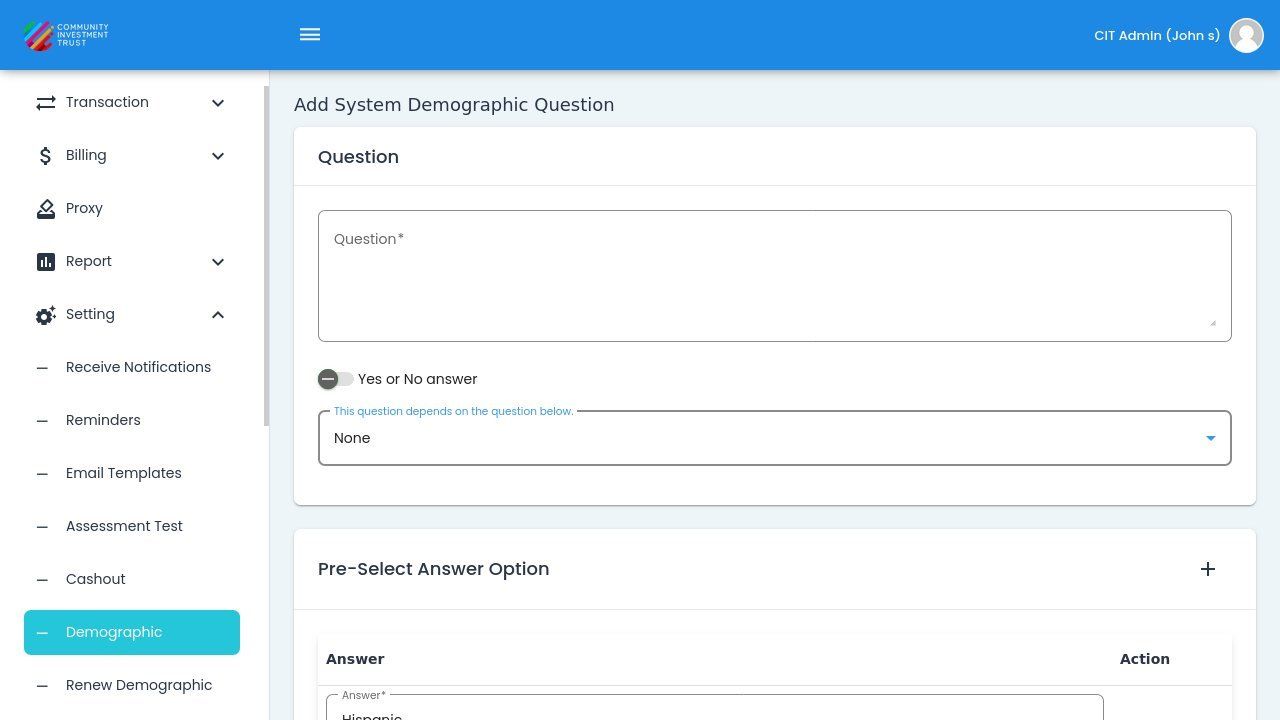
No Dependency Selected (None)#
Answer Options#
Configure the available answer options for the question.
Answer Table Headers#
The answer table displays columns for managing answer options.
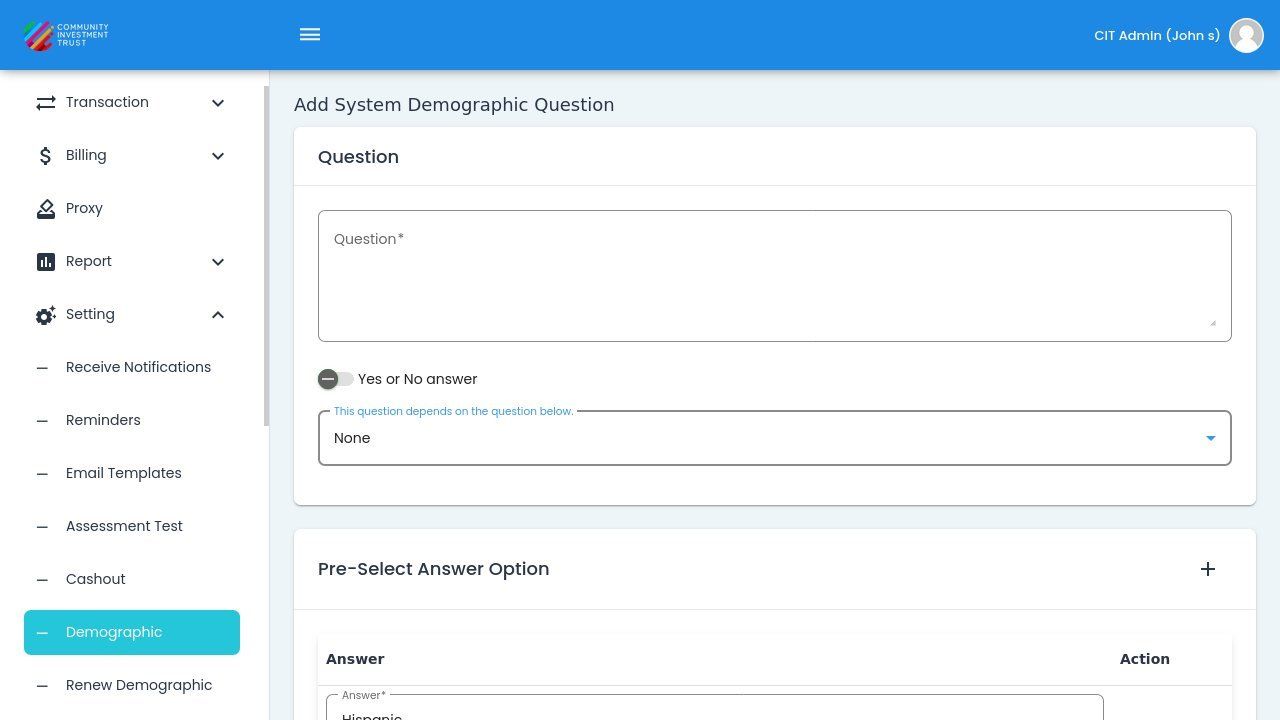
Answer Table Column Headers#
Pre-Select Answer Option#
Configure a default pre-selected answer option for the question.
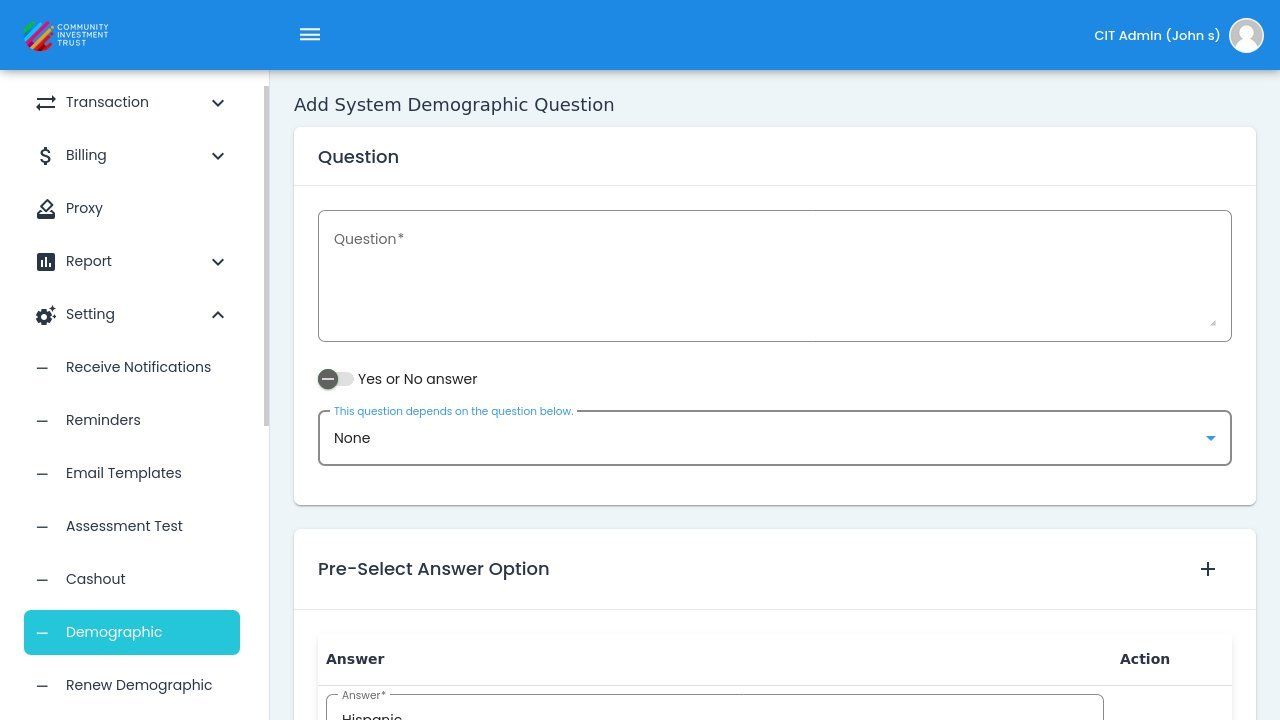
Pre-Select Answer Option Section#
Adding Answer Rows#
Action: Click the button to add a new answer option.
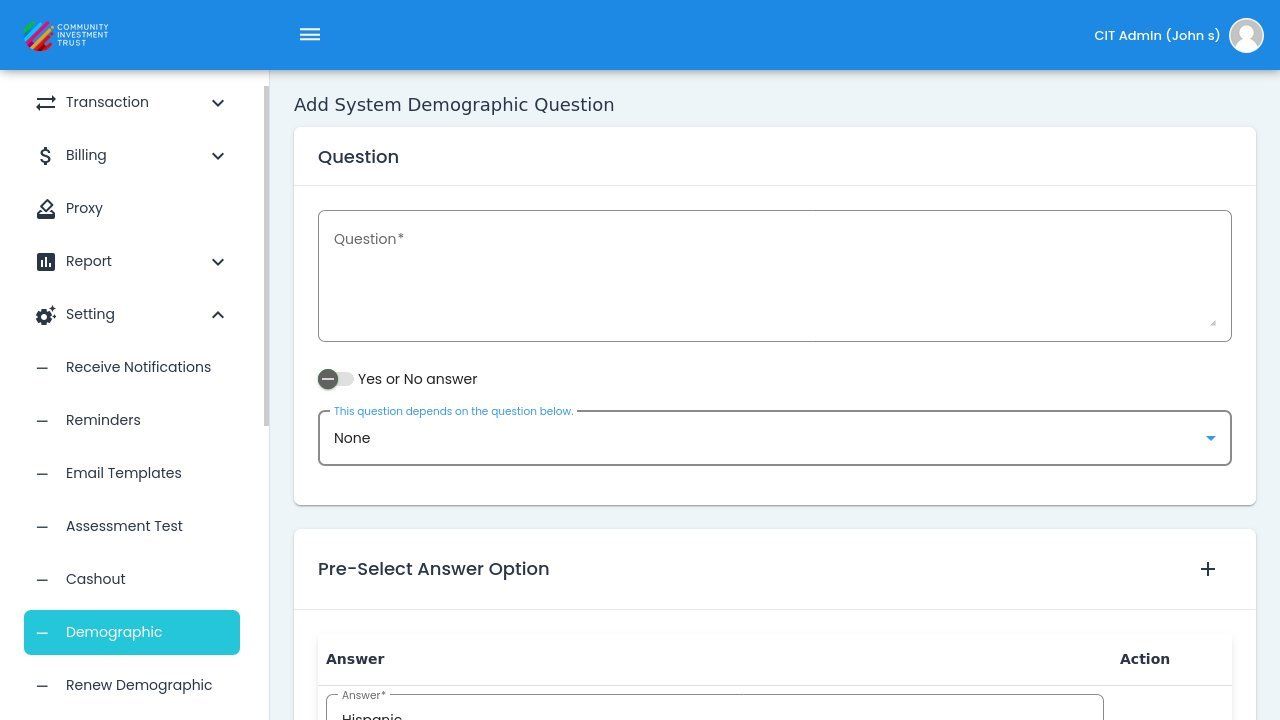
Answer Row Added#
Additional Options#
Configure additional settings such as Enable Other Option and Multiple Selection.
Additional Options (Enable Other, Multiple Selection)#
Viewing Existing Questions#
Action: Click on a question in the list to view or edit its configuration.
Question Selected for Viewing/Editing#
Canceling Changes#
To cancel without saving, Action: click the button.
Dialog Cancelled Without Saving#
Tip
Use dependencies to create conditional question flows that only show relevant questions based on previous answers.