
How to Apply Payment to an Invoice#
This guide explains how to apply a payment credit to a specific invoice in the Payment Management system.
Prerequisites#
Before applying a payment to an invoice:
Navigate to the Payment Management page
Ensure the invoice you want to pay is visible in the Invoices table
Verify you have available payment credits in the Payment Credits table
Steps: Apply Payment to Invoice#
Step 1: Select the Invoice#
Locate the invoice in the Table: Invoices table and check the corresponding checkbox. When you select an invoice, the Table: Payment Credits table automatically updates to show related payment information.
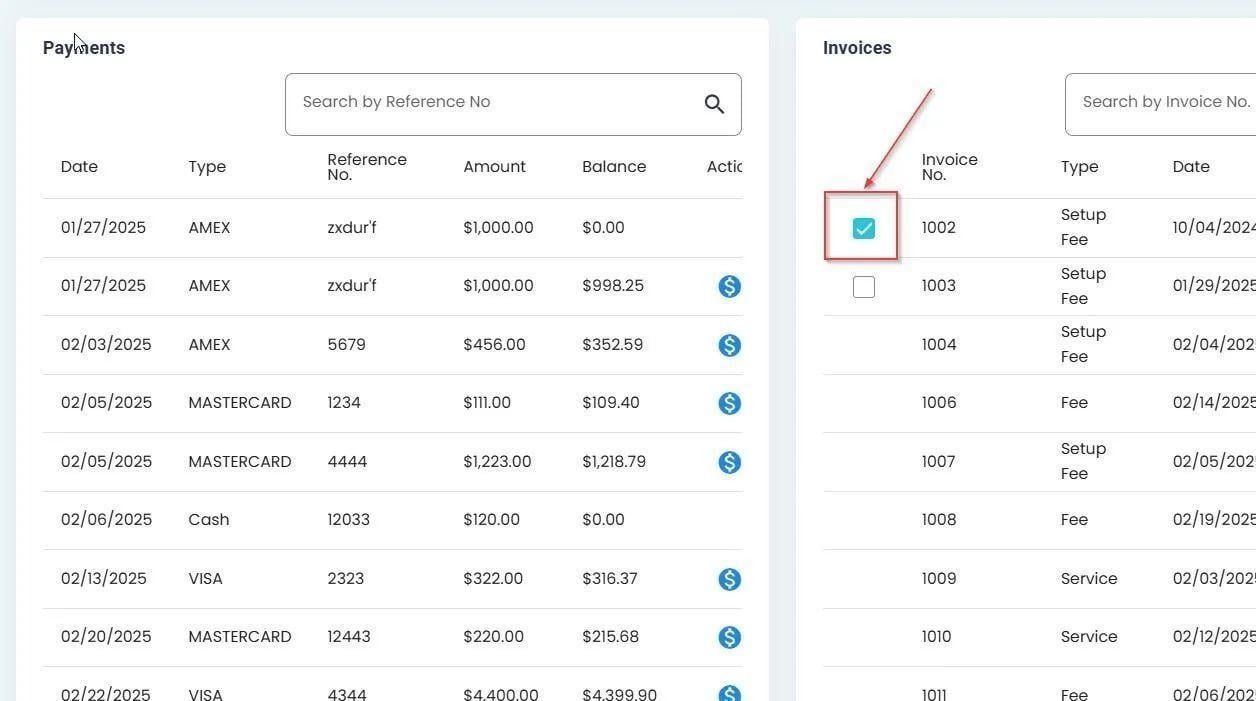
Invoice selected via checkbox in the Invoices table#
Step 2: Click the Pay Invoice Button#
Action: Click the Action: Pay Invoice button (money icon) in the Column: Action column for the selected invoice:
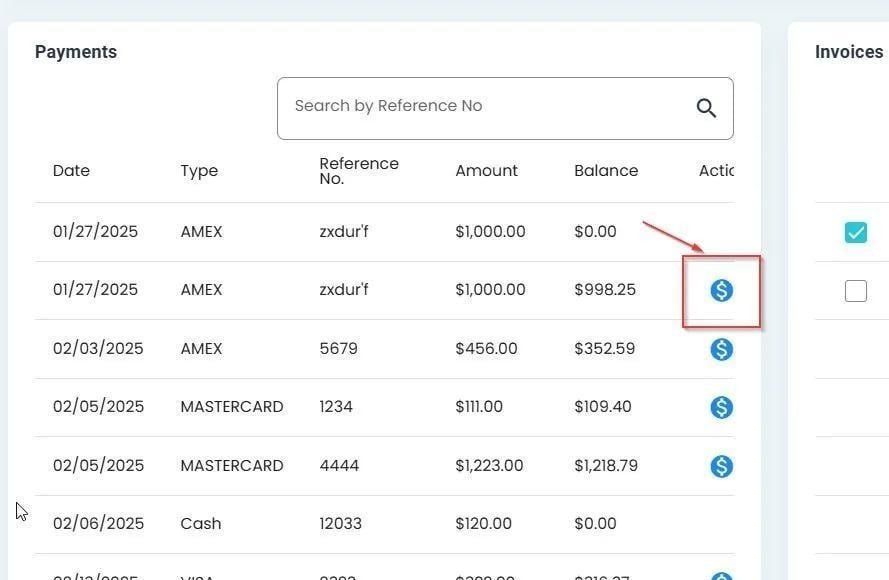
Pay Invoice action button in the Invoices table#
Step 3: Complete the Payment Modal#
The Page: Apply Payment to Specific Invoice dialog opens, displaying payment information:
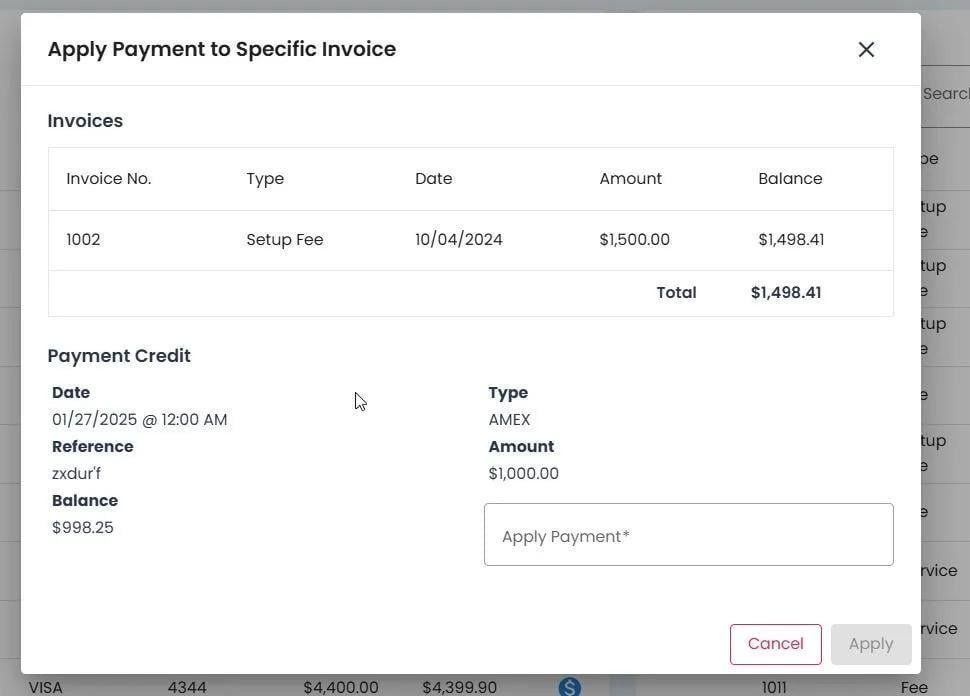
Payment processing modal with available information#
Enter the payment amount in the Item: Apply Payment field
Action: Click the Action: Save button to process the payment
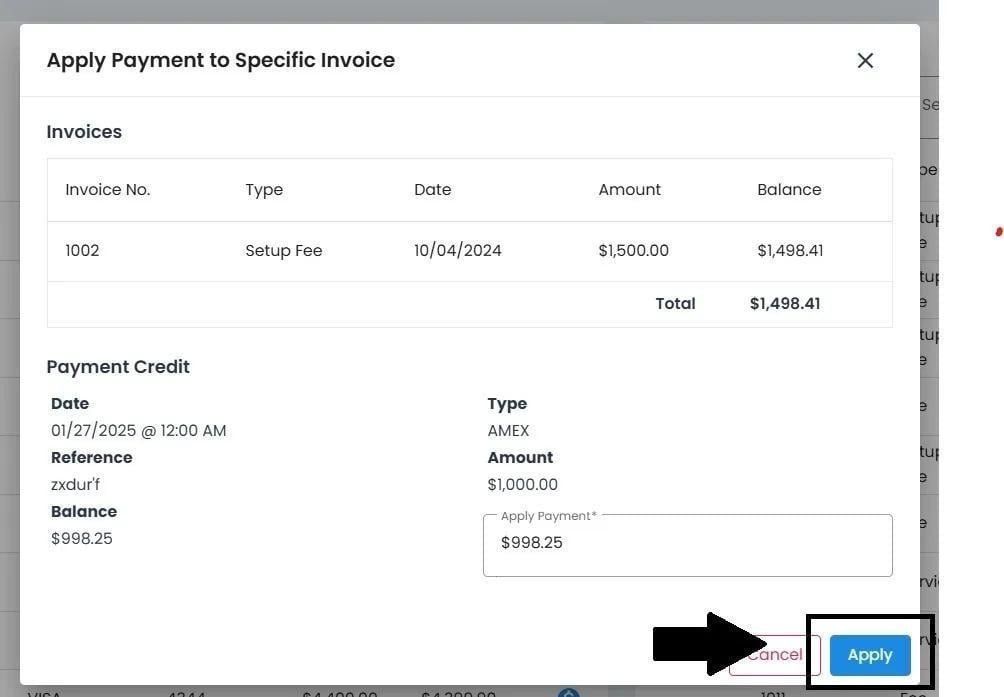
Apply Payment field with amount entered and Save button location#
Note
The system validates that payment amounts do not exceed the invoice balance. The maximum allowed payment equals the current invoice balance.
Result: Payment Confirmation#
After successfully processing the payment, a confirmation message appears:
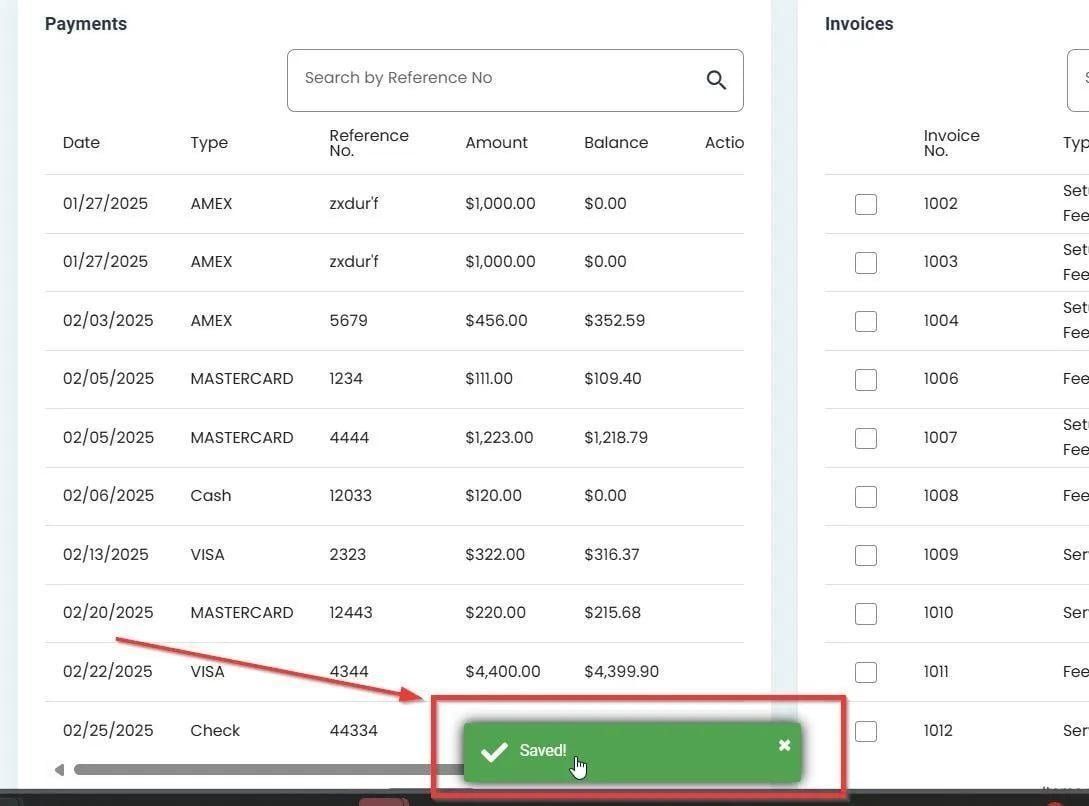
Success message confirming payment has been applied#
Payment Applied
The payment has been successfully applied to the selected invoice. The invoice status and payment records will be updated accordingly.