
View TOL Invoice Details#
This section describes how to view detailed information for TOL invoice records.
Accessing TOL Invoice Details#
To view details:
Navigate to the TOL Invoices section
Locate the record in the Table: TOL Invoices List table
Action: Click the action button in the Actions column
Invoice Header Information#
The TOL Invoice details page displays header information:
Status: Billed To - The entity being billed (Transfer Online, Inc.).
Status: Invoice Number - Unique identifier for the invoice.
Status: Invoice Date - Date the invoice was created.
Status: Type - Invoice type classification.
Status: Amount - Total invoice amount.
Status: Paid Amount - Amount already paid.
Status: Amount Due - Remaining balance.
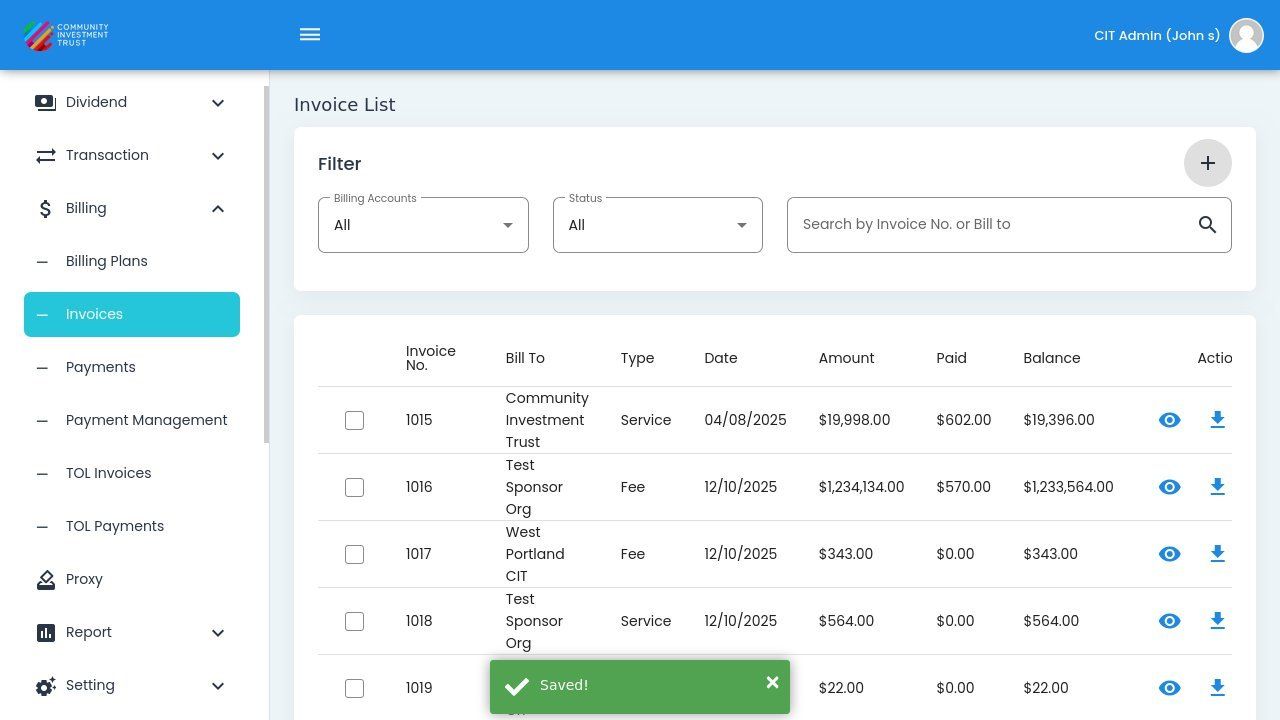
TOL Invoice Detail View#
Line Items Section#
The Section: Line Items section displays individual charges on the invoice:
Column: Item Type - Type of charge (Service, Fee, etc.).
Column: Description - Details about the line item.
Column: Quantity - Number of units.
Column: Unit Price - Price per unit.
Column: Amount - Total for the line item.
Payments Section#
The Section: Payments section shows all payments applied to this invoice:
Column: Payment Date - When the payment was made.
Column: Payment Number - Unique payment identifier.
Column: Payment Type - Method of payment.
Column: Amount - Payment amount applied.
Download Invoice#
To download the invoice as a PDF:
Action: Click the button
The invoice will download to your default downloads folder
Note
TOL (Transfer Online) invoices represent billing from the Transfer Online platform. These are system-generated invoices for platform services.