
Bank Information#
The Section: Bank Information section allows you to manage your banking details for receiving cashouts and dividends.
Location
Investor Portal > Bank Information
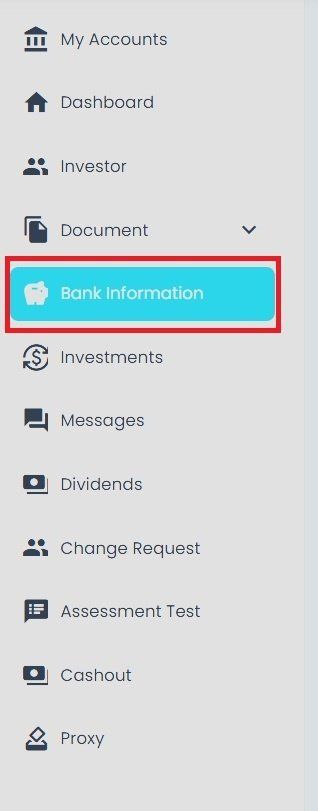
Bank Information Tab Location#
Bank Information Table#
The Table: Bank Information List table displays your saved banking details.
Columns: Bank Information List Table#
The Column: Columns for the Table: Bank Information List table can be found at the top of the table:
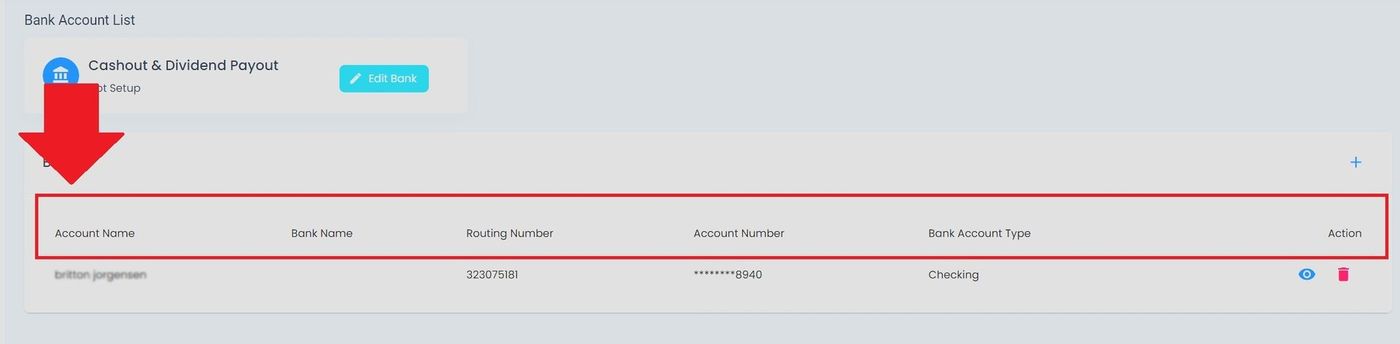
Bank Information Table Column Headers#
The Table: Bank Information List table includes the following columns:
Column: Account Name - Name assigned to identify this bank account
Column: Bank Name - Name of the financial institution
Column: Routing Number - Nine-digit routing number identifying the bank
Column: Account Number - Your account number at the bank
Column: Bank Account Type - Type of account (Checking or Savings)
Column: Action - Available actions for managing this bank account
Available Actions#
Add Bank#
Note
You can also add a bank by selecting the Add Bank button on the Bank Information page.
To add a new bank account:
Action: Select the Add Bank button.
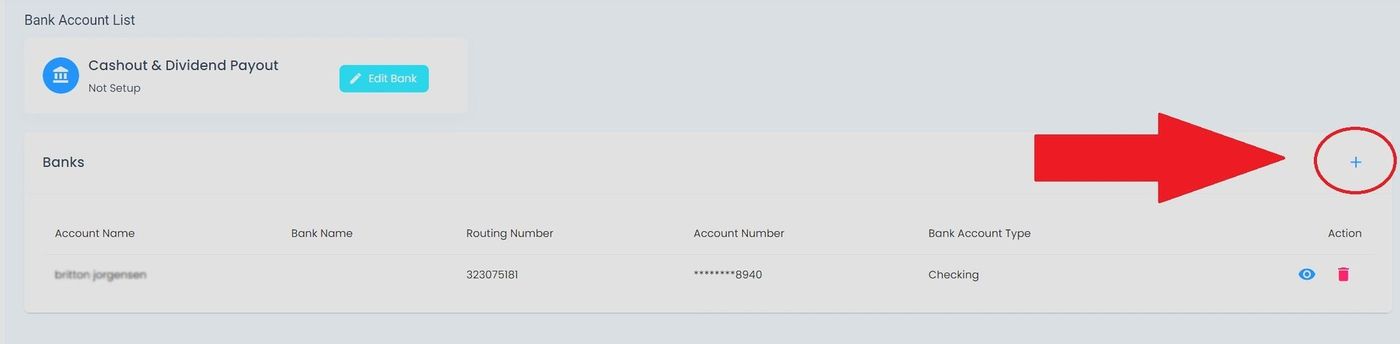
Add Bank Button Location#
Edit Bank Details or Add Bank#
Important
The only way to edit bank information is to add a new bank account. You cannot modify existing bank details directly.
To edit existing bank information:
Action: Select the Edit Bank button for the bank account you want to modify.
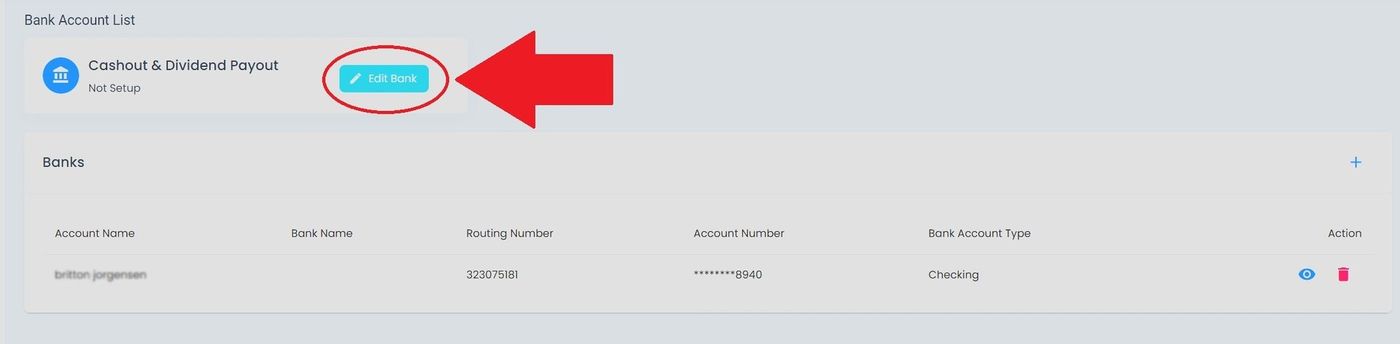
Edit Bank Button Location#
The Edit Bank popup will appear. To add a different bank, Action: Select the Add New Bank button.
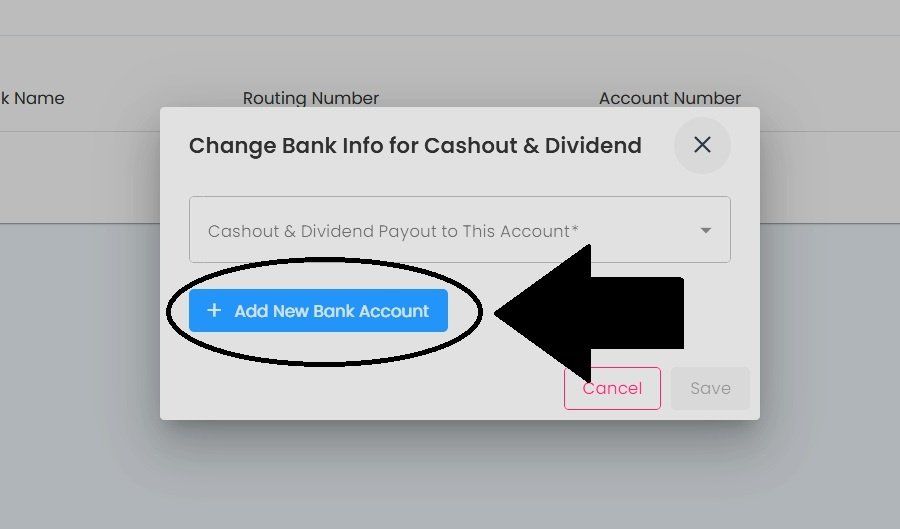
Add New Bank Button on Edit Bank Popup#
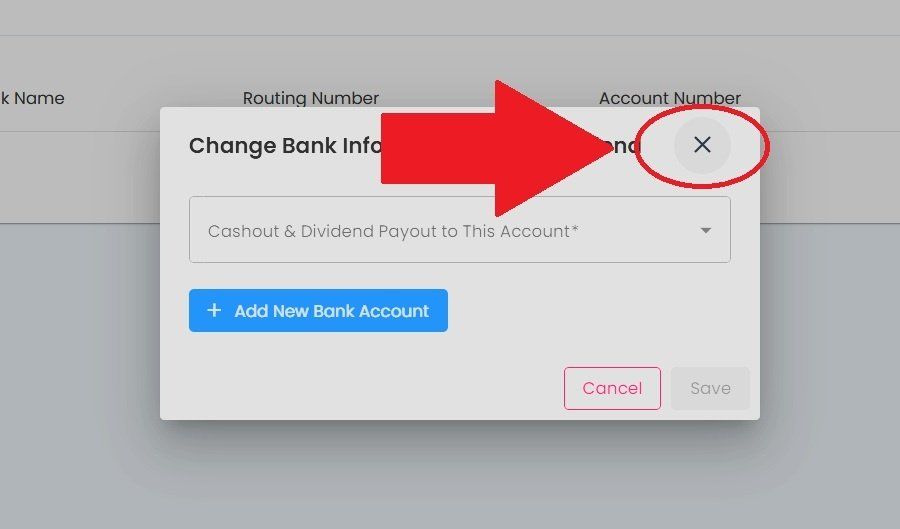
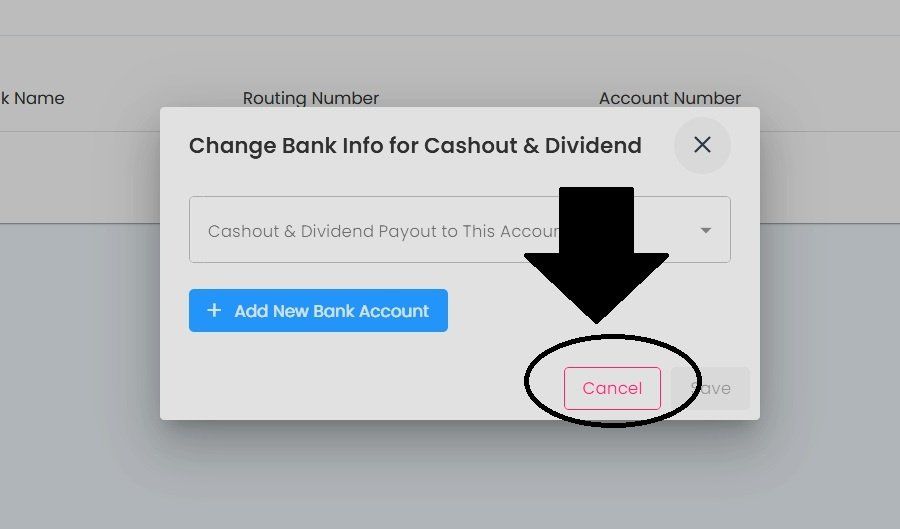
Enter New Bank Information#
The Bank Information popup will appear where you can enter new bank details.
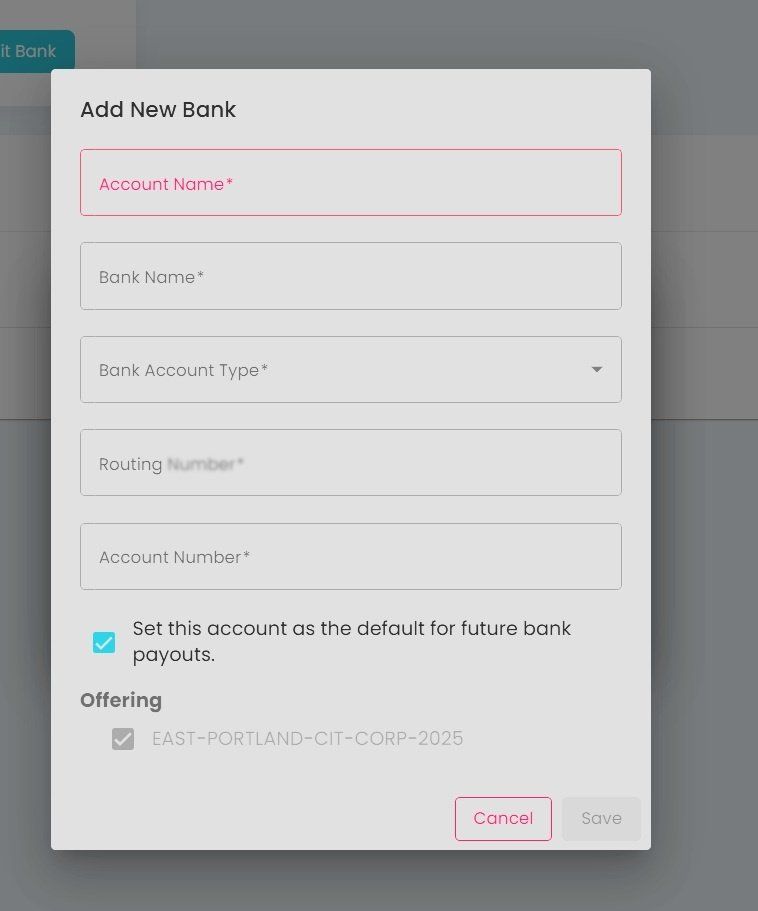
Bank Information Popup#
Select and Save New Bank#
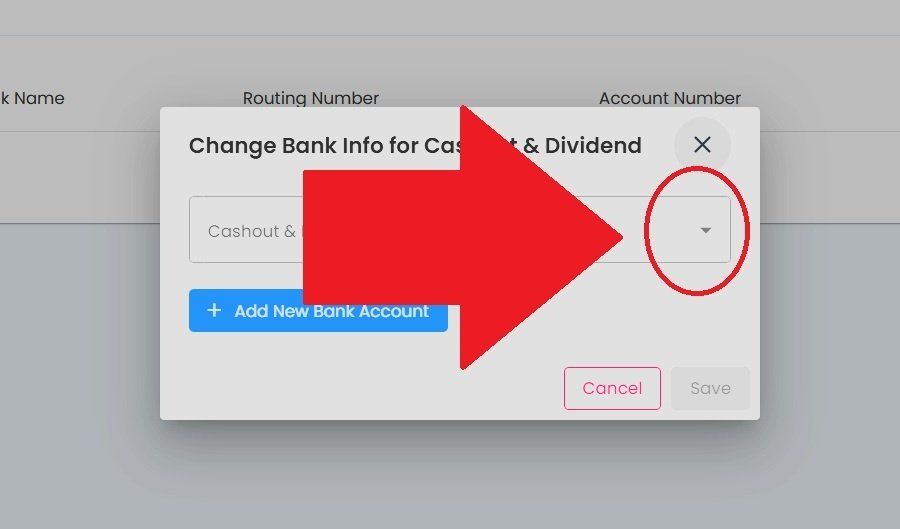
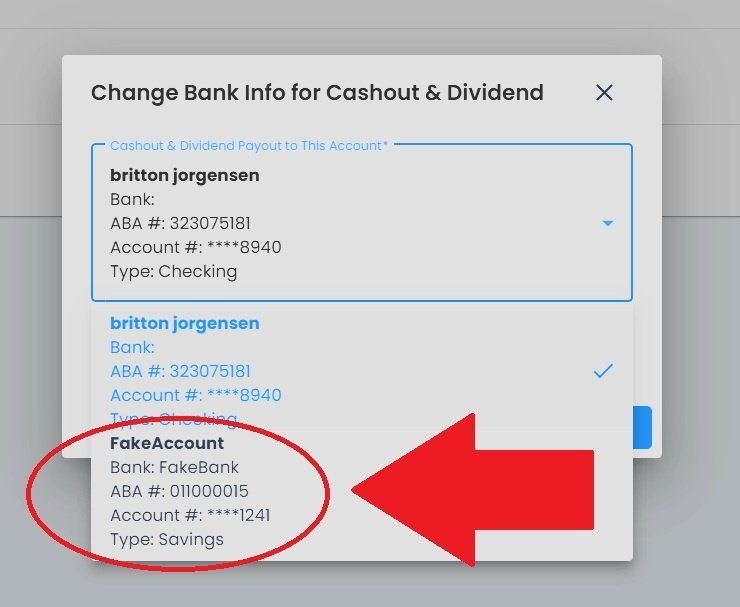
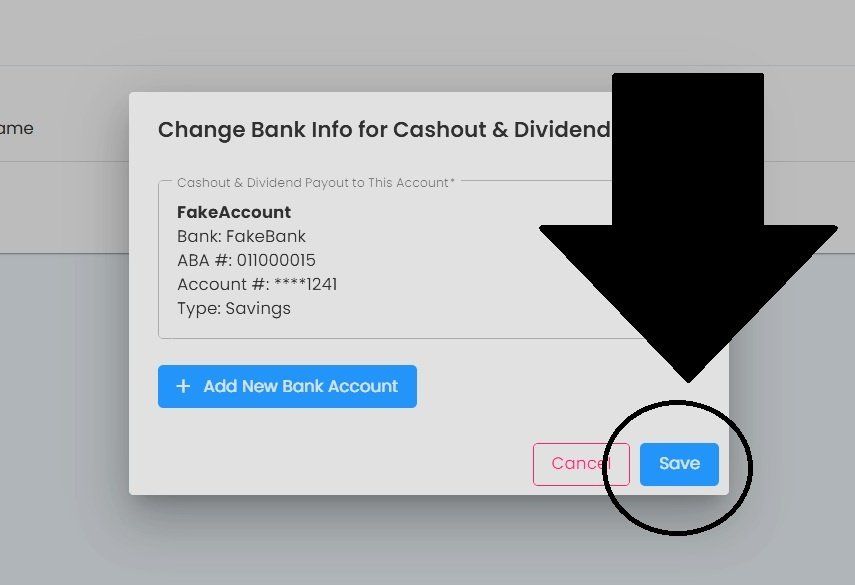
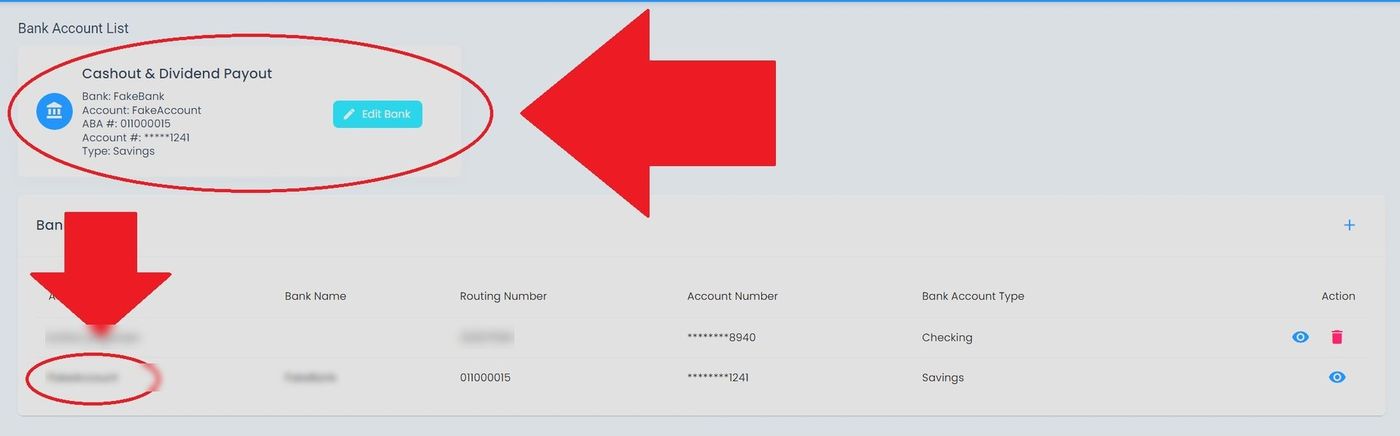
View Bank Details#
To view detailed bank information:
Action: Select the View Bank Details button for the bank account you want to review.
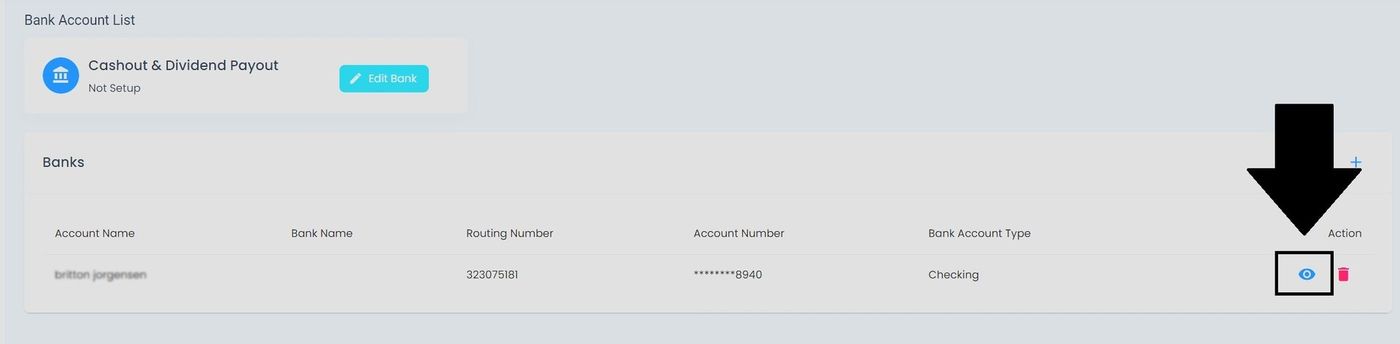
View Bank Details Button Location#
Remove Bank#
To remove a bank account from your profile:
Action: Select the Remove Bank button for the bank account you want to delete.
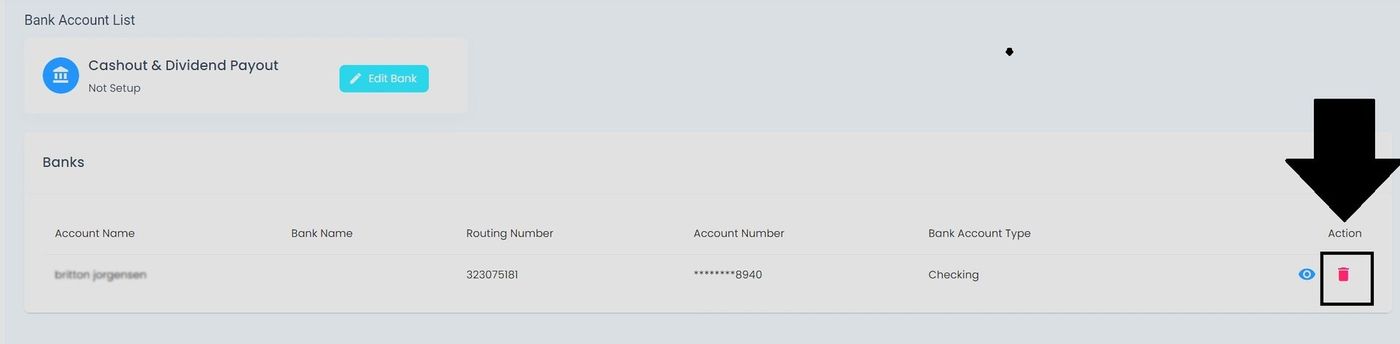
Remove Bank Button Location#