Dashboard#
Welcome to the Section: Dashboard section. This area displays all companies you have enrolled with as an investor and allows you to manage your investment status.
Dashboard Tiles#
Hover Over or Click a Tile to Explore Further
The tiles below offer quick access to dashboard actions. Hover over or click a tile to explore further.


Clicking Tiles Will Navigate
Clicking a tile will take you to the corresponding section or perform the indicated action.
Dashboard Homepage#
The Section: Dashboard section opens to display your enrolled companies:
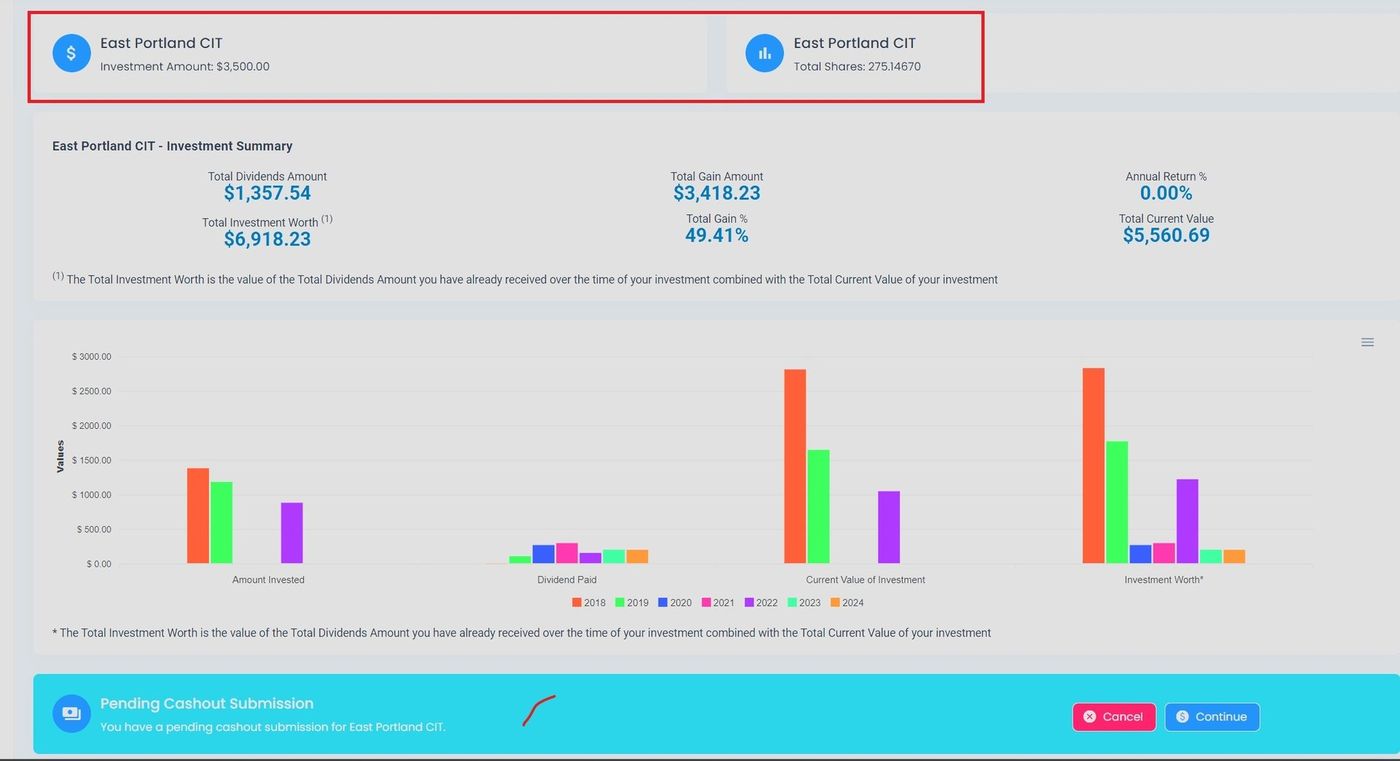
Investor Portal, Dashboard, Homepage#
Dashboard Sections#
The Section: Dashboard contains several key areas:
Section Features
For more information on navigating the dashboard:
View enrolled companies at a glance
Access quick actions for each company
Monitor investment summaries
Check notifications for pending items
Summary Section#
You can find the summary section displaying key investment metrics:
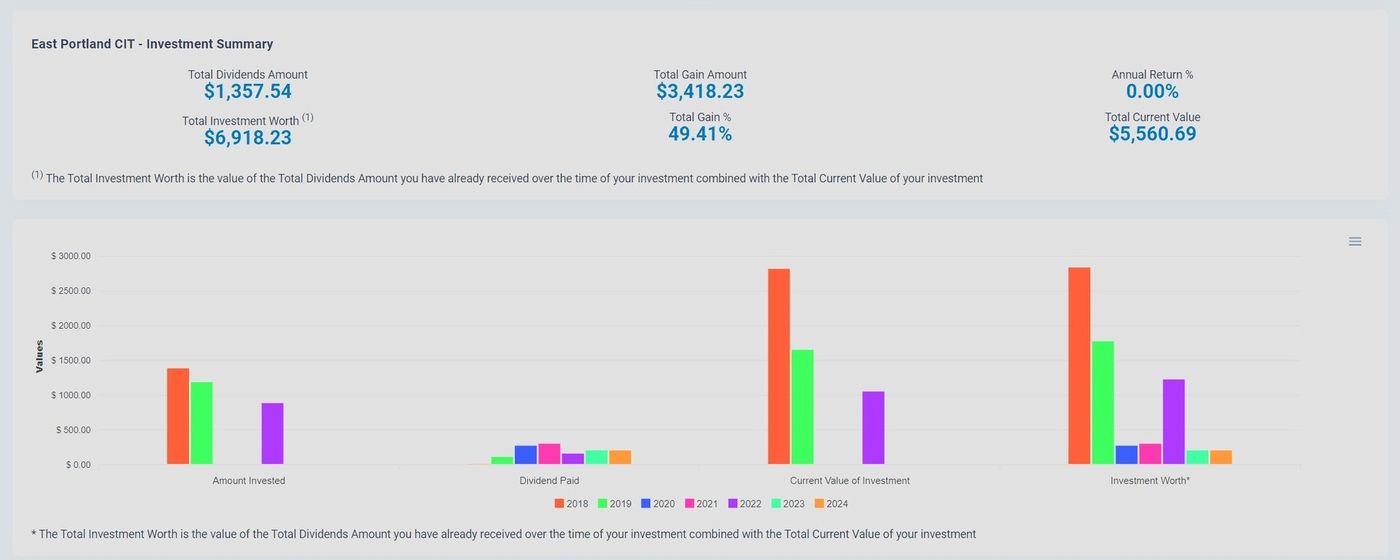
Investor Portal, Dashboard, Summary Section#
Investment Summary Graph#
Where to Find It
You can find the Section: Investment Summary Graph on the Section: Dashboard summary area.
Graph Location#
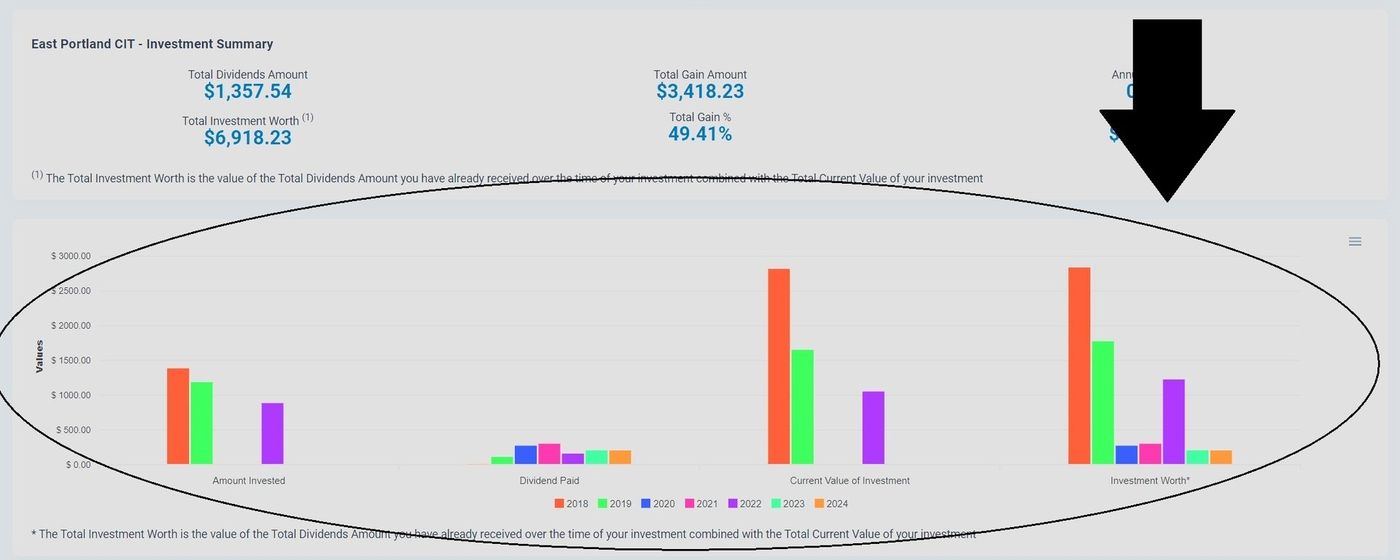
Investor Portal, Dashboard, Investment Summary Graph Location#
Graph Categories Highlighted#
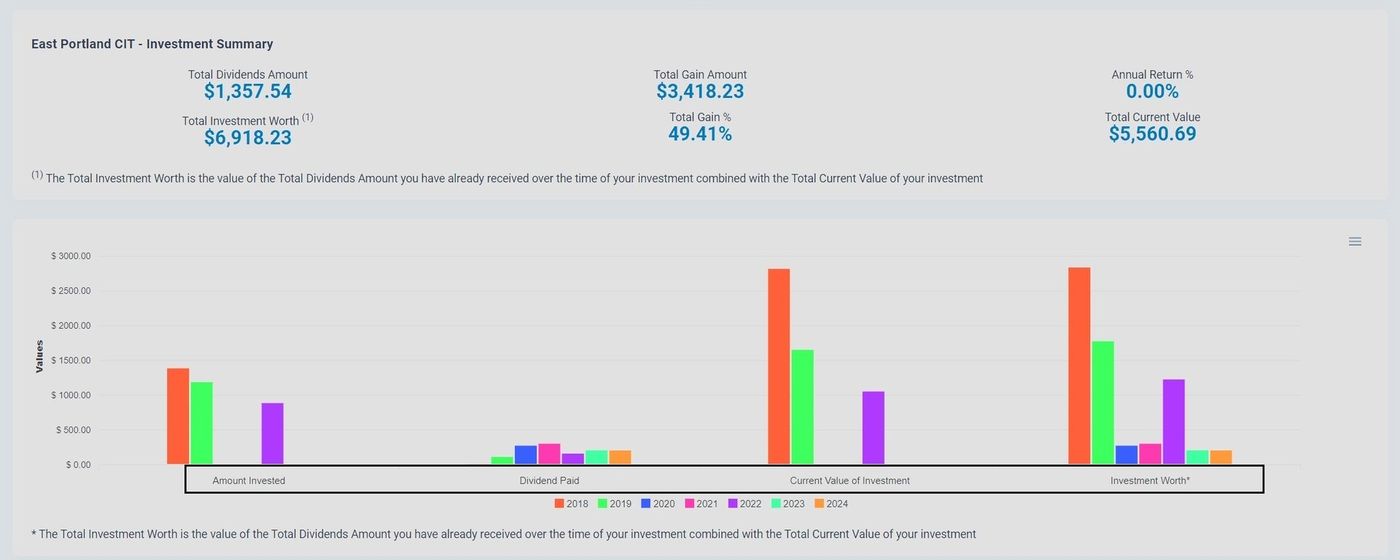
Investor Portal, Dashboard, Graph Categories Highlighted#
Corporation Name Highlighted#
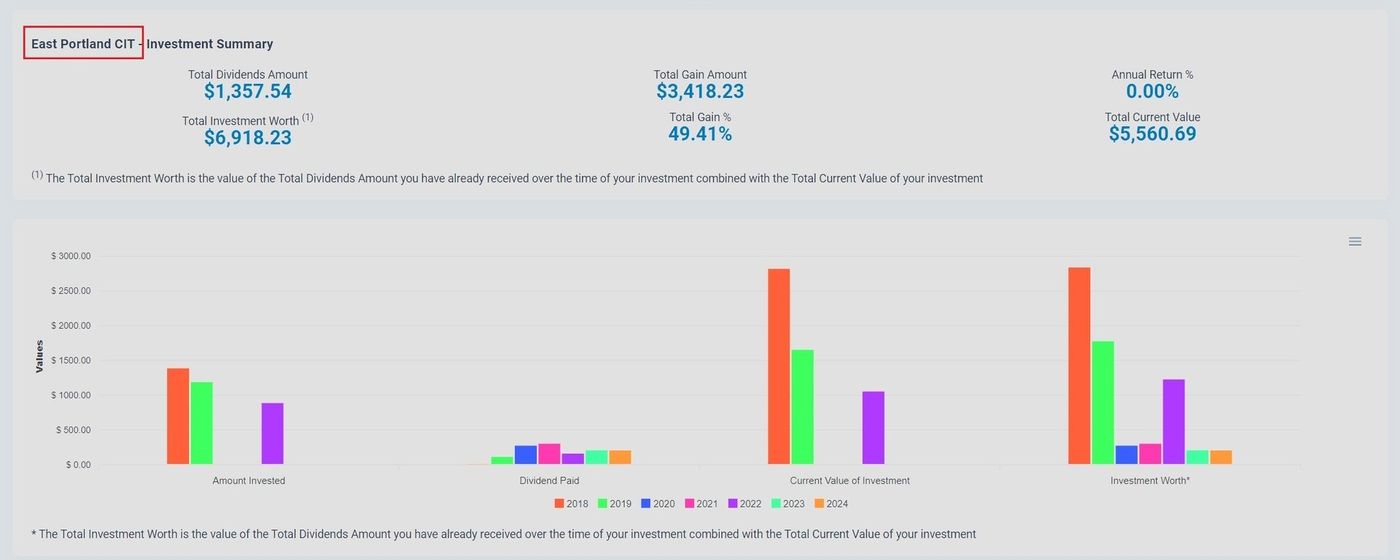
Investor Portal, Dashboard, Corporation Name Highlighted on Graph#
Notifications#
You can find the notifications at the bottom of the Section: Dashboard section:
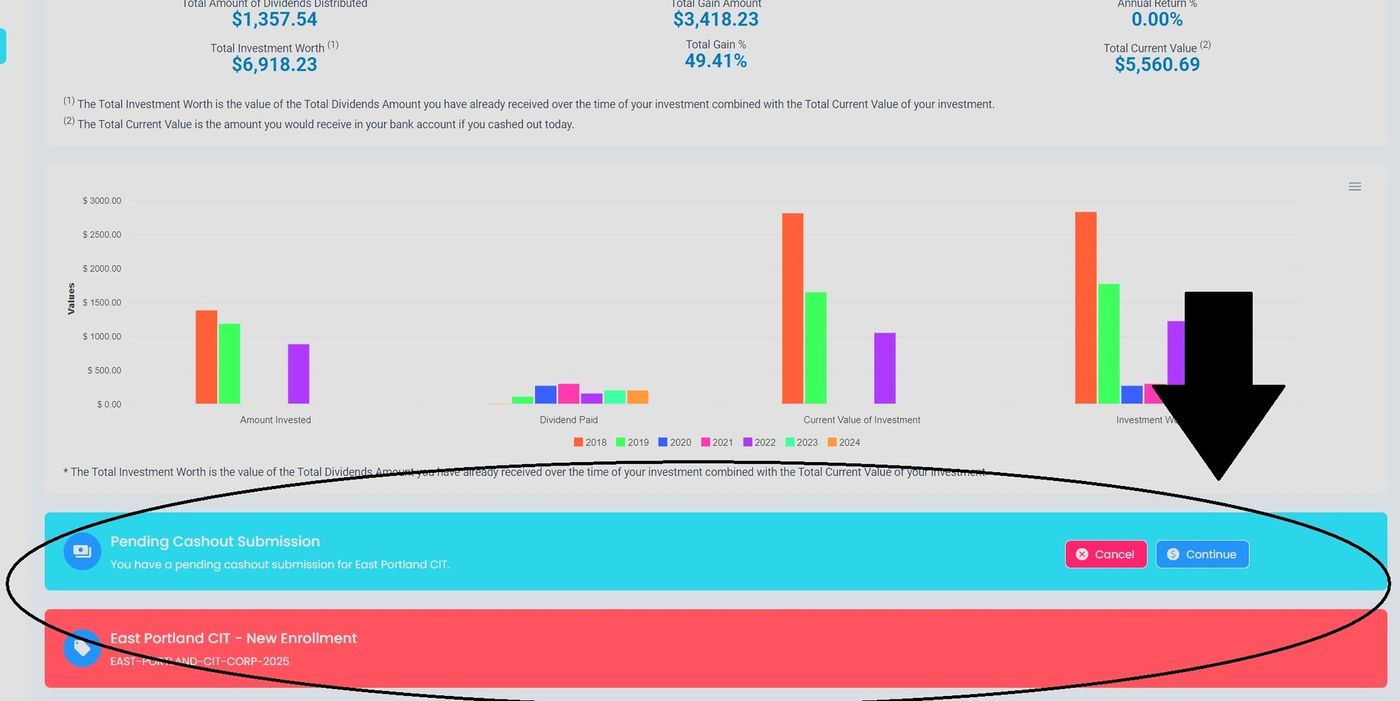
Investor Portal, Dashboard, Notifications at Bottom#
These notifications summarize pending items that may need your attention, such as:
Cashout submissions
New enrollments
Actions you can take (Continue or Cancel)