
Proxy#
The Section: Proxy section allows you to view and cast votes on shareholder proposals and corporate governance matters.
Location: Proxy#
You can find the Section: Proxy section in the Investor Portal:
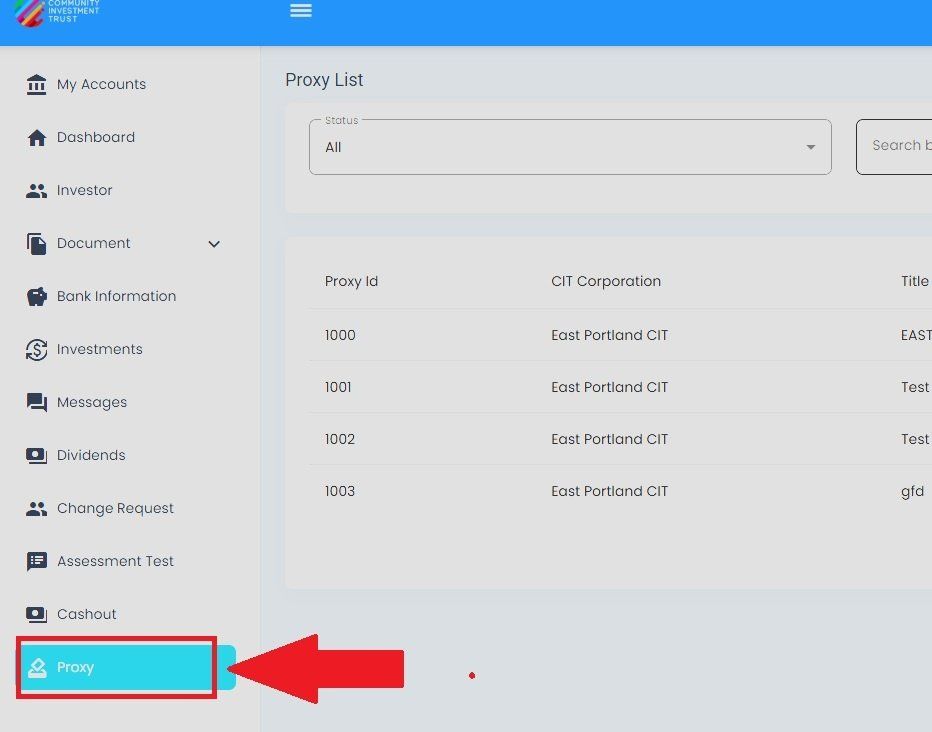
Proxy Section Location#
Proxy List#
The Table: Proxy List displays all available proxy voting opportunities and their current status.
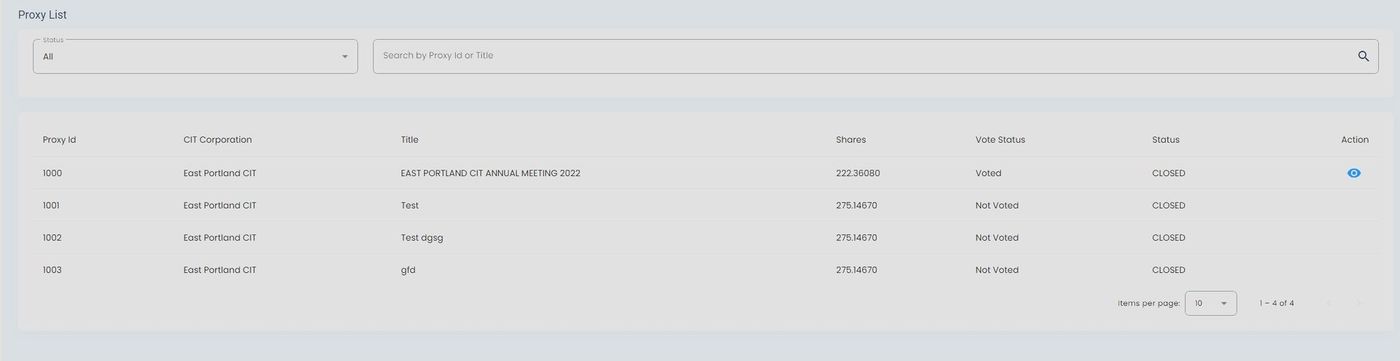
Proxy List Homepage#
Columns: Proxy List Table#
The Column: Columns for the Table: Proxy List table can be found at the top of the table:

Proxy List Table Column Headers#
The Table: Proxy List table includes the following columns:
Column: Proxy Id - Unique identifier for the proxy voting event
Column: CIT Corporation - Corporation associated with this proxy vote
Column: Title - Title or description of the proxy voting matter
Column: Shares - Number of shares you hold that are eligible to vote
Column: Vote Status - Status of your vote (Voted or Not Voted)
Column: Status - Overall status of the proxy event (Open or Closed)
Column: Action - Available actions for viewing details or casting your vote
Filtering and Searching#
To Filter by Status:#
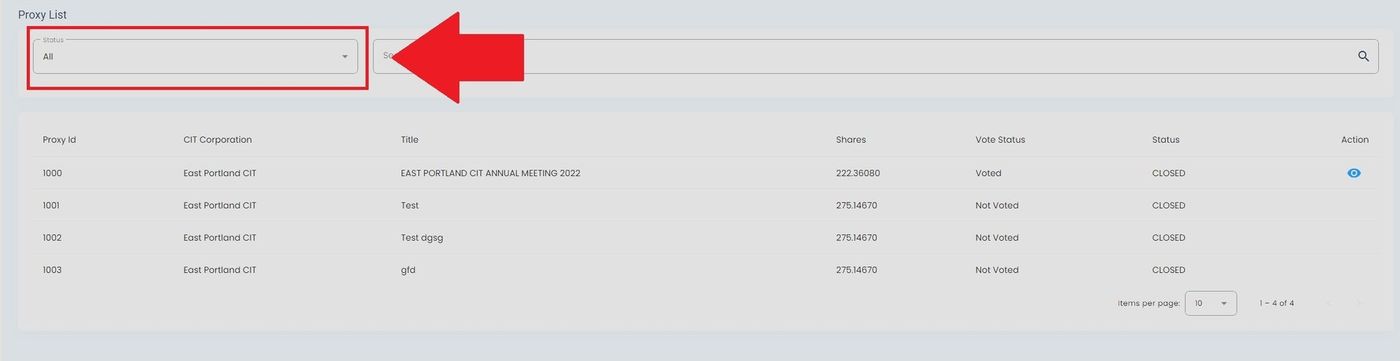
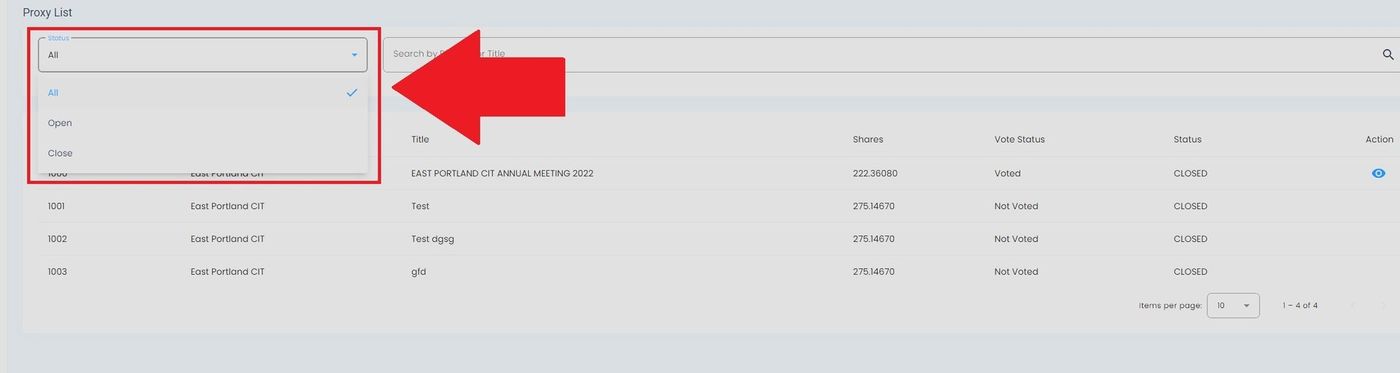
To Search for Specific Proxies:#
Action: Enter the search term in the search field.
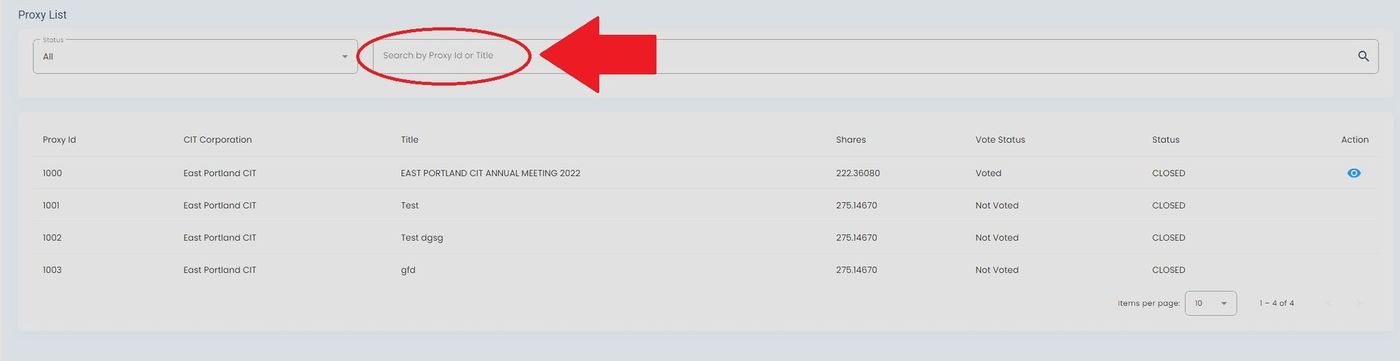
Search for Proxy Votes#
Viewing Proxy Details#
To View Proxy Details:#

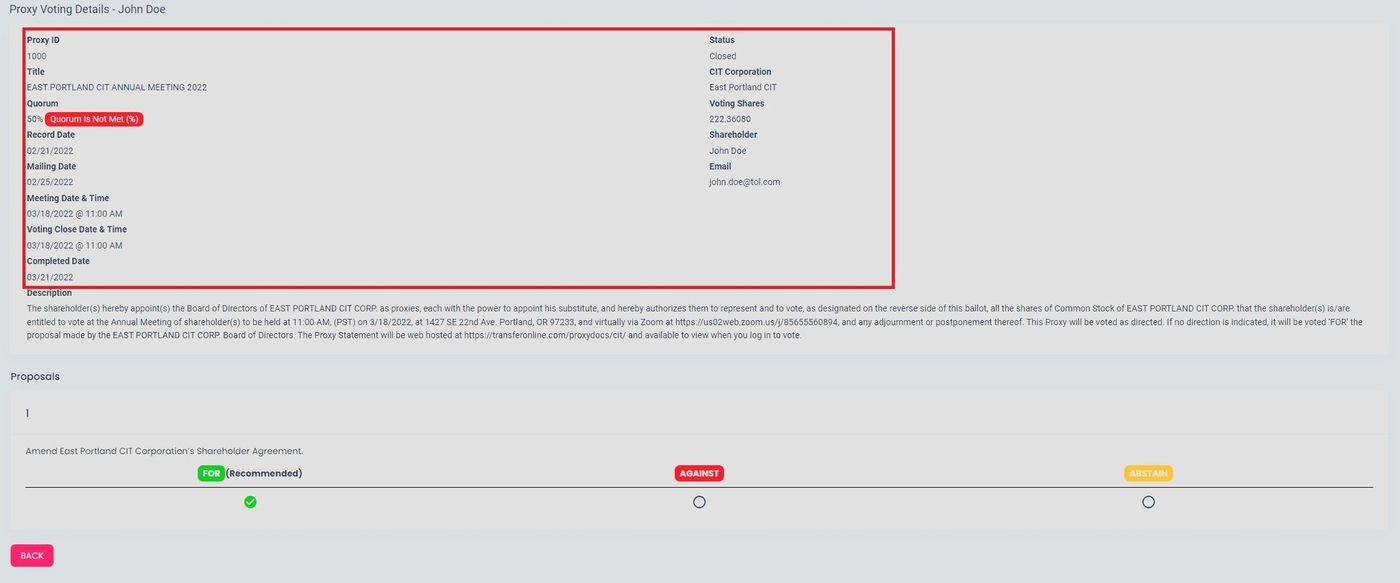
Proxy Information Sections#
The proxy details page includes:
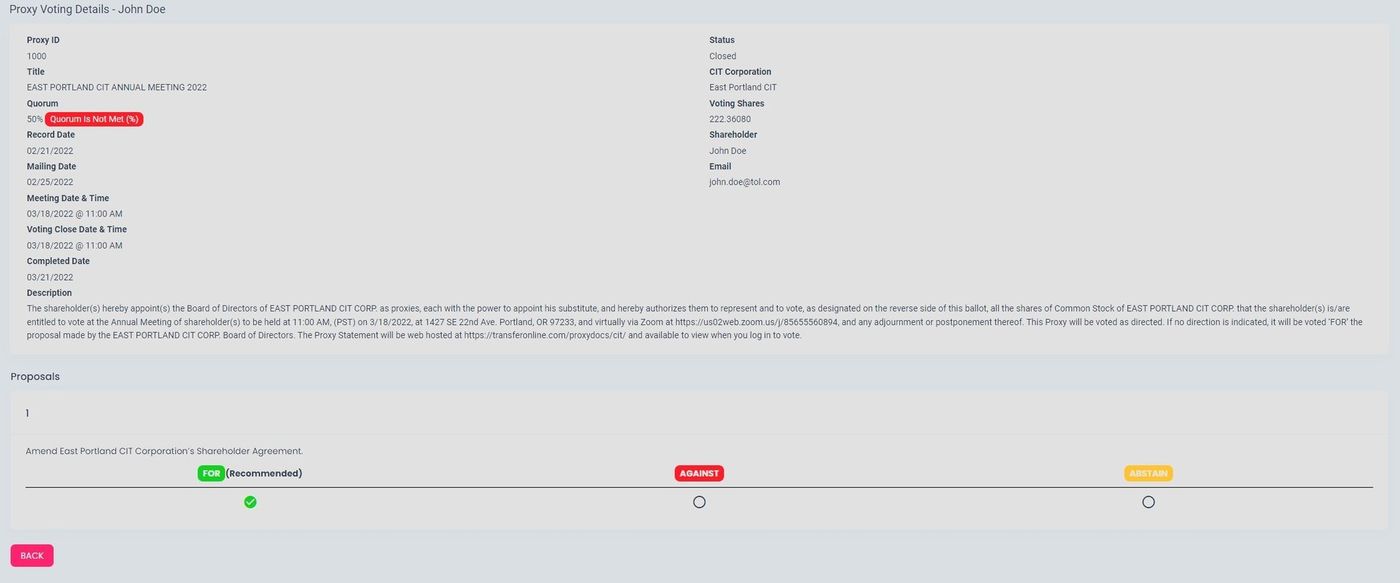
Complete Proxy Details View#
Description Section#
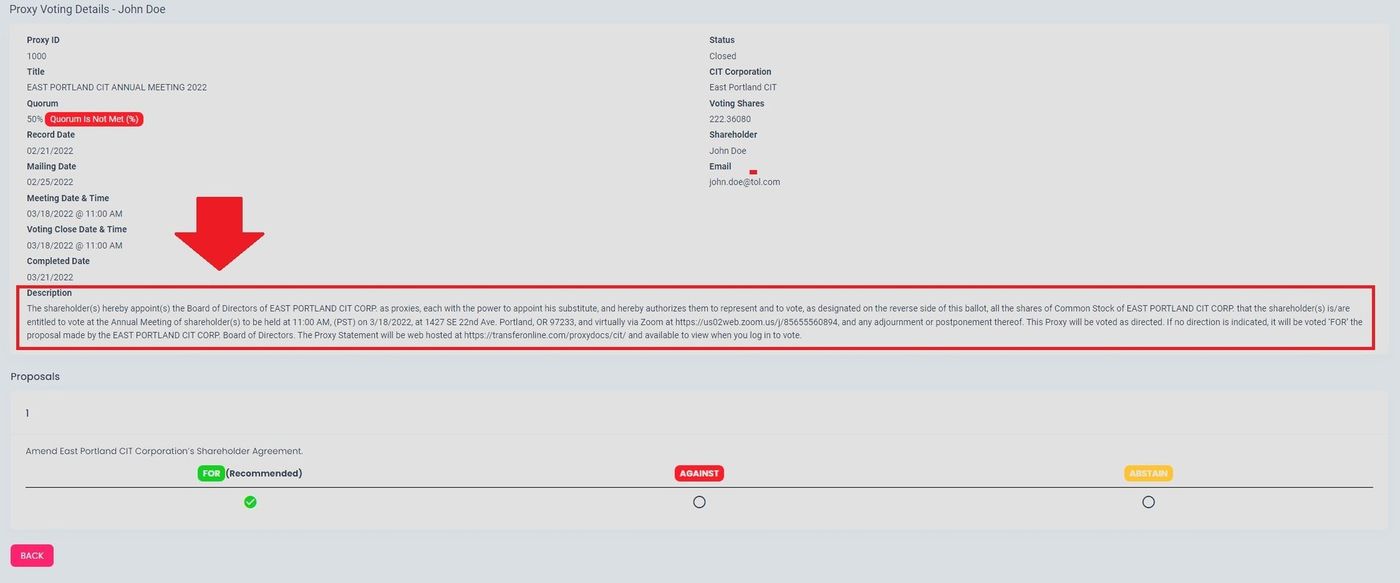
Proxy Description and Statement#
Quorum Status#
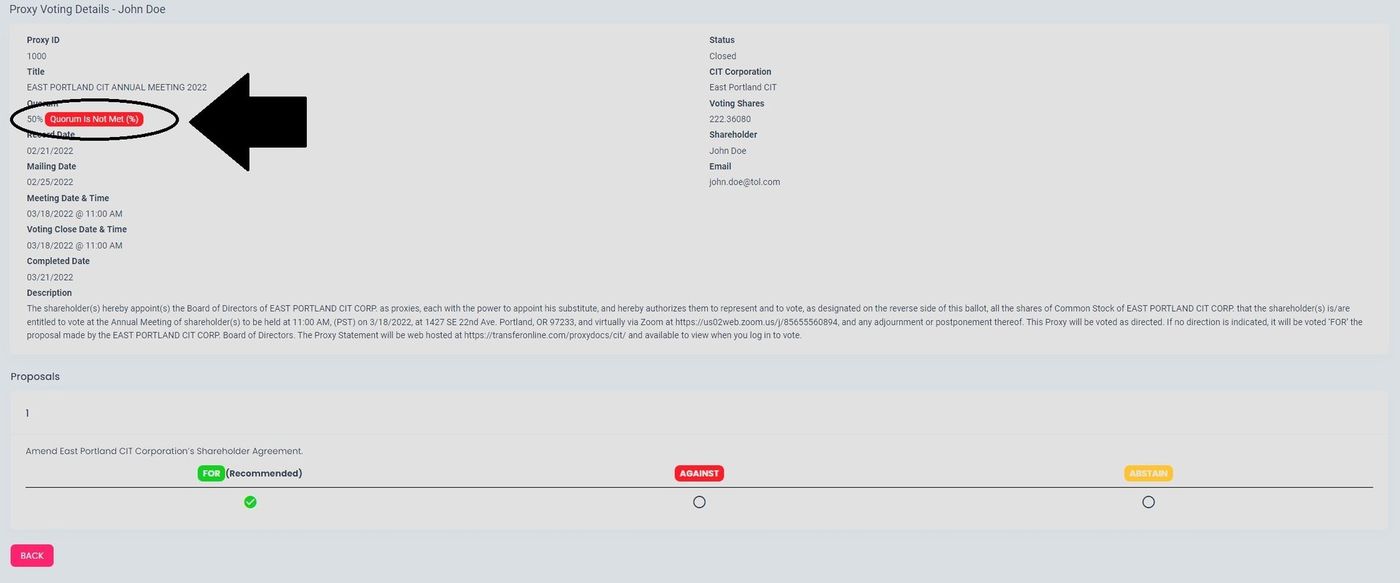
Quorum Status Indicator#
Note
The Item: Quorum field indicates whether sufficient shareholder participation has been achieved. A red “Quorum Is Not Met (%)” badge appears when the required voting threshold has not been reached.
Casting Your Vote#
Voting Options#
The voting interface presents clear options for each proposal:

Voting Options with Recommended Choice#
Recommended Options
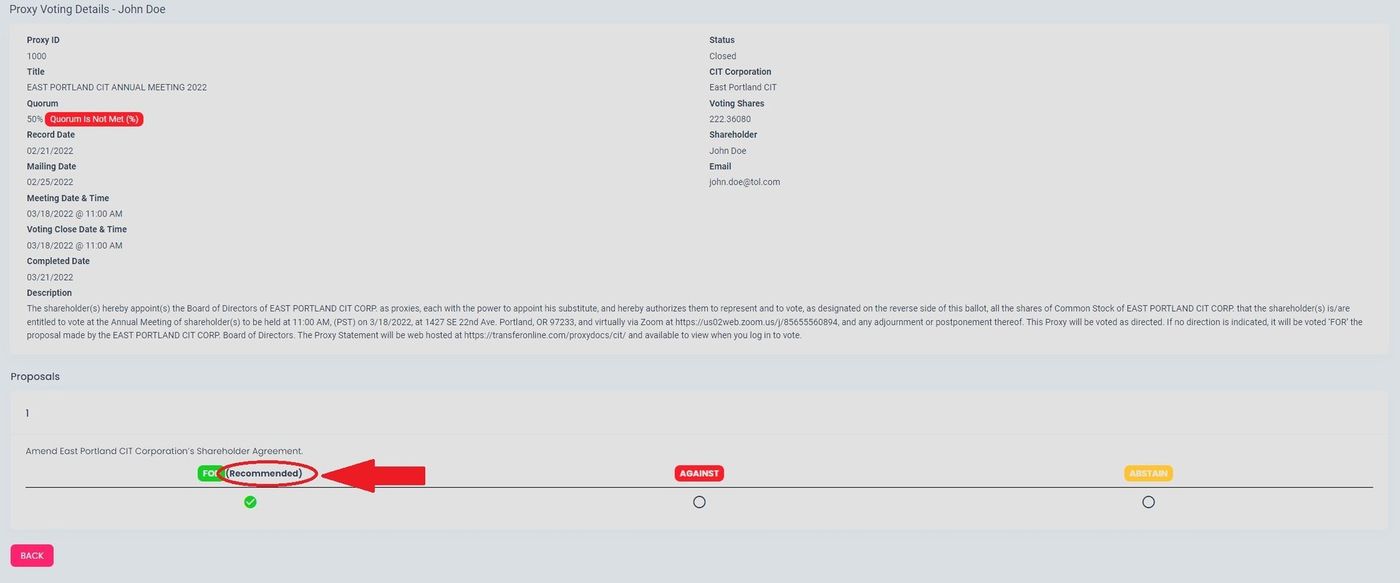
Recommended Option Indicator#
The Item: Recommended badge indicates the board’s suggested voting position on each proposal.
To Cast Your Vote:#
Action: Select your voting choice for each proposal.
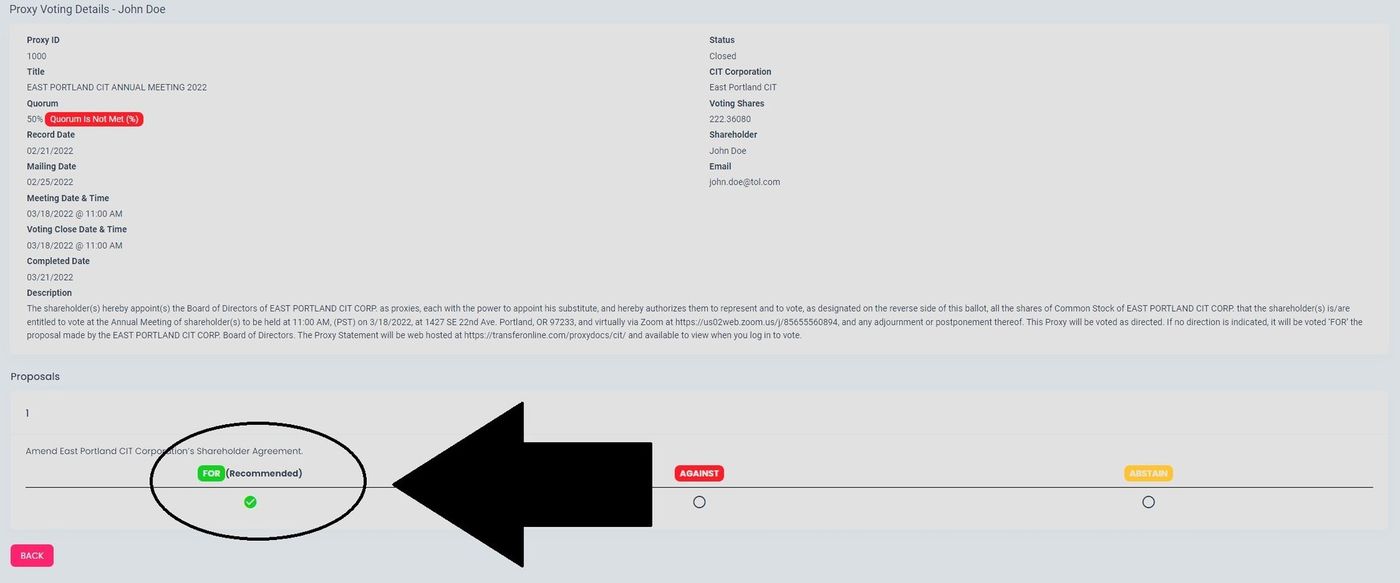
Vote Selection Example#
Review your selections and Action: Submit your votes.
Voter Submission Information#
After voting, the submission details are recorded:
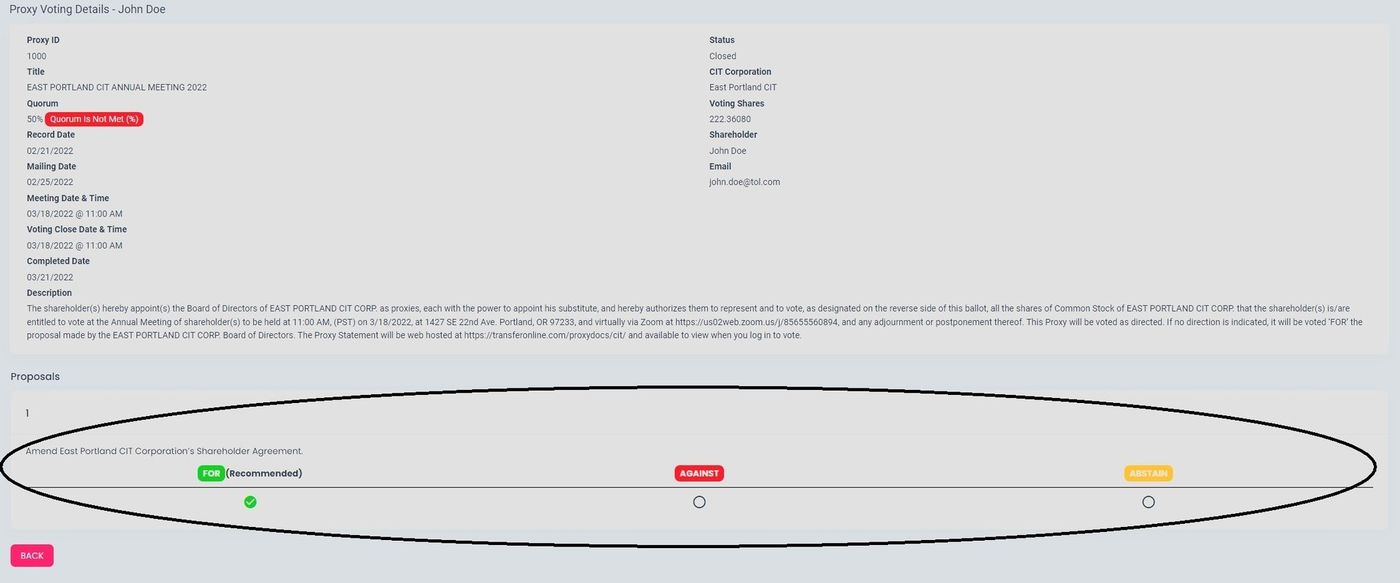
Voter Submission Information#
Navigation#
To return to the proxy list:
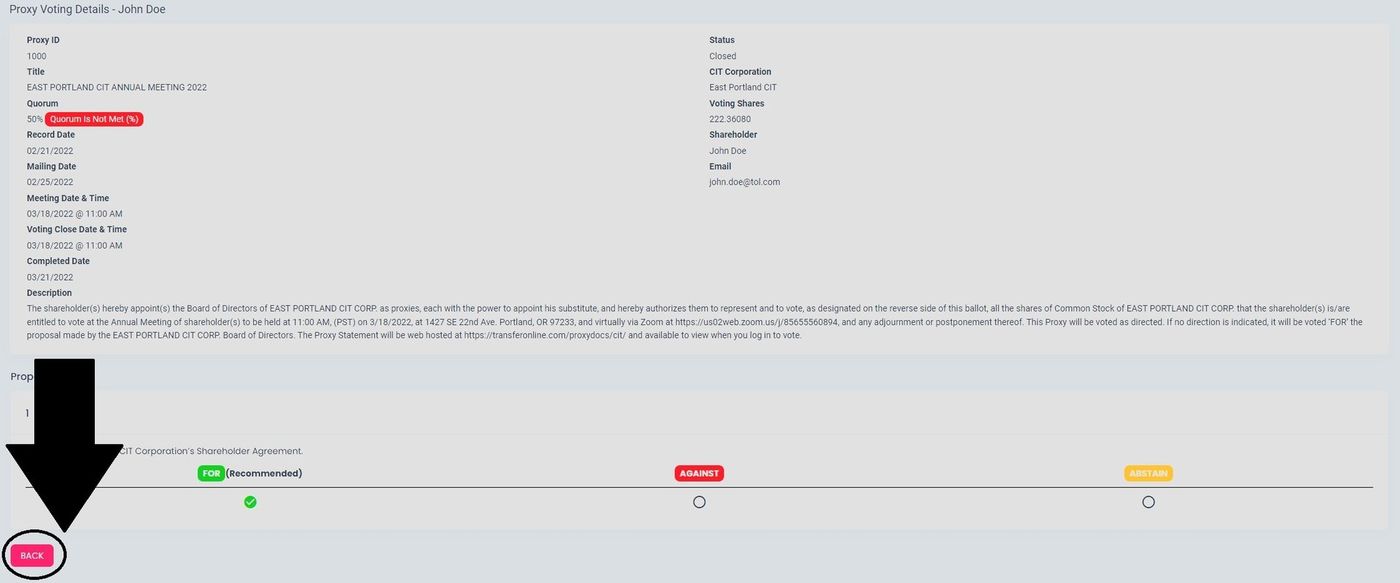
Back Button Location#
Action: Select the Action: Back button to return to the main proxy list.
Viewing Vote Details#
To review your submitted votes:

View Vote Details Link#
Action: Select the Action: View Vote Details link to review your voting history and selections.