
Proxy#
The Section: Proxy section allows community users to manage proxy voting records and related documentation.
Features: Proxy#
The Section: Proxy section allows you to:
Location#
The Section: Proxy section is located in the Item: Primary Sidenavigation menu.
Proxy List Overview#
The Section: Proxy List displays all proxy records for your organization.
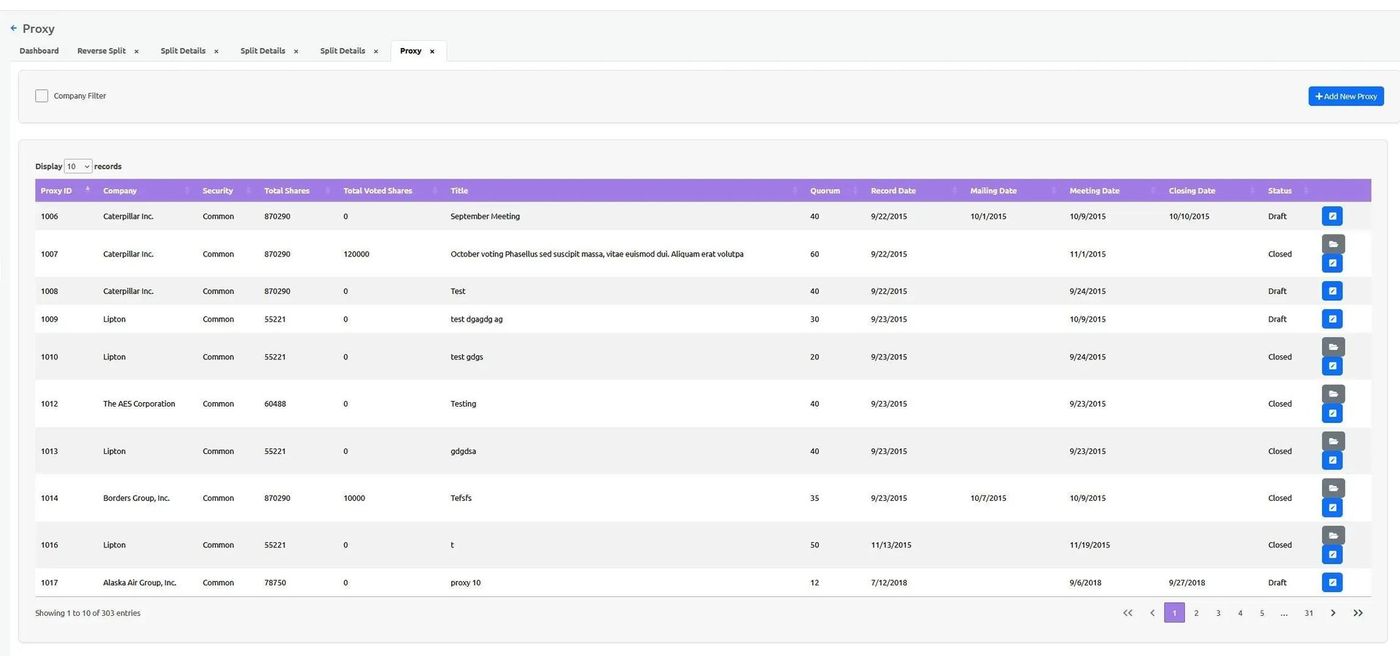
Proxy List Overview#
Filtering the Proxy List#
Use the filter dropdowns to narrow down the proxy list.
Filter by Sponsor Organization#
Action: Select a Sponsor Organization from the dropdown to filter proxies.
Action: Open the dropdown.
Action: Select an organization (e.g., “Community Investment Trust”).
Filter by CIT Corporation#
Action: Select a CIT Corporation from the dropdown to further filter proxies.
Action: Open the dropdown.
Action: Select a corporation (e.g., “East Portland CIT”).
Search Functionality#
Use the search field to find specific proxies by ID or title.
Action: Locate the search field with placeholder text “Search by Proxy Id or Title”.
Action: Enter your search term.
Results will filter automatically based on your search.
Tip
You can search by partial Proxy ID or title to find matching records quickly.
View Proxy Details#
Action: Click on a proxy record to view its detailed information.
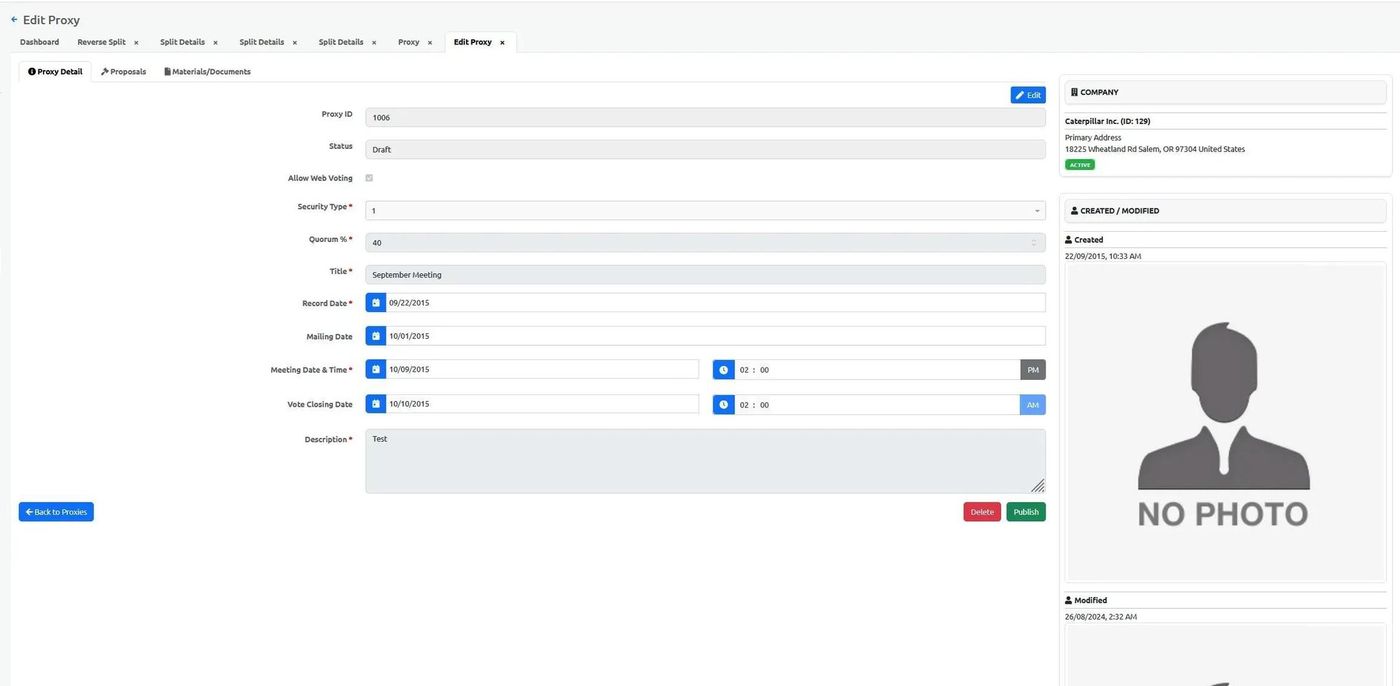
Proxy Details View#
Proxy Proposals#
View proposals associated with the proxy:
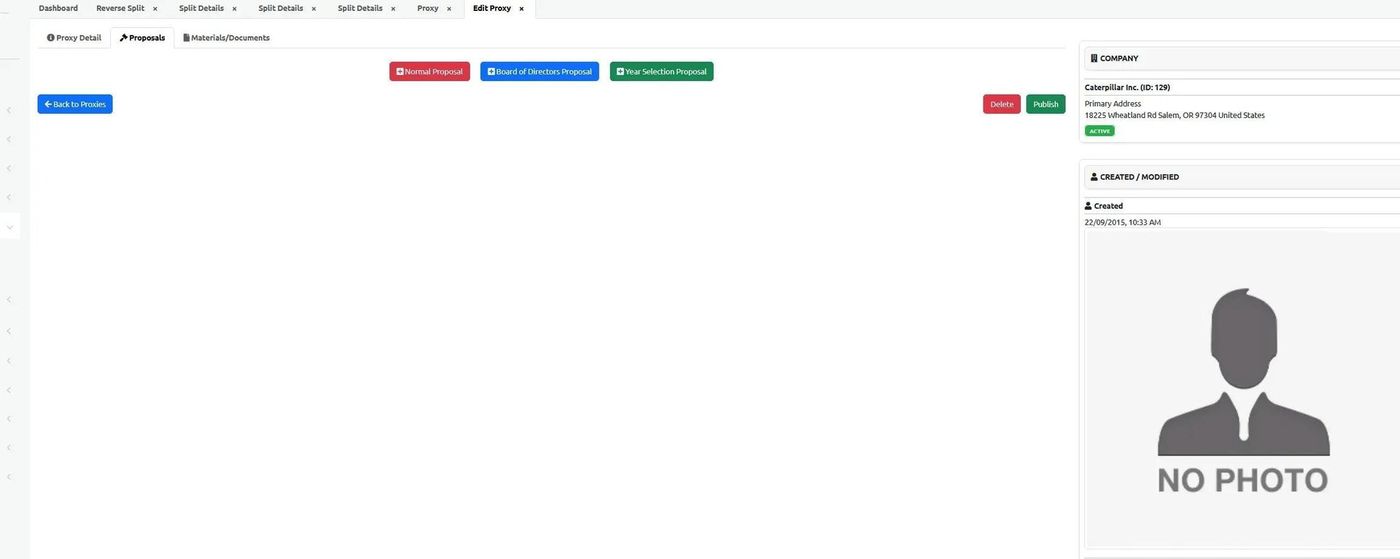
Proxy Proposals#
Proposal Details#
Action: Click on a proposal to view its details:
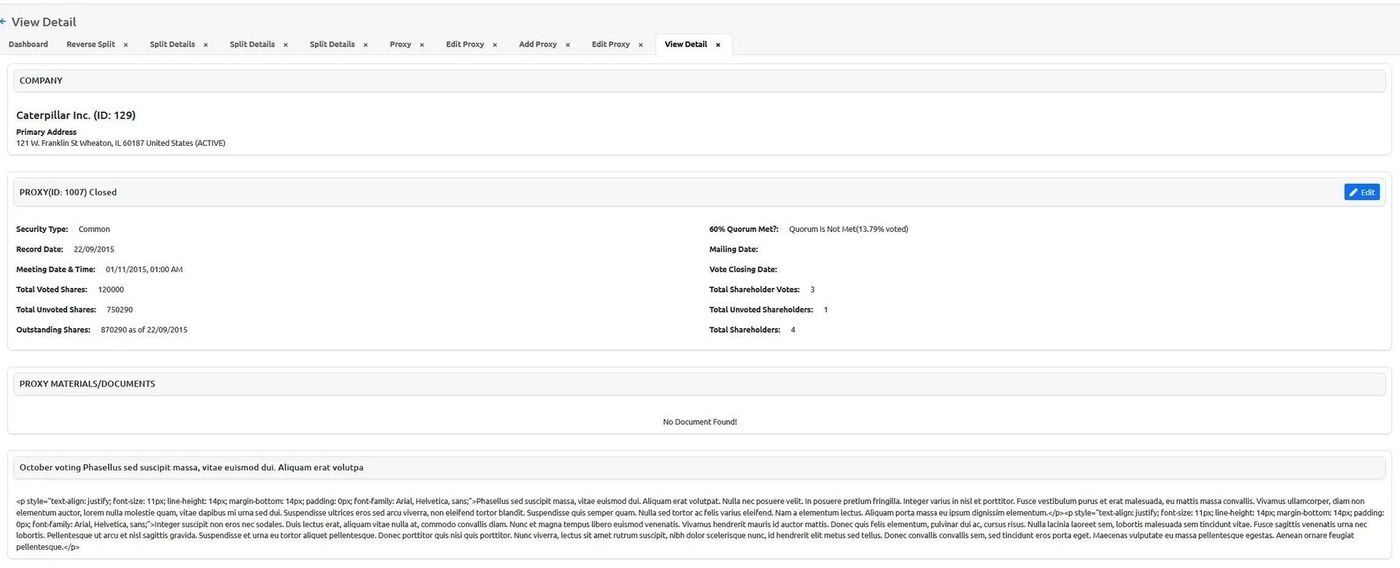
Proposal Details#
Proxy Documents#
View documents associated with the proxy:
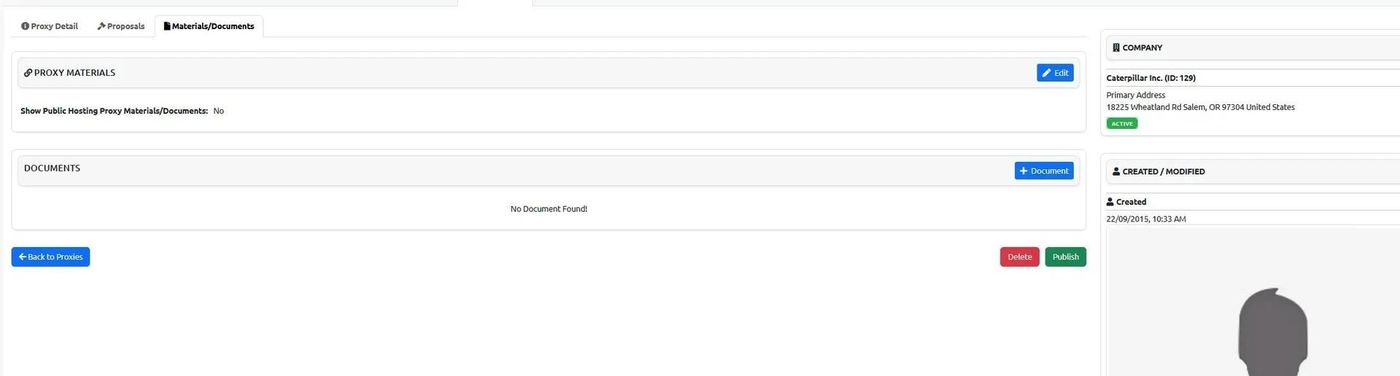
Proxy Documents#
Add New Proxy#
To add a new proxy record:
Action: Click the button.
Fill in the proxy details:
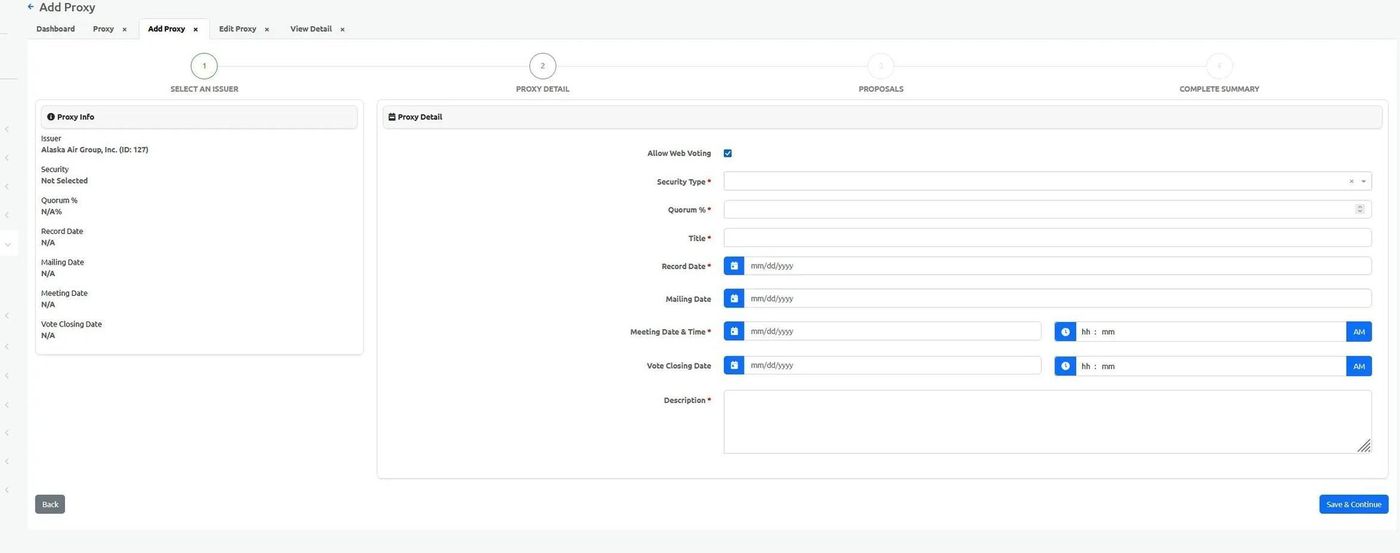
Fill In Proxy Detail#
Note
After adding a proxy, you can add proposals and documents to complete the proxy record.